How to find all pages on a website: 7 methods
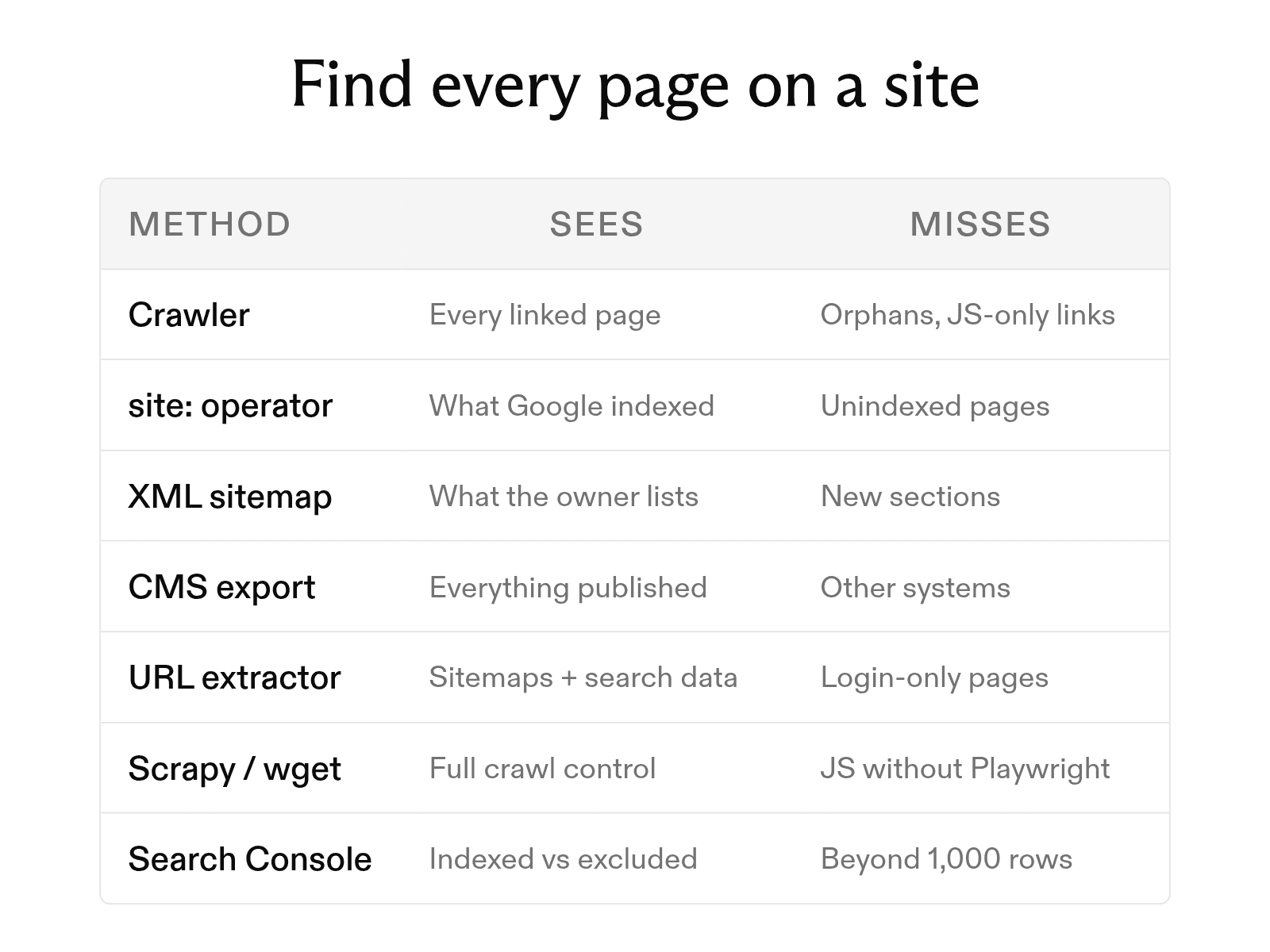

There is no single reliable way to find every page on a website. Crawlers only discover pages they can reach, sitemaps can be incomplete, and search engines maintain their own partial view of a site. If completeness matters, the best approach is usually to compare two or more sources.
Seven methods cover most cases: crawl the site, use the site: search operator, inspect its XML sitemap, query the CMS, use a no-code URL extractor, run command-line tools, or check Google Search Console. Each sees the site from a different angle, which is why their results rarely match perfectly.
At Exa, we’re usually interested in what comes next: turning a large set of discovered URLs into content an application or AI agent can actually use. Once you have your URL list, Exa Contents can retrieve clean text, highlights, or structured information from the pages in bulk. This guide covers the seven discovery methods first, then shows how to work with the resulting pages using Exa.
Core URL discovery methods
Begin with these four foundational methods. The sections that follow explain how to extend and validate the results with specialized tools.
-
Web crawler. A crawler loads the homepage, follows every internal link, and records each URL it reaches. It finds what a visitor or search engine could find by clicking. It misses orphan pages that no internal link points to, and it can miss links that only appear after JavaScript runs.
-
Search operators. Type
site:example.cominto Google to list the pages Google has indexed for that domain. Add a path, such assite:example.com/blog, to narrow the list. Google says the results are not always exhaustive and that bigger sites should not expect to see all their URLs. Pages that are not indexed never appear. -
Sitemap. Most sites publish an XML file that lists the URLs the owner wants search engines to crawl. It is fast to read and often includes pages a crawler would miss. It is only as complete as the system that writes it, so it can leave out new sections or keep URLs that now redirect.
-
CMS. If you have admin access, the content management system holds the most complete list of published pages, posts, and products. Most CMSs can list or export them. The CMS may not know about pages served by other systems on the same domain, such as a help center or a separate app.
Finding sitemaps with robots.txt
Before running a crawler or extractor, check example.com/robots.txt for a line beginning Sitemap:. If no sitemap is listed, try example.com/sitemap.xml. This quick check can reveal a ready-made URL source and reduce unnecessary crawling.
Large sites often publish a sitemap index. A sitemap index is an XML file that lists other sitemaps instead of pages. Open each child sitemap to reach the URLs. Google limits a single sitemap to 50,000 URLs or 50 MB uncompressed, which is why big sites split them. Many sitemap indexes point at gzipped child sitemaps ending in .xml.gz. Download and decompress them before you read them.
WordPress sites running version 5.5 or later publish a sitemap index at /wp-sitemap.xml by default. Each WordPress sitemap holds up to 2,000 entries unless a developer changes that limit. If the site's settings discourage search engines from indexing it, WordPress turns that sitemap off.
No-code URL extraction tools
If you need a one-time inventory of a site you do not own, a no-code URL extractor can combine several discovery methods in one interface.
-
Firecrawl's URL extractor maps a site using its sitemaps, search engine data, and cached pages. It returns each URL with its page title and description, and it is free to use without signing up.
-
Simplescraper's URL extractor reads a site's sitemaps and other discovery sources, then returns the complete list as a CSV or TXT file. It is also free and requires no registration.
Both tools use the same three-step process.
-
Enter the domain. Paste the homepage URL into the input field.
-
Run the extractor. Click Extract URLs in Firecrawl or Get URLs in Simplescraper, then wait a few seconds.
-
Export the list. Copy the URLs to your clipboard or download the CSV, then remove any images, feeds, and unnecessary query strings.
Developer and command-line crawling tools
For greater control over crawl depth, filters, and output format, build or run the crawl yourself. The following three tools cover most sites.
- Scrapy is a Python crawling framework. A
CrawlSpiderwith aLinkExtractorfollows every internal link and records each URL. Run it withscrapy runspider allpages.py -o urls.csv.
from scrapy.linkextractors import LinkExtractor
from scrapy.spiders import CrawlSpider, Rule

class AllPages(CrawlSpider):
    name = "allpages"
    allowed_domains = ["example.com"]
    start_urls = ["https://example.com/"]
    rules = [Rule(LinkExtractor(), callback="parse_item", follow=True)]

    def parse_item(self, response):
yield {"url": response.url}-
wget can crawl a site without saving its files. The command
wget --spider -r -l0 -nv https://example.com/follows links without a depth limit and logs every URL it checks. Without-l0, wget stops after five levels. -
Playwright handles JavaScript-rendered links. It loads the page in a headless browser, waits for the network to go idle, and then reads every link. Playwright discourages
networkidlefor tests and points to explicit assertions instead; for link discovery, there is nothing to assert against, so waiting for the network to settle is the practical choice. To build the full list, run it for each URL in a queue and add any new links on the same domain back to the queue.
from playwright.sync_api import sync_playwright

with sync_playwright() as p:
    browser = p.chromium.launch()
    page = browser.new_page()
    page.goto("https://example.com/", wait_until="networkidle")
    links = page.eval_on_selector_all("a[href]", "els => els.map(e => e.href)")
    print(sorted(set(links)))
    browser.close()
BeautifulSoup is the usual first choice and the usual first mistake. It parses HTML you hand it. It does not fetch pages, follow links, or run JavaScript, so a link a script adds after load never reaches it. Pair it with a fetcher and a crawl loop, or use one of the three tools above.
How to choose the right method
Choose a method by answering three questions.
-
Is the site static or JavaScript-heavy? For a static site, use the sitemap, wget, or Scrapy to find pages quickly. For a site that builds its navigation with JavaScript, use a tool that renders pages, such as Playwright or Firecrawl's extractor.
-
Is the site small or large? Any method can handle a site with a few hundred pages. A site with hundreds of thousands of URLs requires the sitemap index first, followed by a crawler with controls for concurrency and request rate to avoid overloading the server.
-
Do you write code? Without code, read the sitemap, run a no-code extractor, and review the results of a
site:example.comsearch. With code, Scrapy gives the most control, and wget is the fastest thing to run from a terminal.
Google Search Console for owned sites
If you own the site, Google Search Console provides another source for validating the pages Google knows about. Open Indexing, then Pages. The report separates indexed URLs from non-indexed URLs, and a table explains why each excluded group was not indexed. Click a row to see example URLs, then use the export button to download them. The example list is limited to 1,000 rows, so a large site will not export every URL this way. Combine the export with the sitemap to find pages Google has never seen.
FAQ
How do I find orphan pages on a website?
Compare two lists. Crawl the site to get every URL reachable through links, then pull the URLs from the sitemap, the CMS, or Search Console. A no-code extractor gets you the second list in a few seconds if you do not want to write the sitemap parser. Any URL that appears in the second list and not in the crawl is an orphan page.
Can I find all pages on a website I do not own?
You can find every public page that is linked, listed in a sitemap, or indexed by a search engine. Pages behind a login, along with unlinked pages absent from every sitemap, remain hidden from external tools.
What can I do with the URL list after a crawl?
Most teams use the list for a content audit, a migration redirect map, or text extraction. For extraction, Exa's Contents API accepts a list of URLs and returns clean text, highlights, or a summary for each page.
Cheers,
Keep learning
Browse all Learn articles →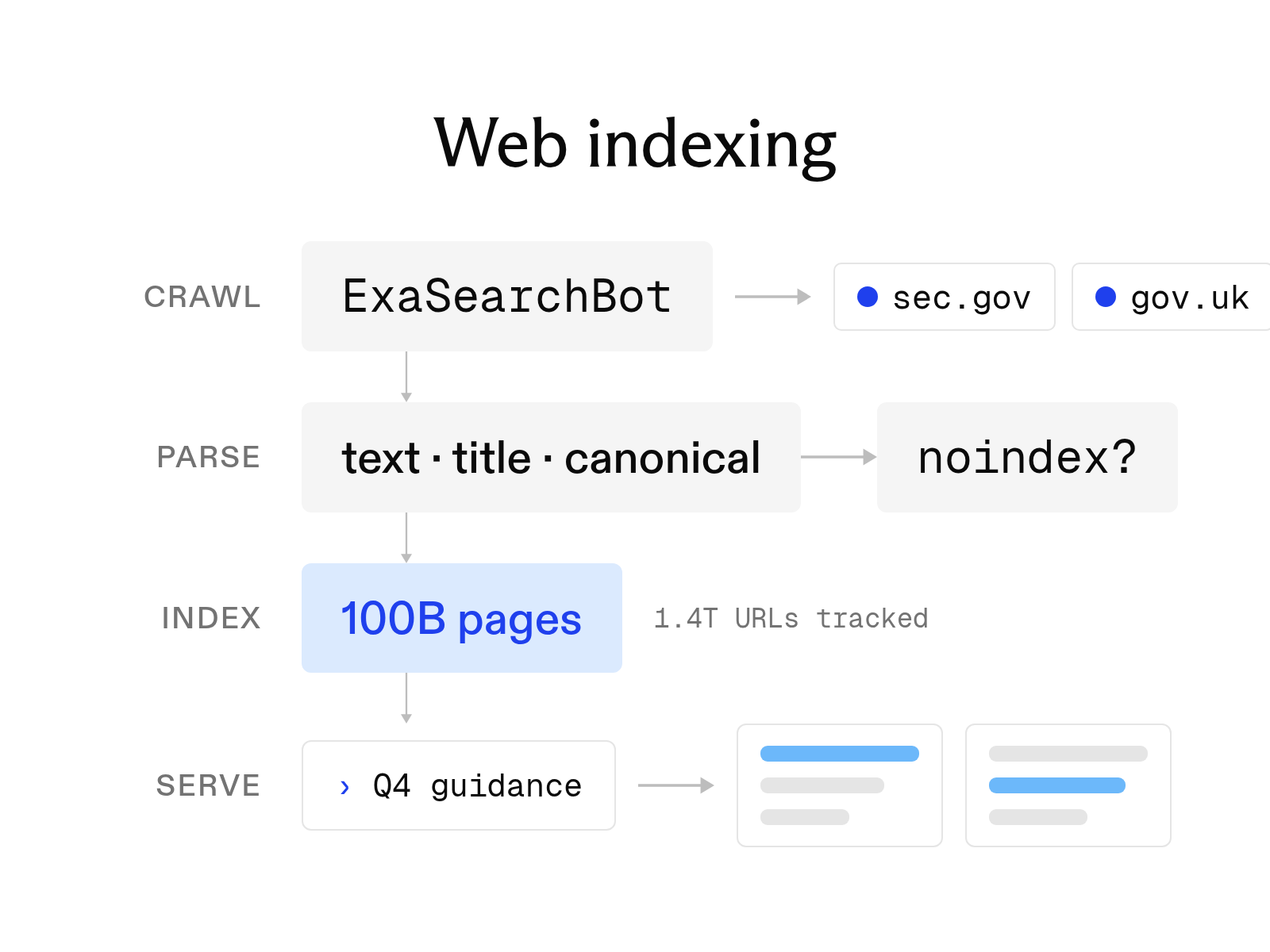
What is web indexing? How it works and why AI search needs its own index
October 6, 2026
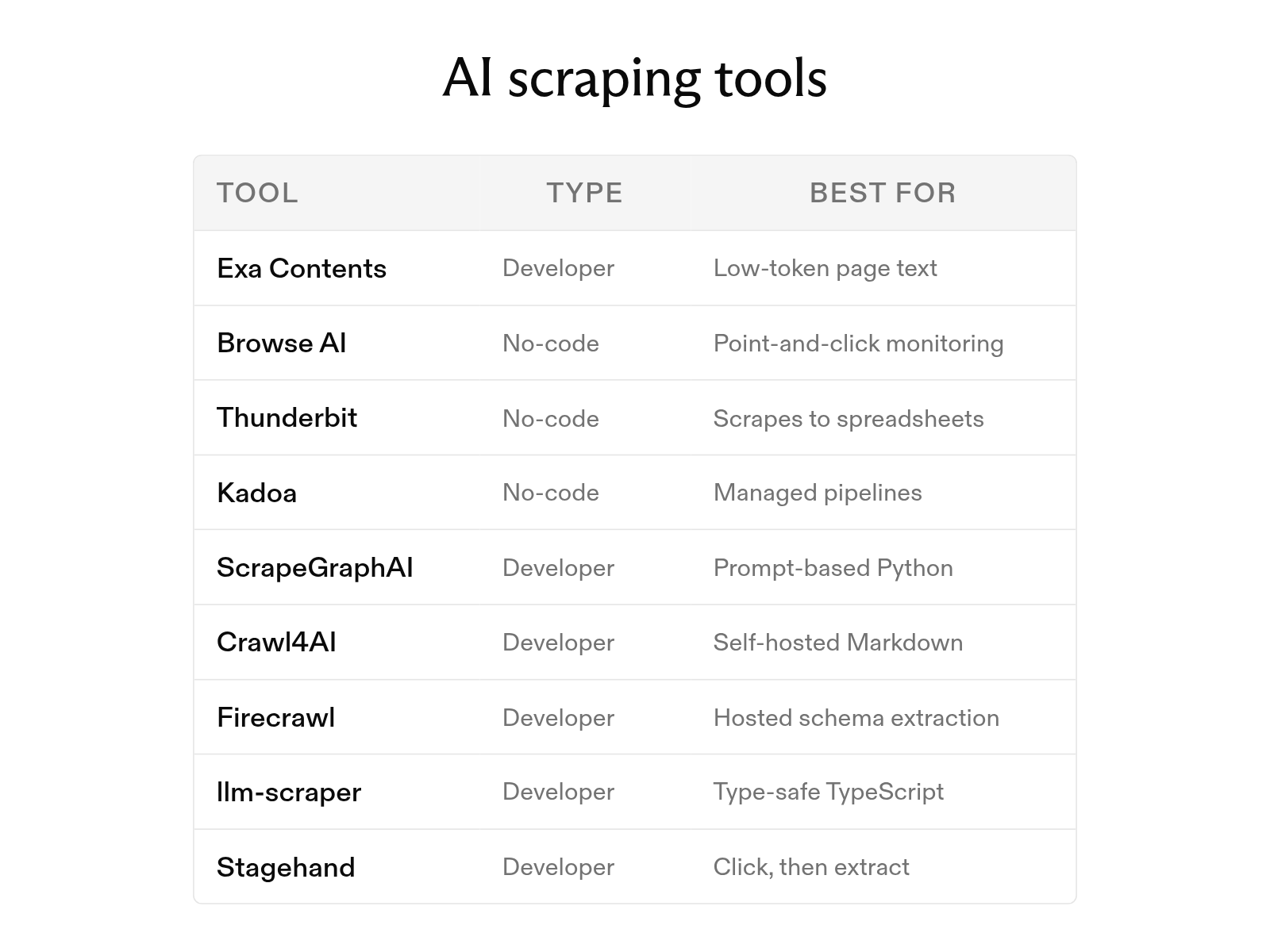
The 9 best AI web scraping tools in 2026 (and how AI scraping works)
October 6, 2026
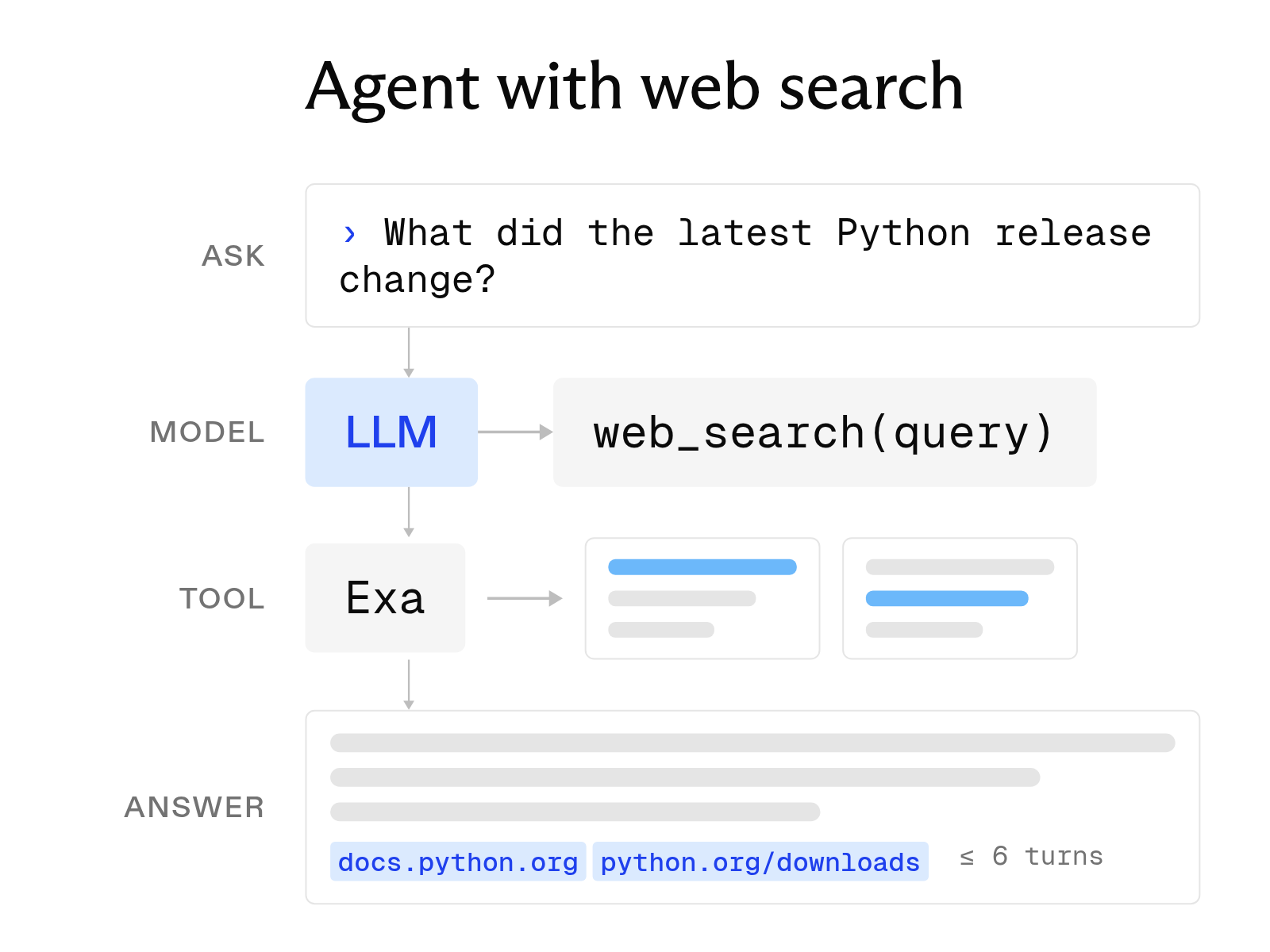
How to build an AI agent with web search
October 6, 2026
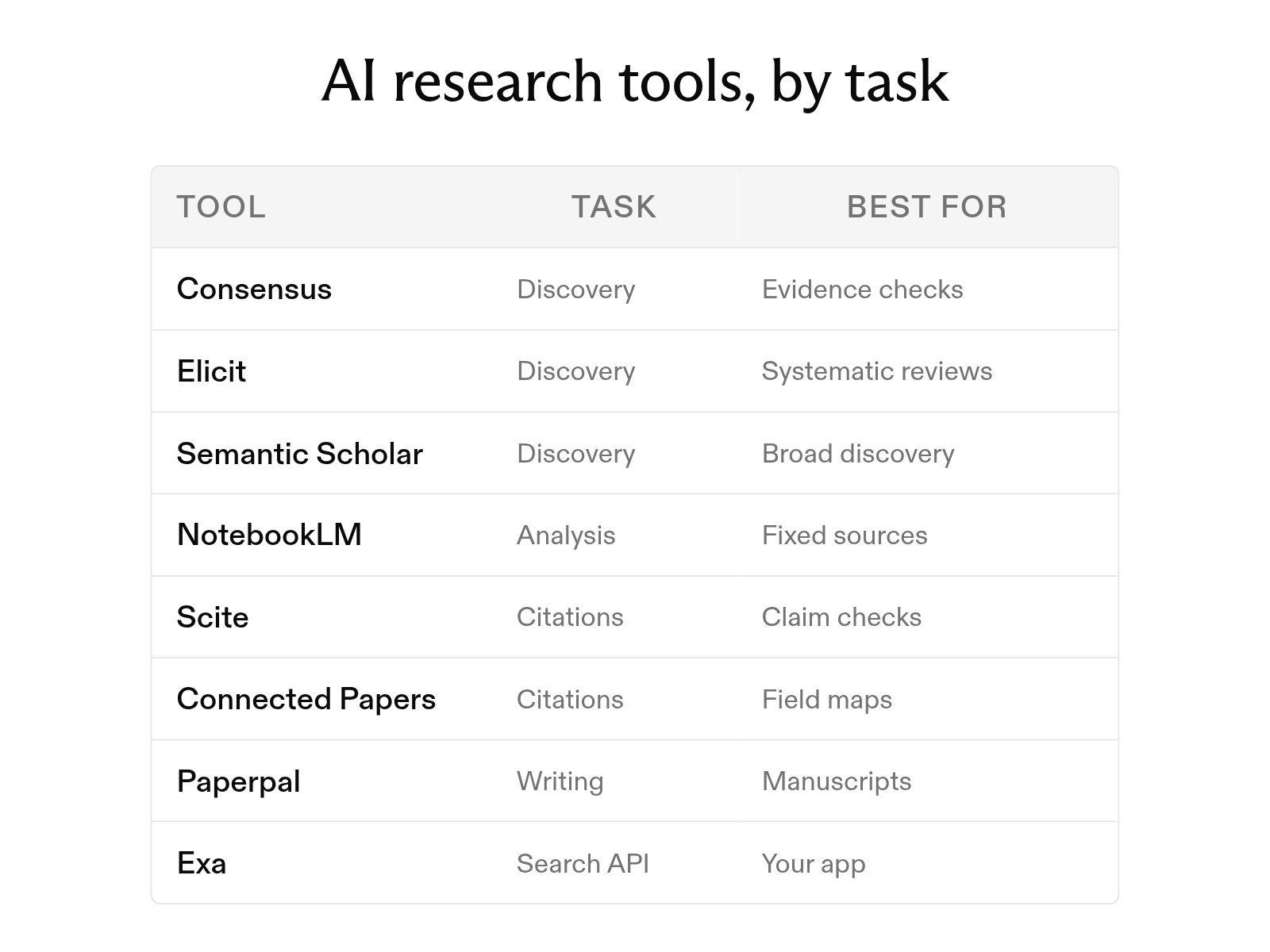
The 12 best AI tools for academic research in 2026
October 6, 2026
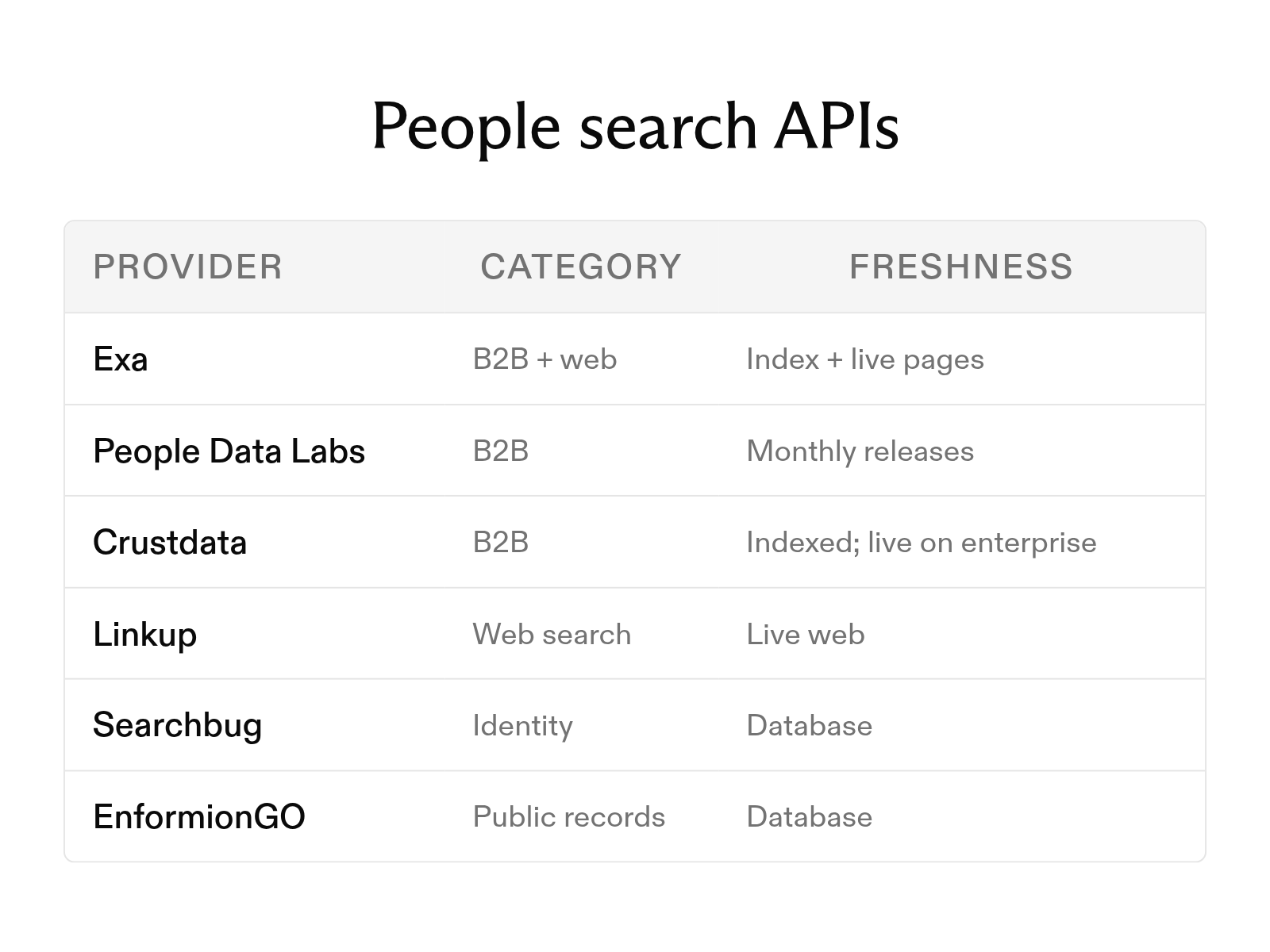
The 6 best people search APIs in 2026
October 6, 2026
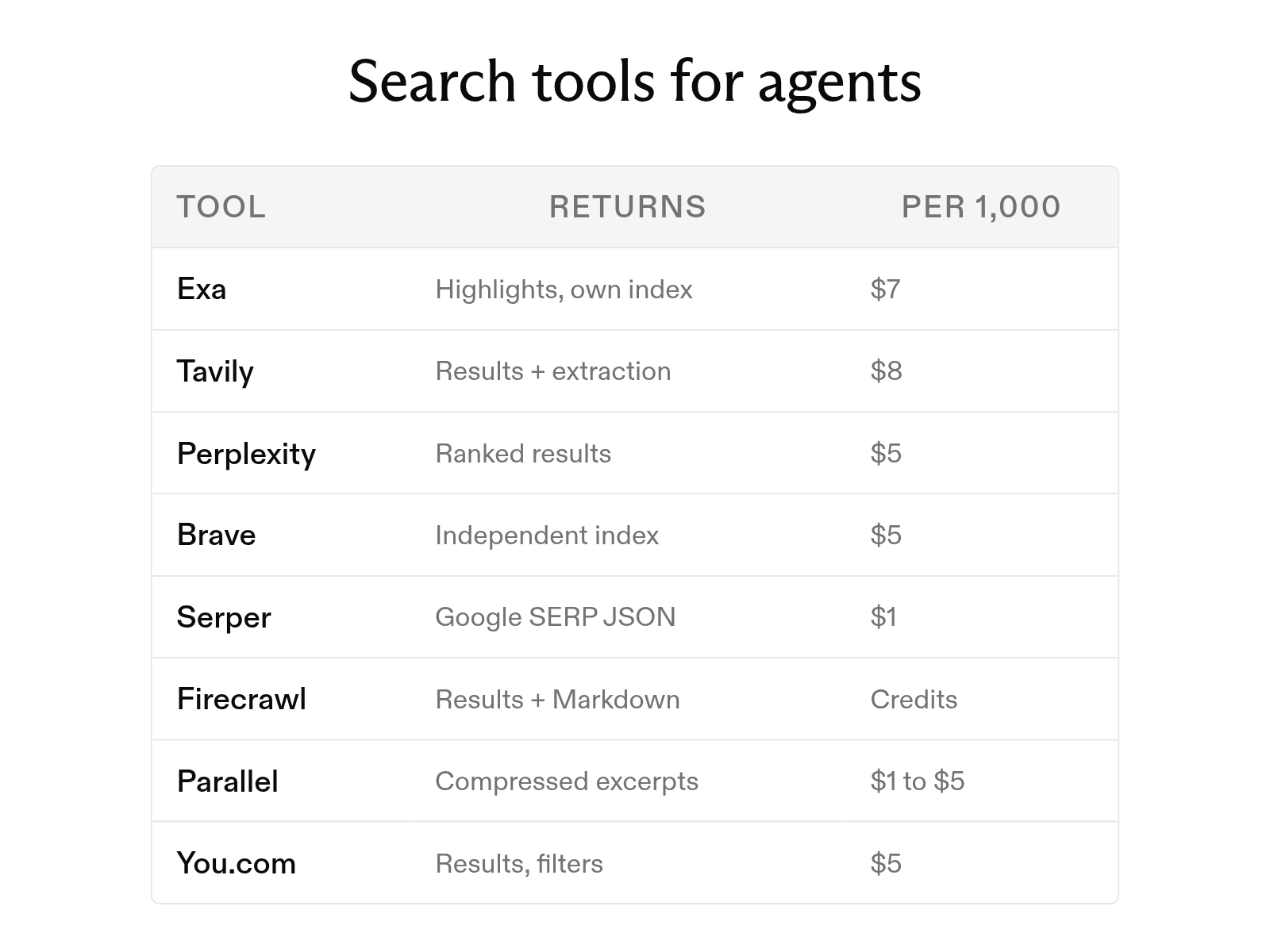
The 8 best web search tools for AI agents in 2026
October 6, 2026