

OpenHuman Managed
Managed search is the default. Choose Simple during onboarding and the agent can search the web immediately.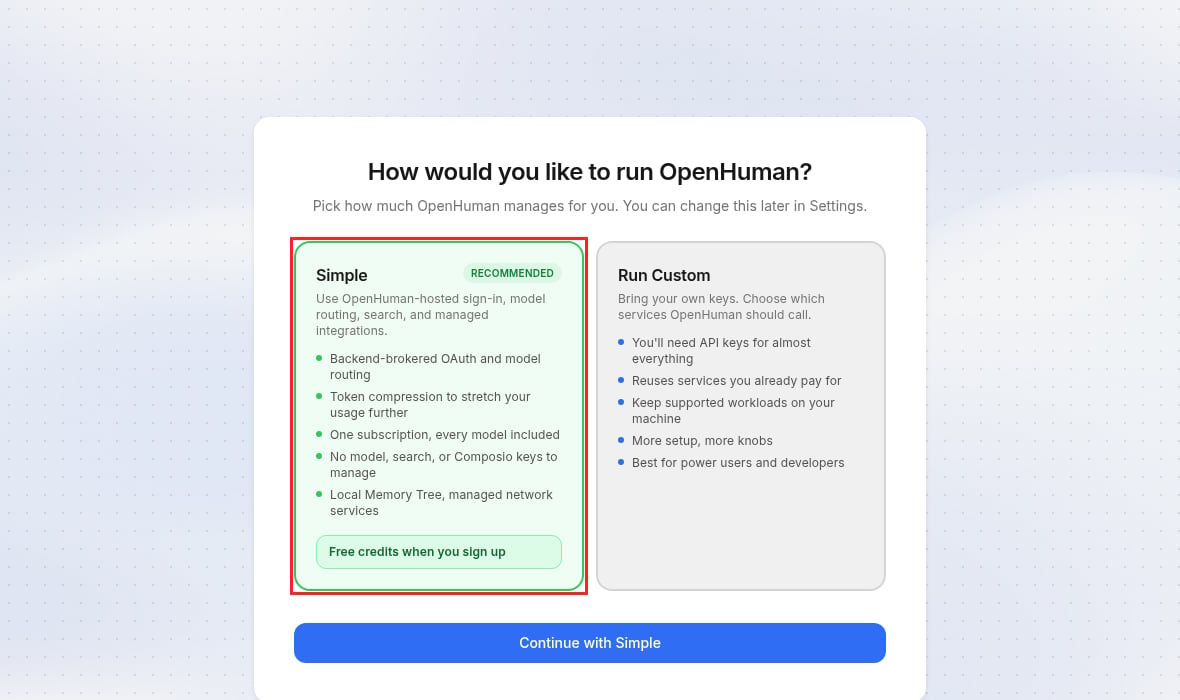
Choose Simple during onboarding for Exa-powered managed search
Exa provider
Configure Exa directly to run search on your own Exa account and give the agent Exa’s search and page-contents tools.Get your Exa API key
Get your Exa API key
Create a key in the dashboard. New accounts start with free credits.
Add Exa in OpenHuman
- Open Connections, then select Search engine under API keys.
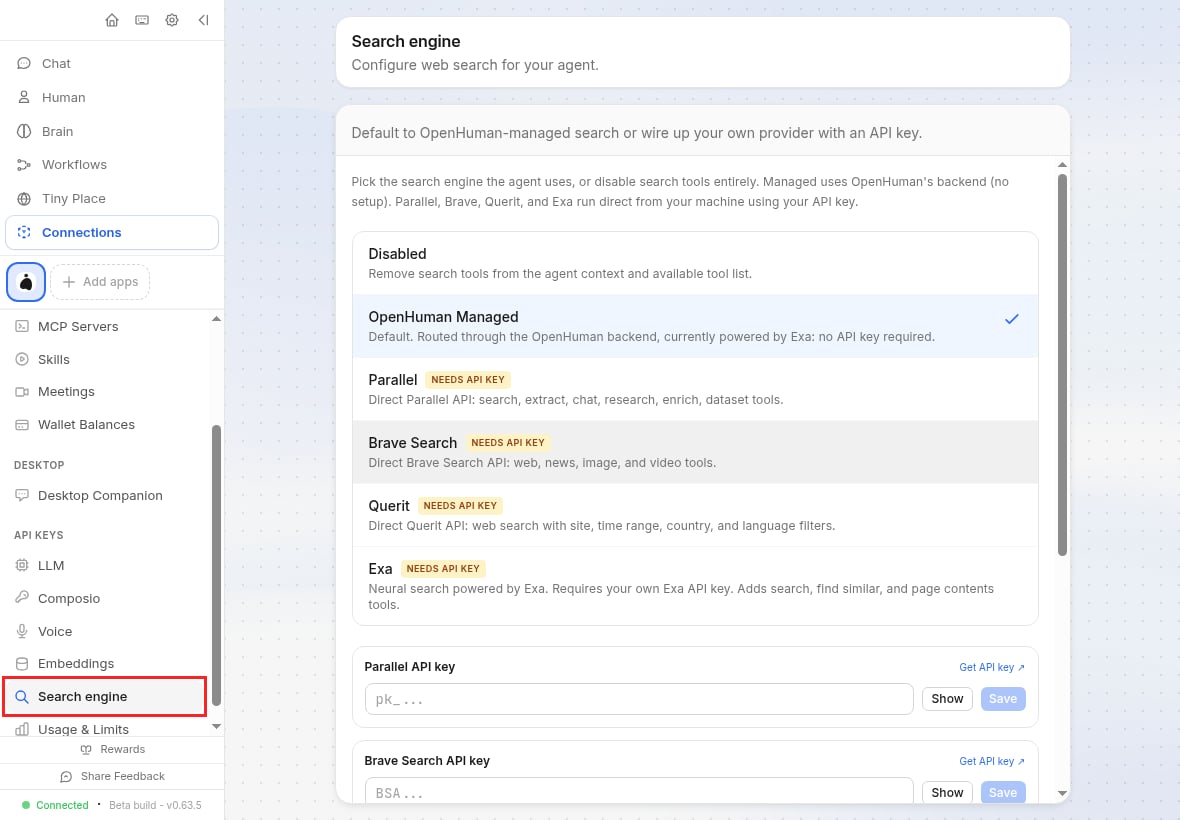
Connections → API keys → Search engine
- Select Exa.
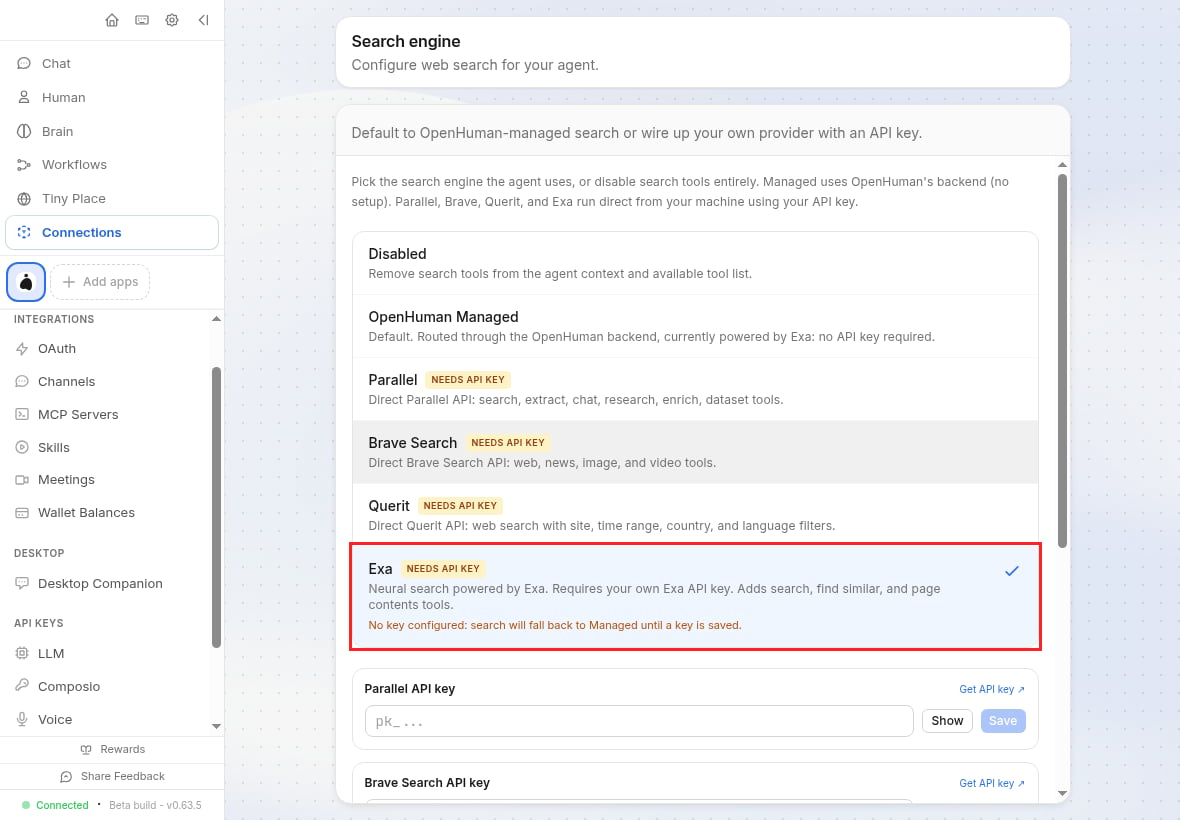
Exa selected, waiting on a key
- Paste your key into Exa API key and select Save.
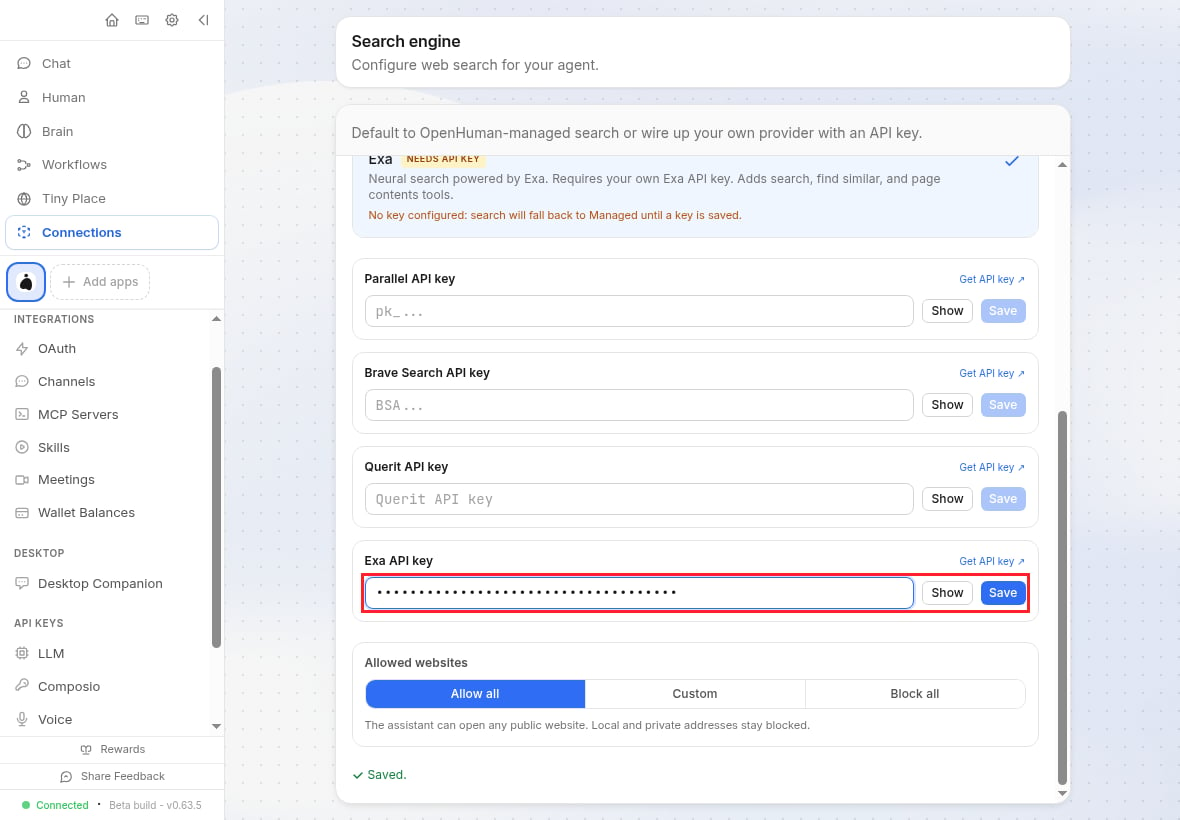
Save the Exa API key
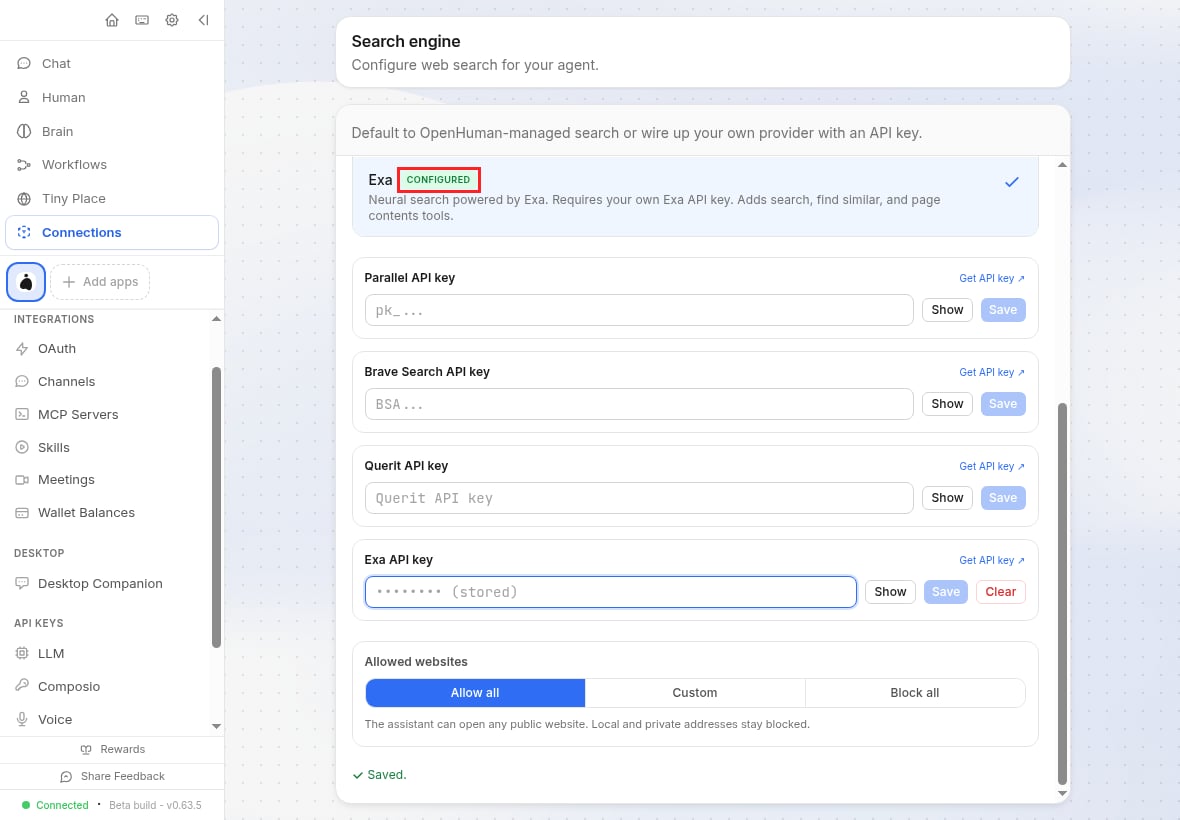
Exa configured as the active search engine
Configuration
The panel writes to OpenHuman’sconfig.toml. Set the same values in the file or the environment instead:
- config.toml
- Environment
config.toml
Tools the agent gets
The agent sets Exa’s search parameters per call, so plain instructions are enough to steer search mode, domains, dates, and categories.
Troubleshooting
Exa rejected the configured API key (HTTP 401)
Exa rejected the configured API key (HTTP 401)
The key is invalid or revoked. Check it in the Exa dashboard, then Clear the stored key and save the correct one. Watch for pasted whitespace.
Exa returned non-2xx status
Exa returned non-2xx status
429 means a rate limit or exhausted quota: check usage in the dashboard. For 5xx, retry, then see error codes.OpenHuman Managed is missing from the engine list
OpenHuman Managed is missing from the engine list
Local-only sessions cannot use managed search. Configure the Exa provider with your own key.
Resources
OpenHuman web search docs
Read OpenHuman’s own reference for its search engines.
Exa search API
Understand the search modes, filters, and content options behind the Exa tools.
Search best practices
Get better results out of every query.