

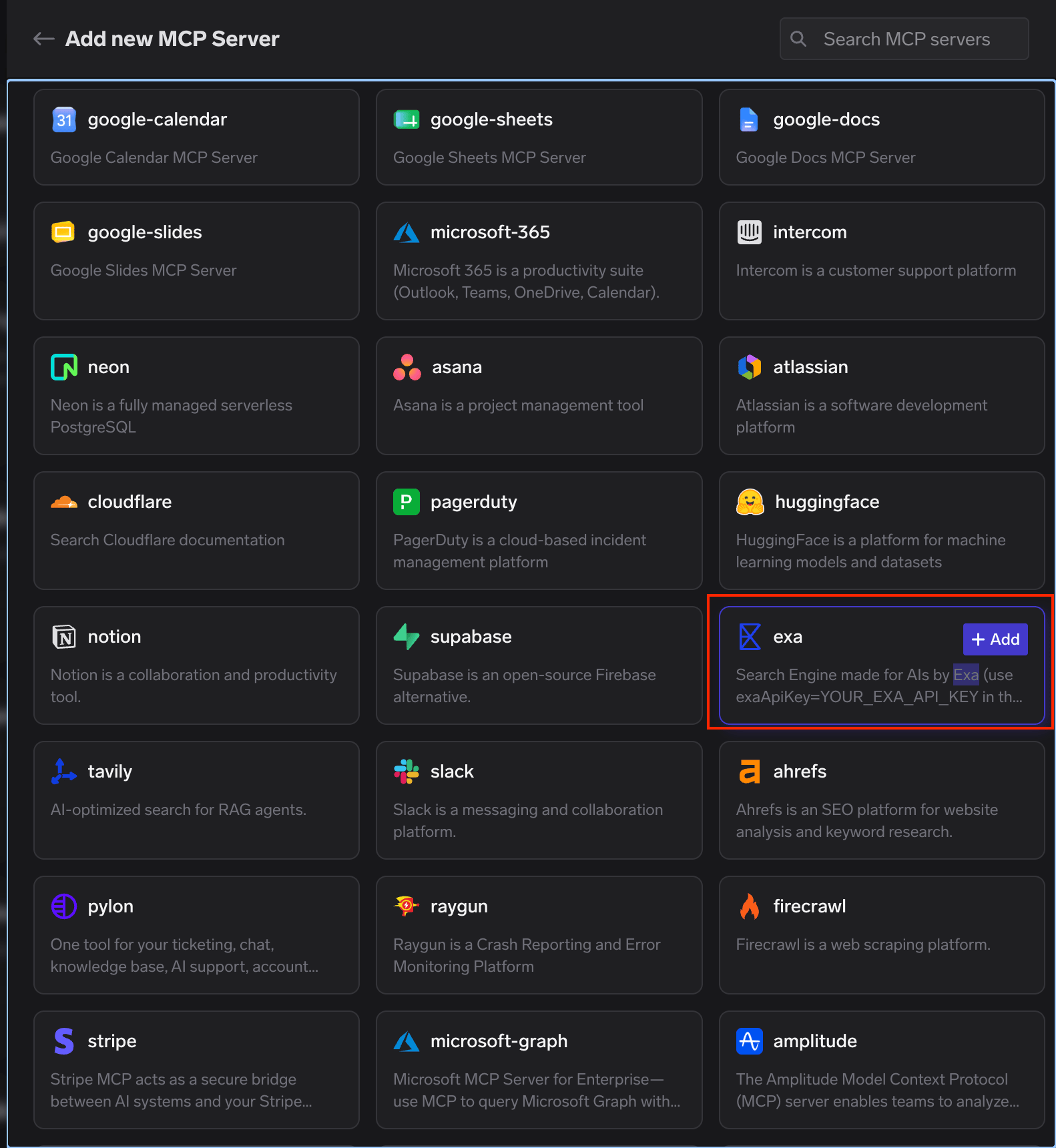
Exa in the TrueFoundry official remote MCP server catalog
Add Exa to TrueFoundry
- Open MCP Servers in the TrueFoundry sidebar and select Add new MCP Server.
- Select Connect Official Remote MCP Servers.
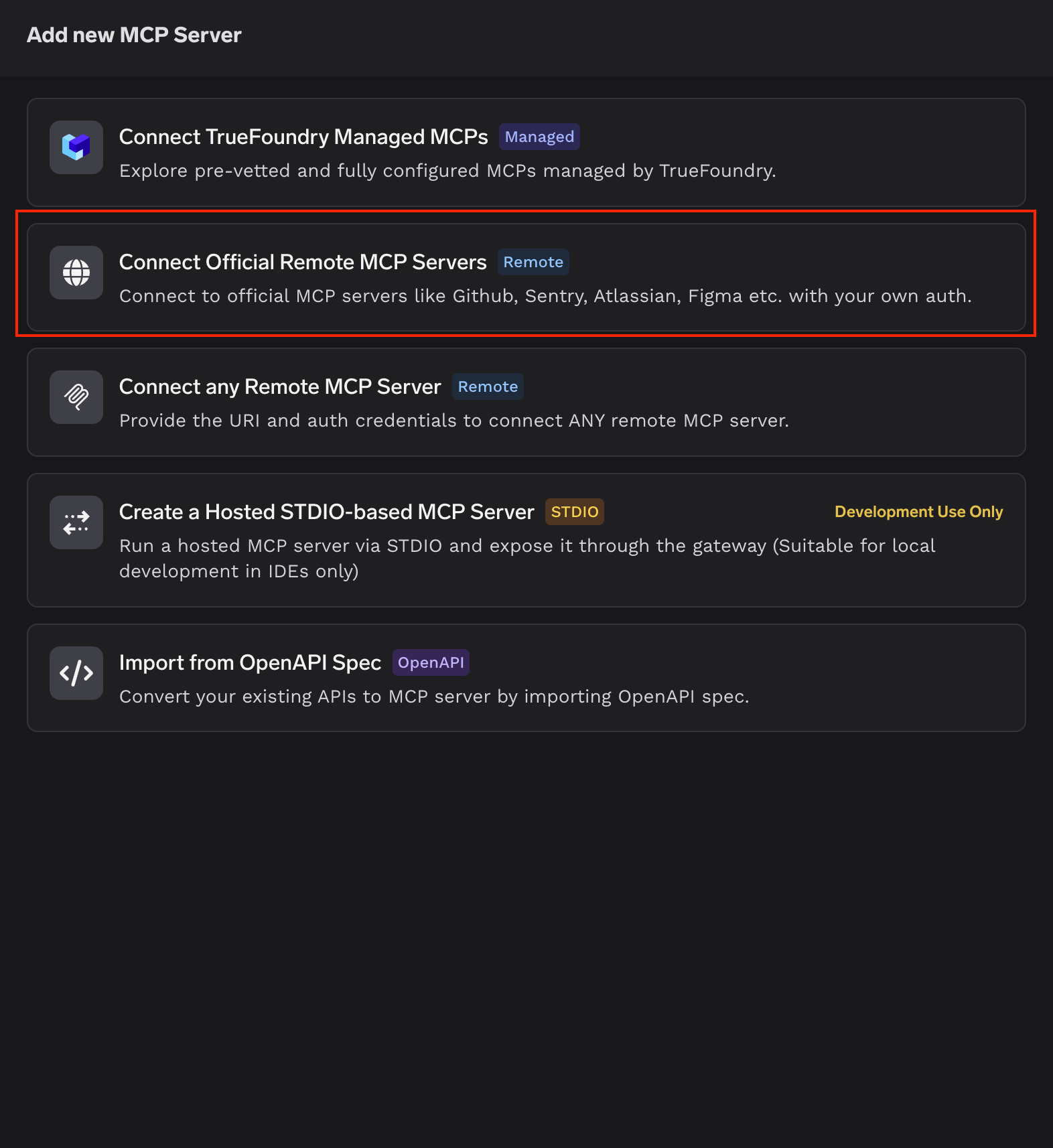
Choose the official remote MCP server catalog
- Find Exa in the catalog and select + Add.
- Confirm the pre-filled server details:
- Add the users or teams that should manage or use the server. Leave Auth Data off, then select Update MCP Server.
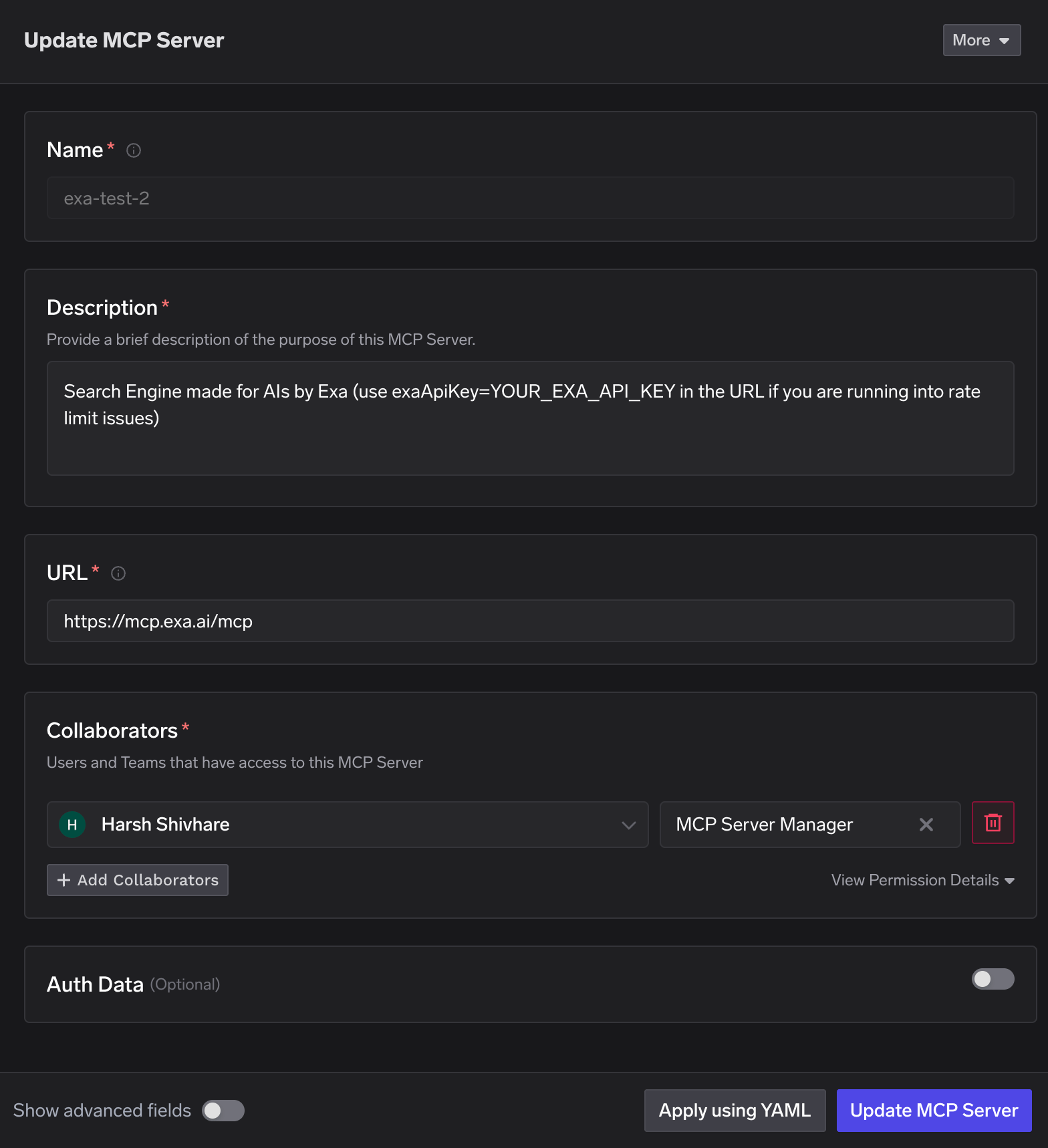
Configure the Exa server and its collaborators
Open the Tools tab and confirm that Exa’s search and content fetching tools are available. The agentic research tool appears once you add an Exa API key.
Configure the Exa server
The pre-filled URL exposes Exa’s default toolset. Change it only if you need to restrict the available tools or use your own API key.Choose which tools are available
Pass a comma-separated list of tool names in thetools query parameter:
Use your Exa API key to bypass the free rate limit
If you reach the free rate limit, add your Exa API key to the server URL:Get your Exa API key
Create a key in the dashboard. New accounts start with free credits.
Connect an MCP client
Open the Exa server’s How To Use tab and select your client. TrueFoundry generates the tenant-specific endpoint and ready-to-paste configuration for Cursor, Claude Code, VS Code, Windsurf, Codex, and other MCP clients.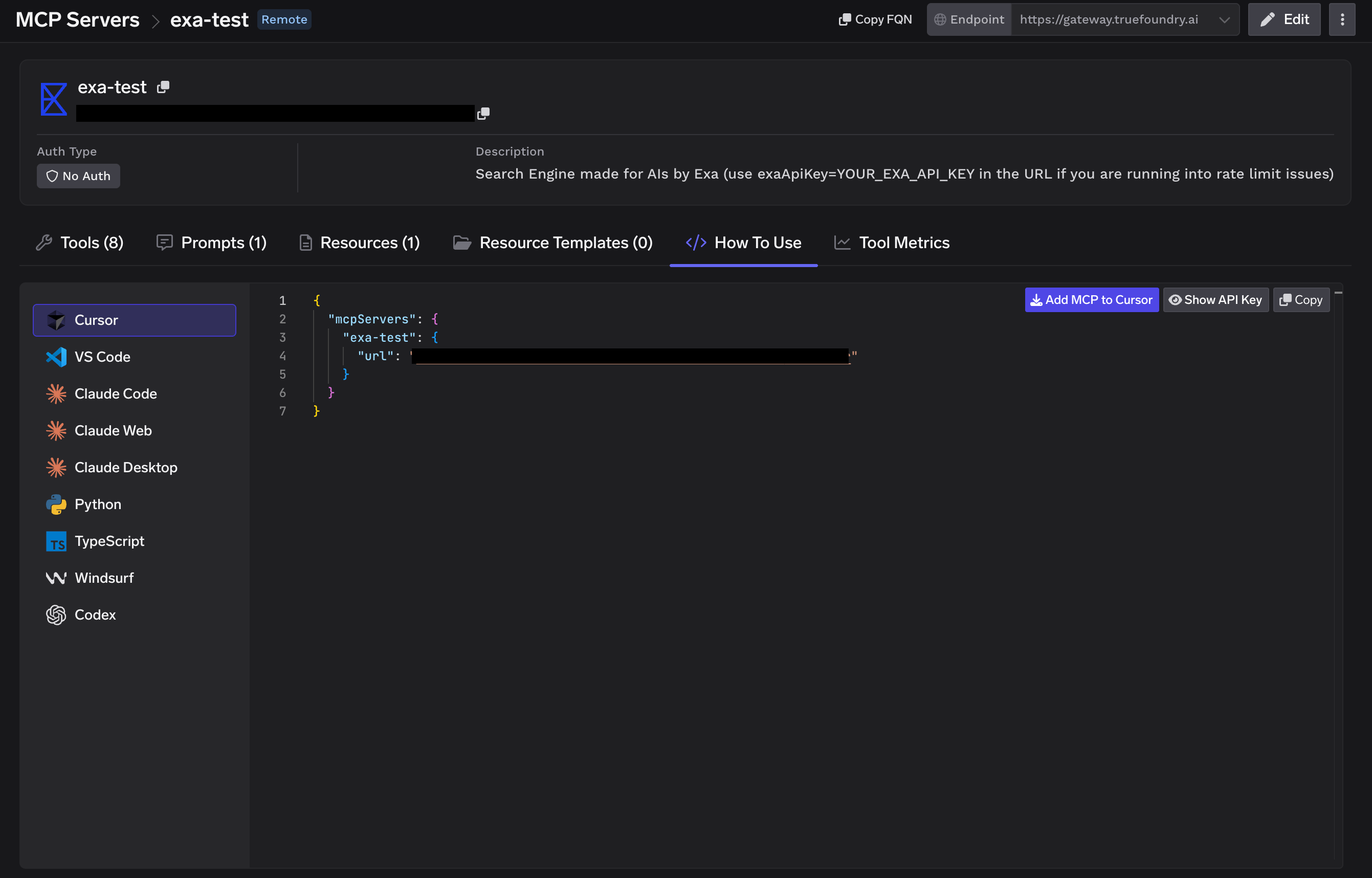
Copy the configuration for your MCP client
Test a tool
Select Try beside an Exa tool, enter its inputs, then select Execute Tool. The playground displays the JSON response so you can verify the tool before using it in an agent.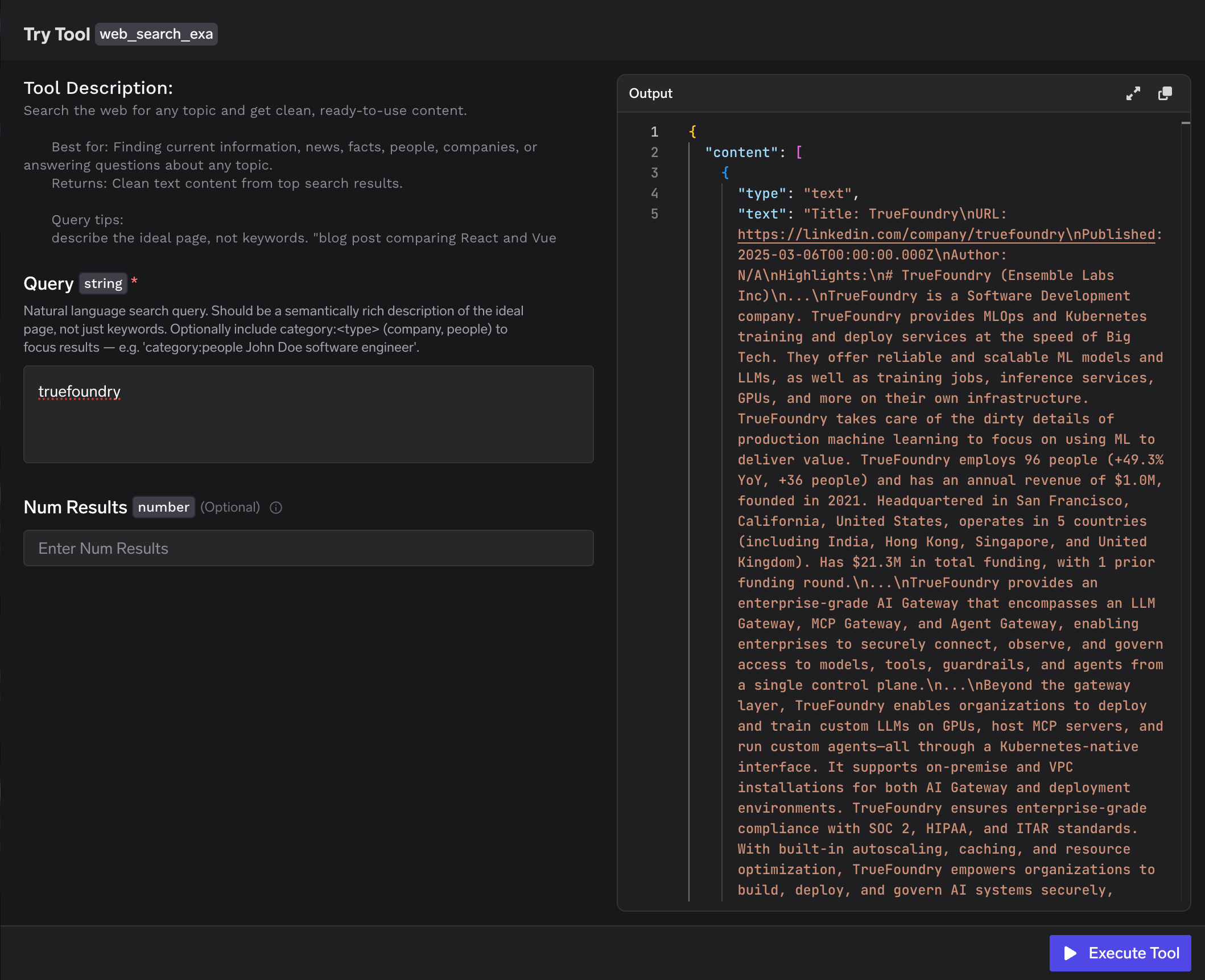
Run an Exa tool in the TrueFoundry playground
Manage and monitor tools
- Toggle individual tools to control what MCP clients can call
- Use Tool Metrics to review traffic, latency, and errors
- Export invocation traces to your observability stack through OpenTelemetry
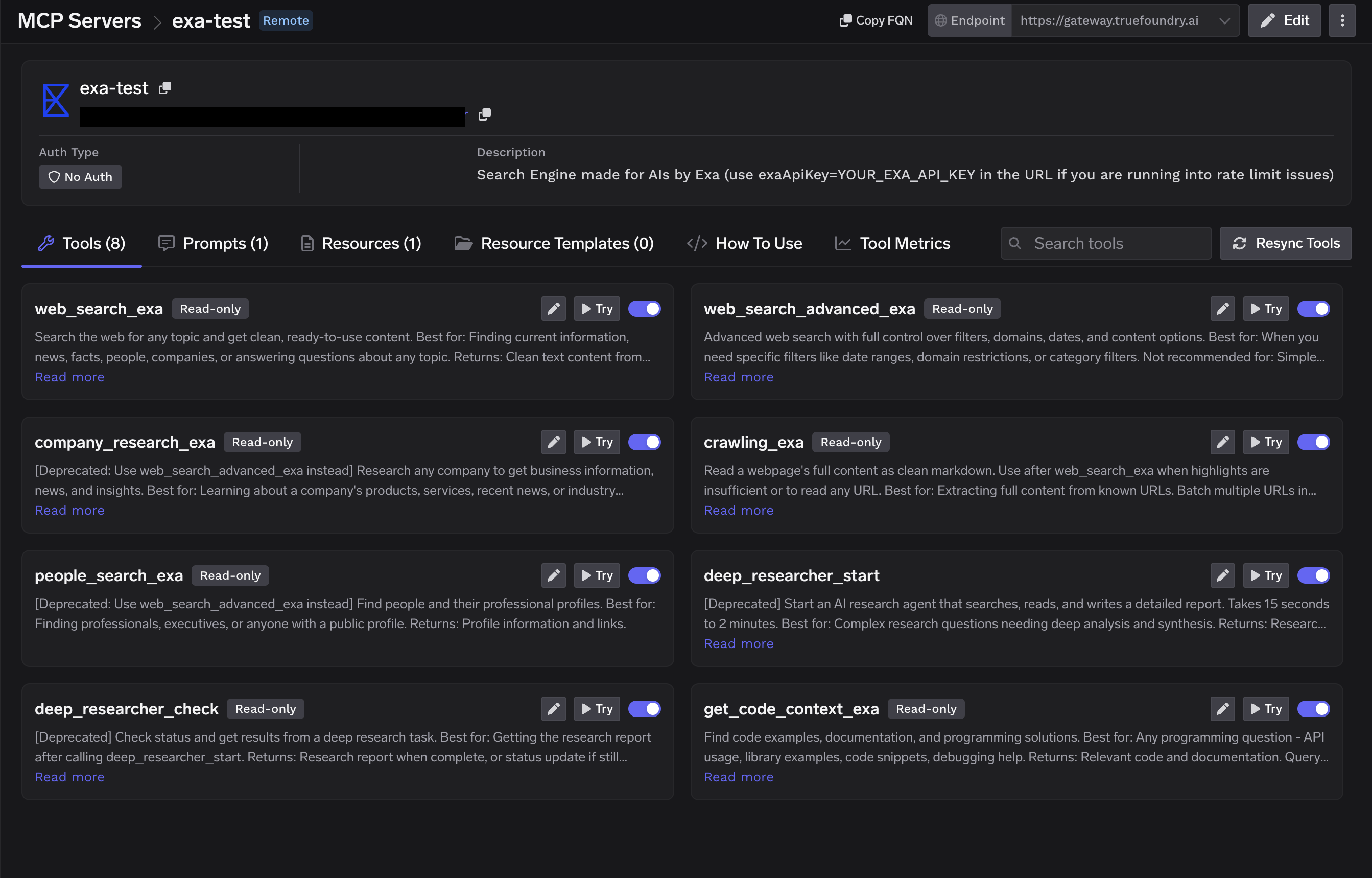
Manage the Exa tools exposed to MCP clients
Resources
TrueFoundry setup guide
Read TrueFoundry’s guide to its Exa MCP server.
Exa MCP documentation
Review Exa’s tools, configuration, and usage examples.
Exa MCP Server
View the server source and releases on GitHub.