

1. Sign up
Sign up at websets.exa.ai. If you’d like to ask us about it, book a call here.2. Get started
Websets is very easy to use.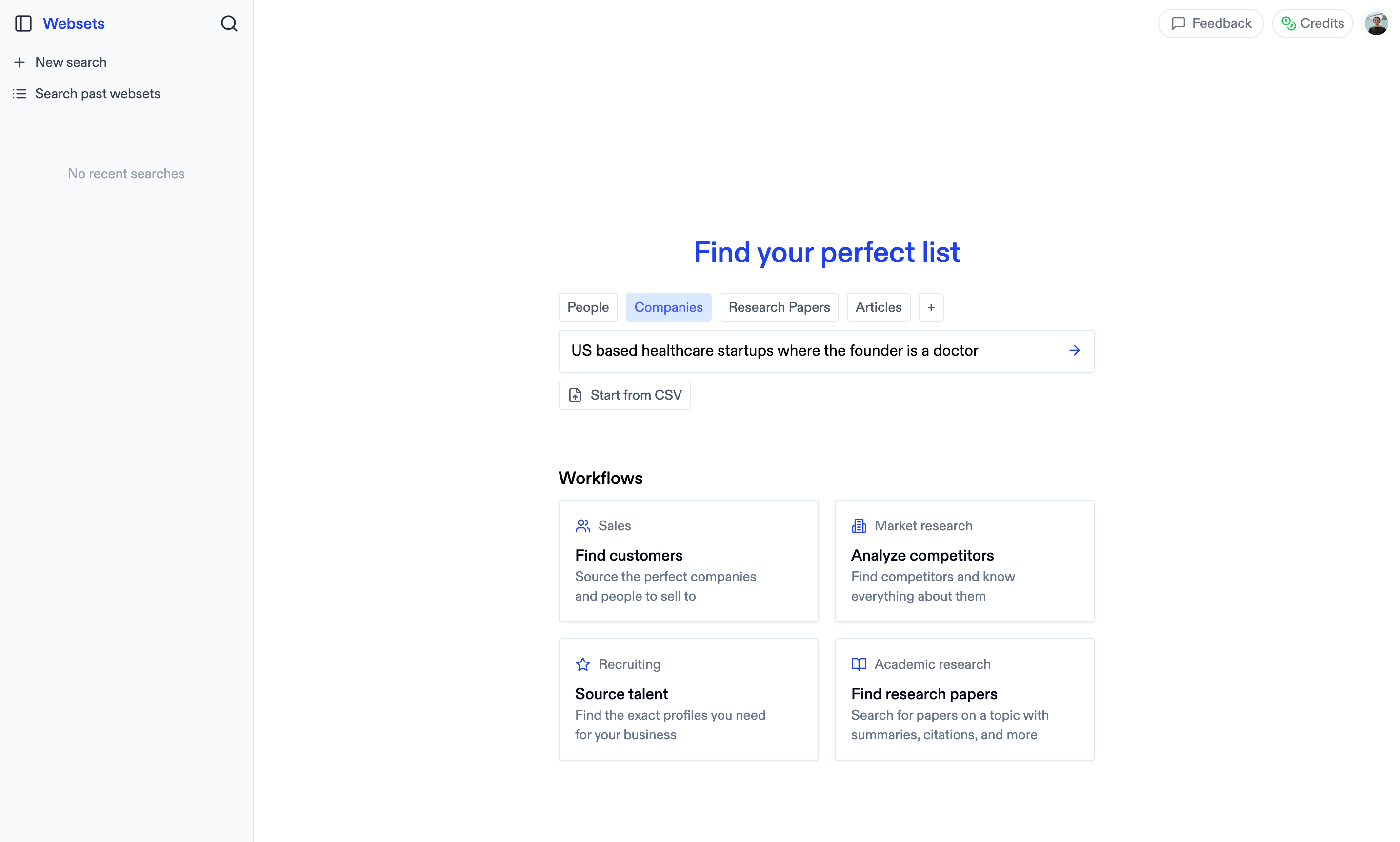
- Describe what you want in plain English - make it as complicated as you’d like!
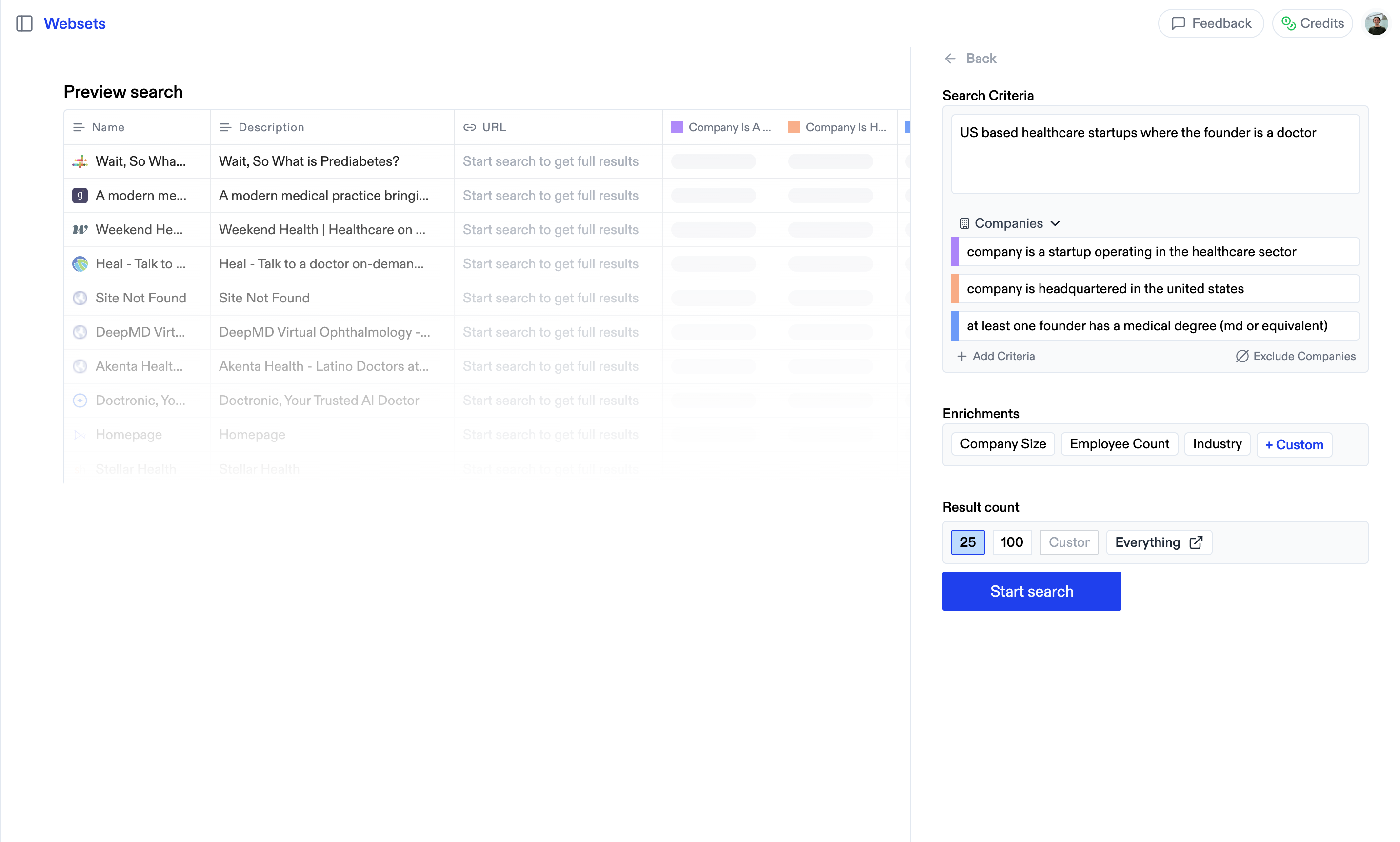
- Confirm your criteria and data category look good.
- Confirm how many results you want, then start your search.
3. Inside your Webset
In brief, Websets does the following:- Break down what you’re asking for
- Find promising data that might satisfy your ask
- Verify all criteria using AI agents and finding parallel sources
- Adjust search based on feedback you provide our agent
If you’re not satisfied with the initial results you see, refine the criteria
in “Edit criteria” or inside the chat.
4. Interacting with your Webset
Once the Webset is complete, you can interact with the components! Click on a result to see: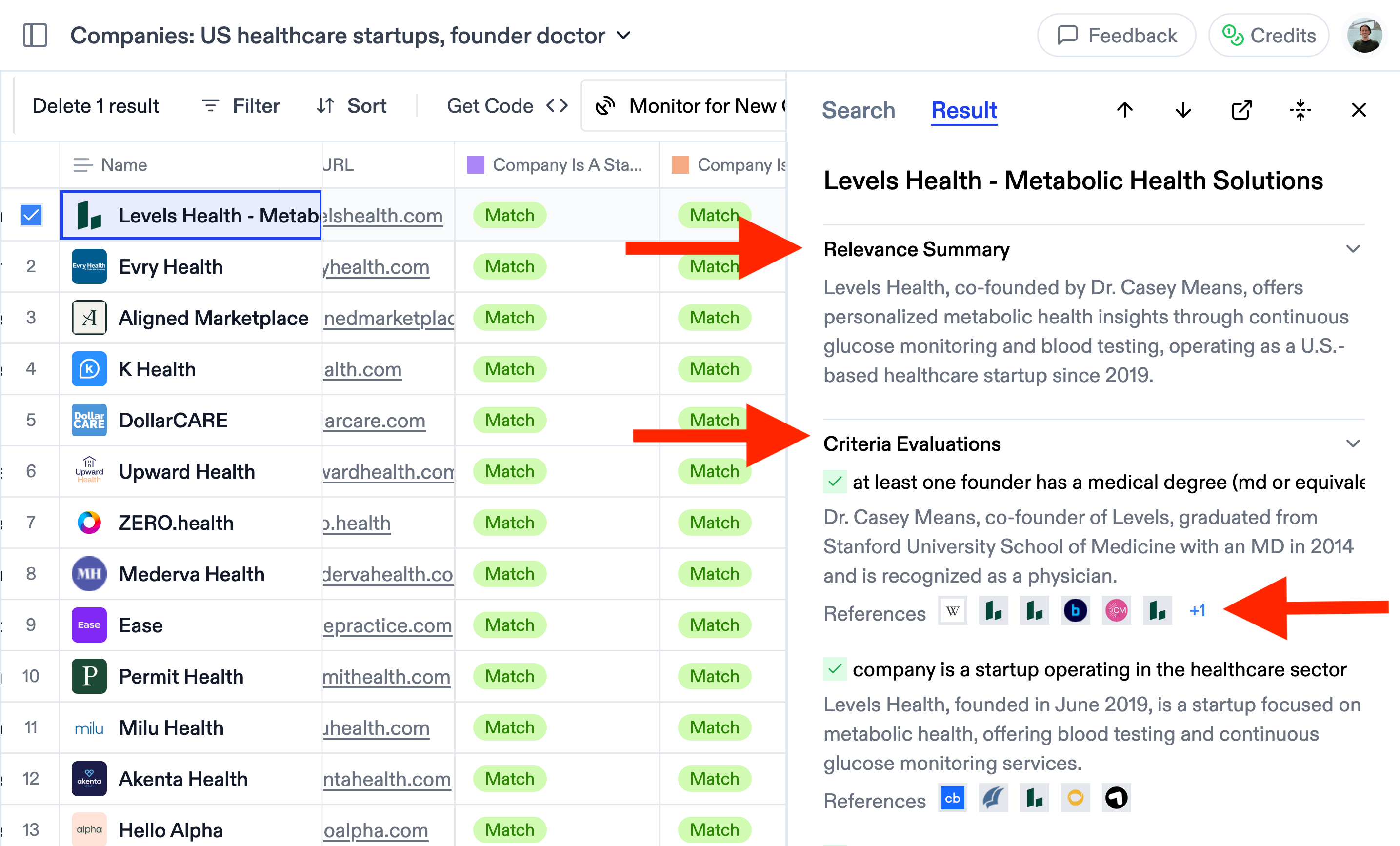
- Its AI-generated summary
- The criteria it met to be included in the Webset
- The sources that informed the matching (you can click through the sources here)
5. Add more result criteria and custom columns
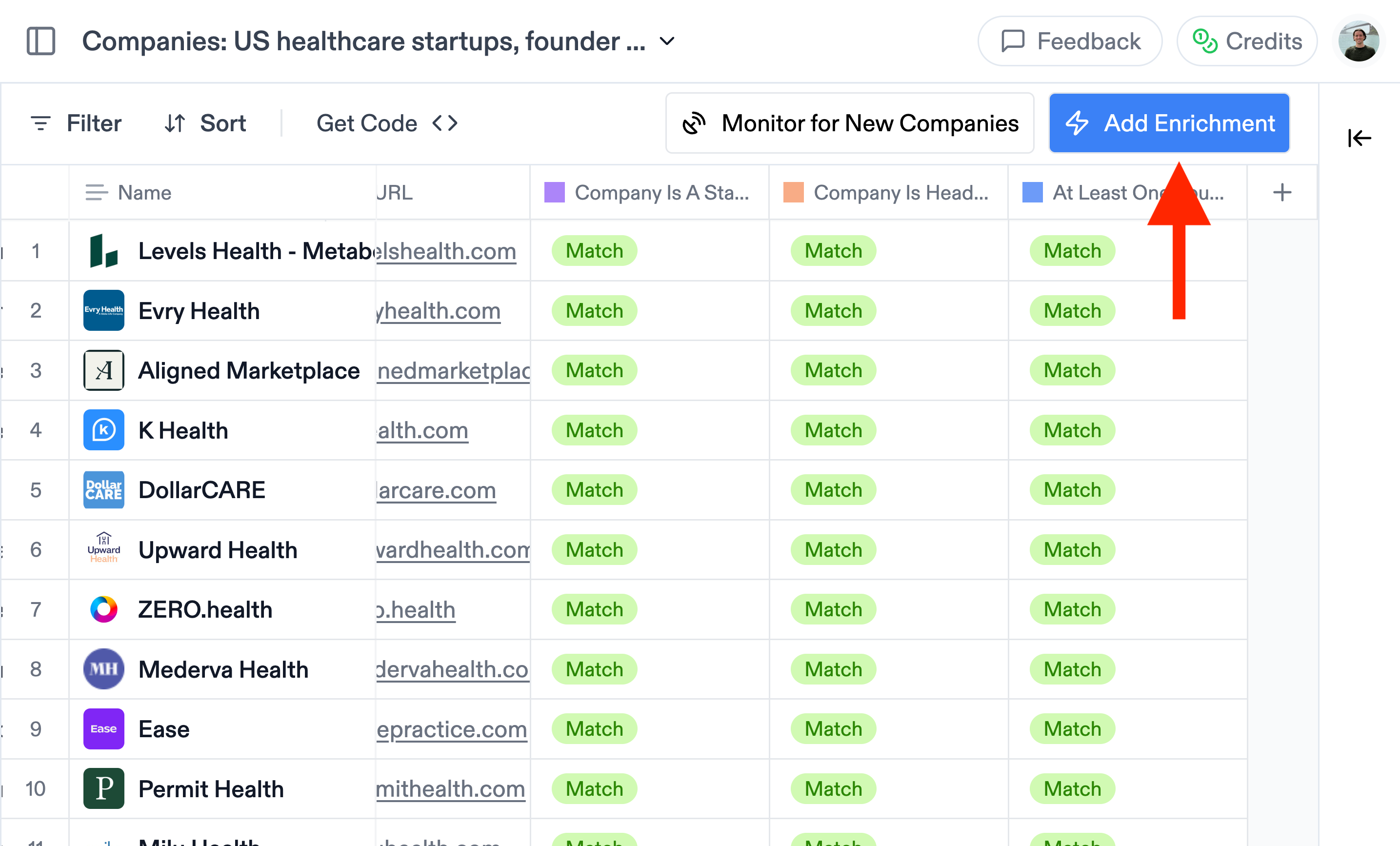
- Add enrichments: You can create custom enrichment columns, asking for any information you want. Think contact information (email & phone number), revenue, employee count, sentiment analysis, summary of the paper, etc. Fill in:
- The name of the column (e.g. ‘Revenue’)
- The column type (e.g. ‘Number’)
- Instructions for Websets to find the data (e.g. ‘Find the annual revenue of the company’)
- Or click “fill in for me” for the instructions to be generated automatically by our agent
6. Share and export your Webset
- Click export to download your Webset as a CSV file.
- Click share to get a link for your Webset.