> ## Documentation Index
> Fetch the complete documentation index at: https://exa.ai/docs/llms.txt
> Use this file to discover all available pages before exploring further.
# Integrations
> Connect your Websets with popular CRM and email tools
## Overview
Websets integrates seamlessly with your favorite CRM, email sequencing, and database tools, allowing you to export enriched data directly where you need it. Manage all your integrations from a single dashboard and keep your workflows streamlined.
## Supported integrations
We've built support for leading platforms across sales, marketing, and data enrichment:
**CRM Platforms**
* [Salesforce](https://www.salesforce.com/) - Export People entities as Leads
* [HubSpot](https://www.hubspot.com/) - Export People entities as Contacts
**Email Sequencing**
* [Instantly](https://instantly.ai/) - Export People entities as Leads
* [Smartlead](https://www.smartlead.ai/) - Export People entities as Leads
* [Lemlist](https://www.lemlist.com/) - Export People entities as Leads
**Data Enrichment**
* [Clay](https://www.clay.com/) - Export any entity type via webhook
## Managing integrations
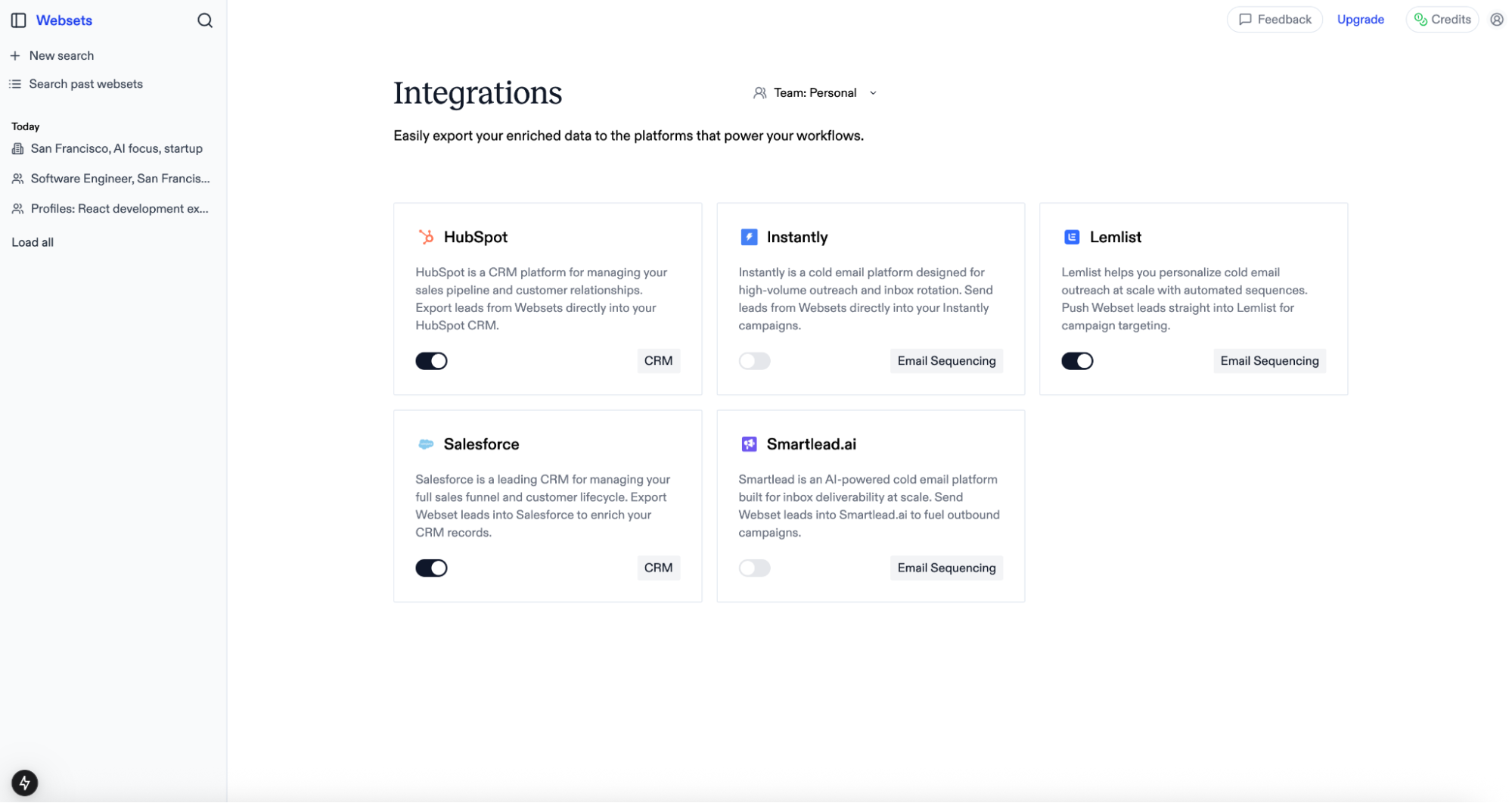 To enable an integration:
1. Visit [https://websets.exa.ai/integrations](https://websets.exa.ai/integrations)
2. Toggle the integration you want to connect
3. Provide your account credentials
4. The integration will be scoped to your currently selected team
To enable an integration:
1. Visit [https://websets.exa.ai/integrations](https://websets.exa.ai/integrations)
2. Toggle the integration you want to connect
3. Provide your account credentials
4. The integration will be scoped to your currently selected team
## Exporting capabilities
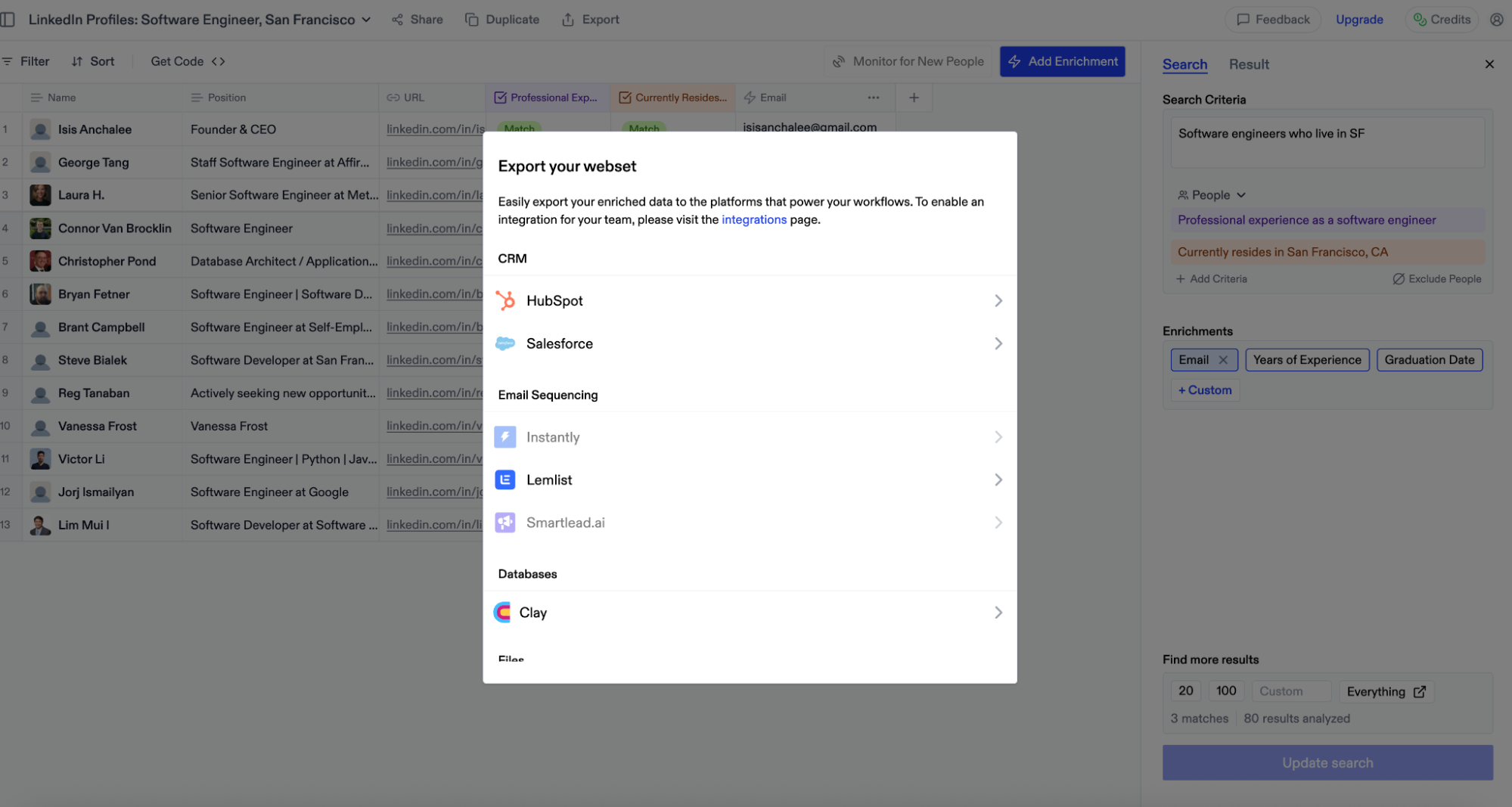
Currently, we support **exporting all** your Webset table rows to connected platforms. Import functionality for further enrichment is coming soon.
## Setup guides
### Salesforce
**Authentication**
When you toggle on the Salesforce integration, you'll be redirected to login to your Salesforce account. After logging in, you'll be redirected back and ready to go!
**Actions**
**Create Leads** – Export any People entity Webset type as **Leads** in your Salesforce account.
### HubSpot
**Authentication**
When you toggle on the HubSpot integration, you'll be redirected to login to your HubSpot account. You'll be prompted to install the Exa app and grant the requested permissions. After approval, you'll be redirected back and fully connected.
**Actions**
**Create Contacts** – Export any People entity Webset type as **Contacts** in your HubSpot account.
### Instantly
**Authentication**
When you toggle on the Instantly integration, you'll need to provide your Instantly API key:
1. Login to your Instantly account and click your avatar in the bottom left corner
2. Select "Settings" from the menu
3. Navigate to the "Integrations" tab
4. Select "API Keys" from the left navigation menu
5. Click "Create API Key"
6. Name your key and select "all:all" for scopes
7. Copy and paste the generated key into Websets
**Actions**
**Create Leads** – Export any People entity Webset type as **Leads** in your Instantly account.
### Smartlead
**Authentication**
When you toggle on the Smartlead integration, you'll need to provide your Smartlead API key:
1. Login to your Smartlead account and click your avatar in the top right corner
2. Select "Settings" from the menu
3. Scroll down to "Smartlead API Key"
4. Copy your existing key or generate a new one
5. Paste the key into Websets and click connect
**Actions**
**Create Leads** – Export any People entity Webset type as **Leads** in your Smartlead account.
### Lemlist
**Authentication**
When you toggle on the Lemlist integration, you'll need to provide your Lemlist API key:
1. Login to your Lemlist account and click your name in the bottom left corner
2. Select "Settings" from the menu
3. Click "Integrations" in the left menu
4. Find the "API overview" section and click "Generate"
5. Name your key and click "Create Key"
6. Copy and paste the generated key into Websets
**Actions**
**Create Leads** – Export any People entity Webset type as **Leads** in your Lemlist account.
### Clay
**Authentication**
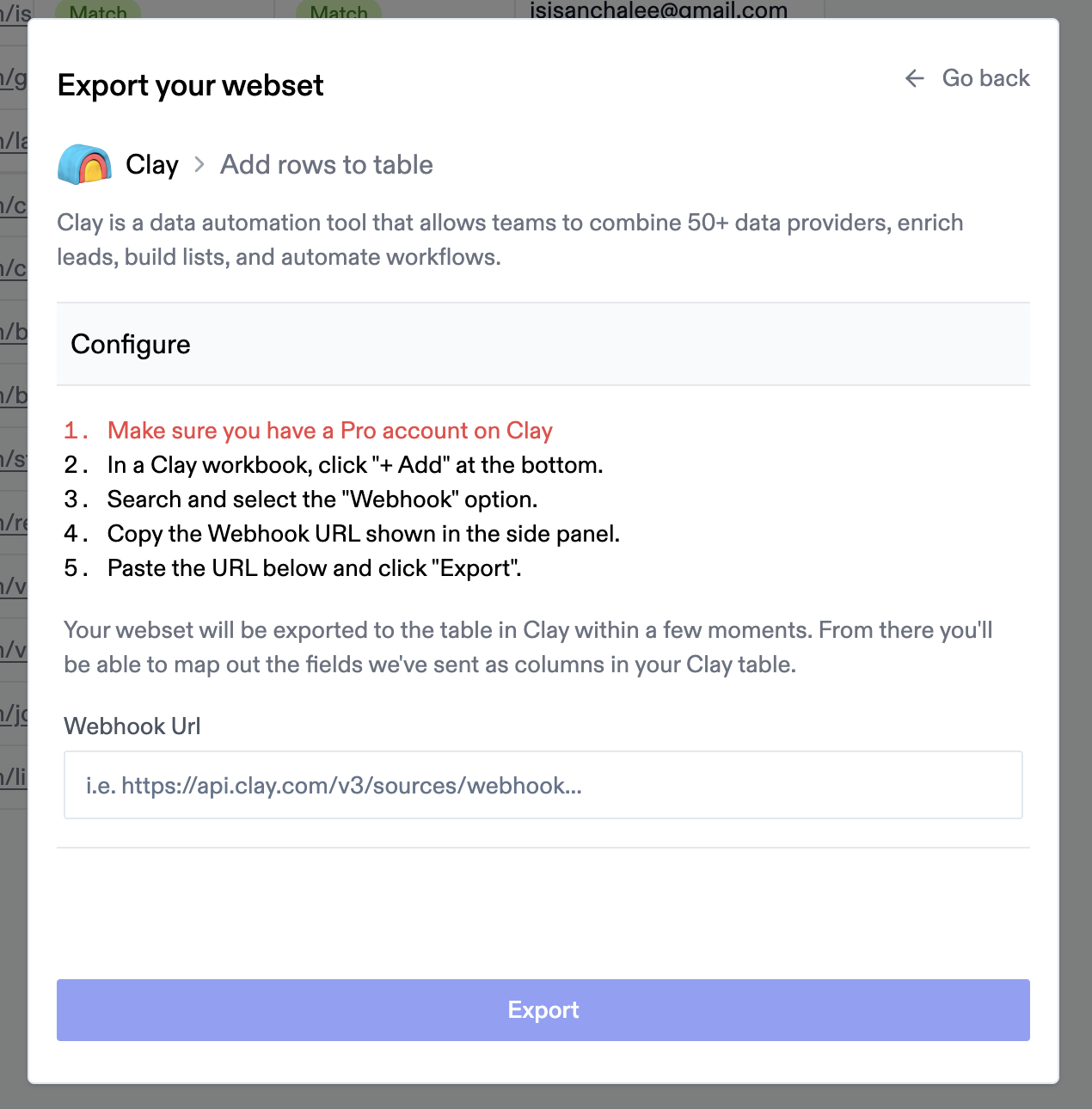
No authentication is required for Clay integration, as we currently support exporting Webset data via webhook only. **Note: A Clay Pro account is required.**
**Creating a webhook**
1. Navigate to a Clay table and click "Add" at the bottom
2. Search for "Webhook" and select it
3. This creates a new table view with a Webhook column
4. Copy the webhook URL from the "Pull in data from a Webhook" panel on the right
**Actions**
**Create table rows** – Export Websets of any entity type to Clay:
1. From a Webset, click "Export" in the top navigation
2. Select the "Clay" integration option
3. Paste the webhook URL from Clay
4. Click "Export"
Your Webset rows will populate your Clay table within moments.