> ## Documentation Index
> Fetch the complete documentation index at: https://exa.ai/docs/llms.txt
> Use this file to discover all available pages before exploring further.
# Exa in Slack
Bring Exa Agent into your team's Slack. Tag **@Exa** in any channel or thread with a research question, list-building task, or enrichment request. Exa Agent searches the web, reads sources, and replies in-thread with cited answers.
## Get started
### Installation
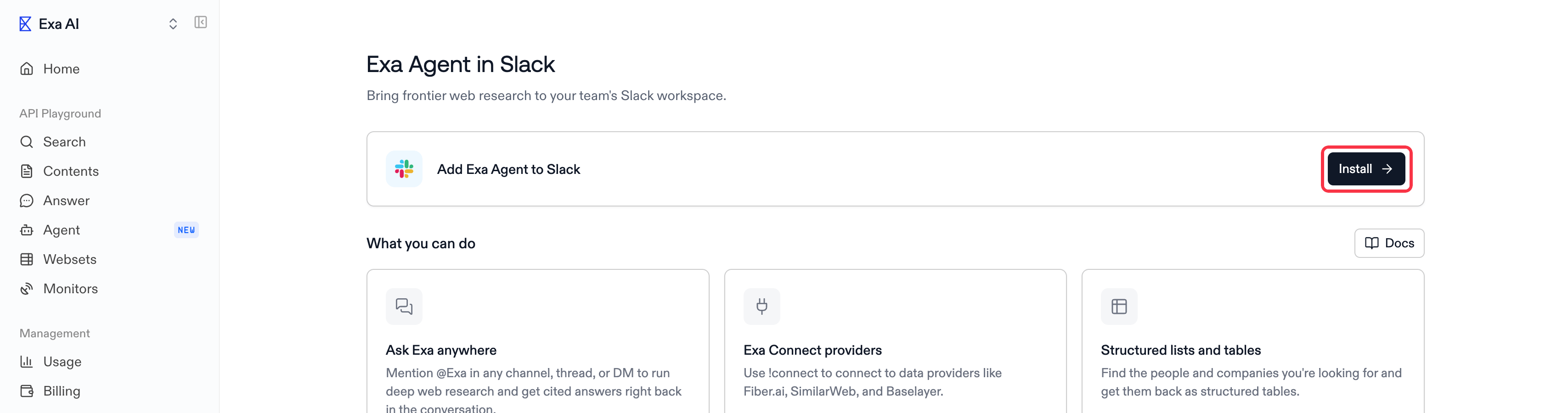
1. Go to [Dashboard > Management > Exa in Slack](https://dashboard.exa.ai/integrations/slack), then click **Install**.
 2. Slack's OAuth flow opens. Pick the workspace you want Exa in, then click **Allow**.
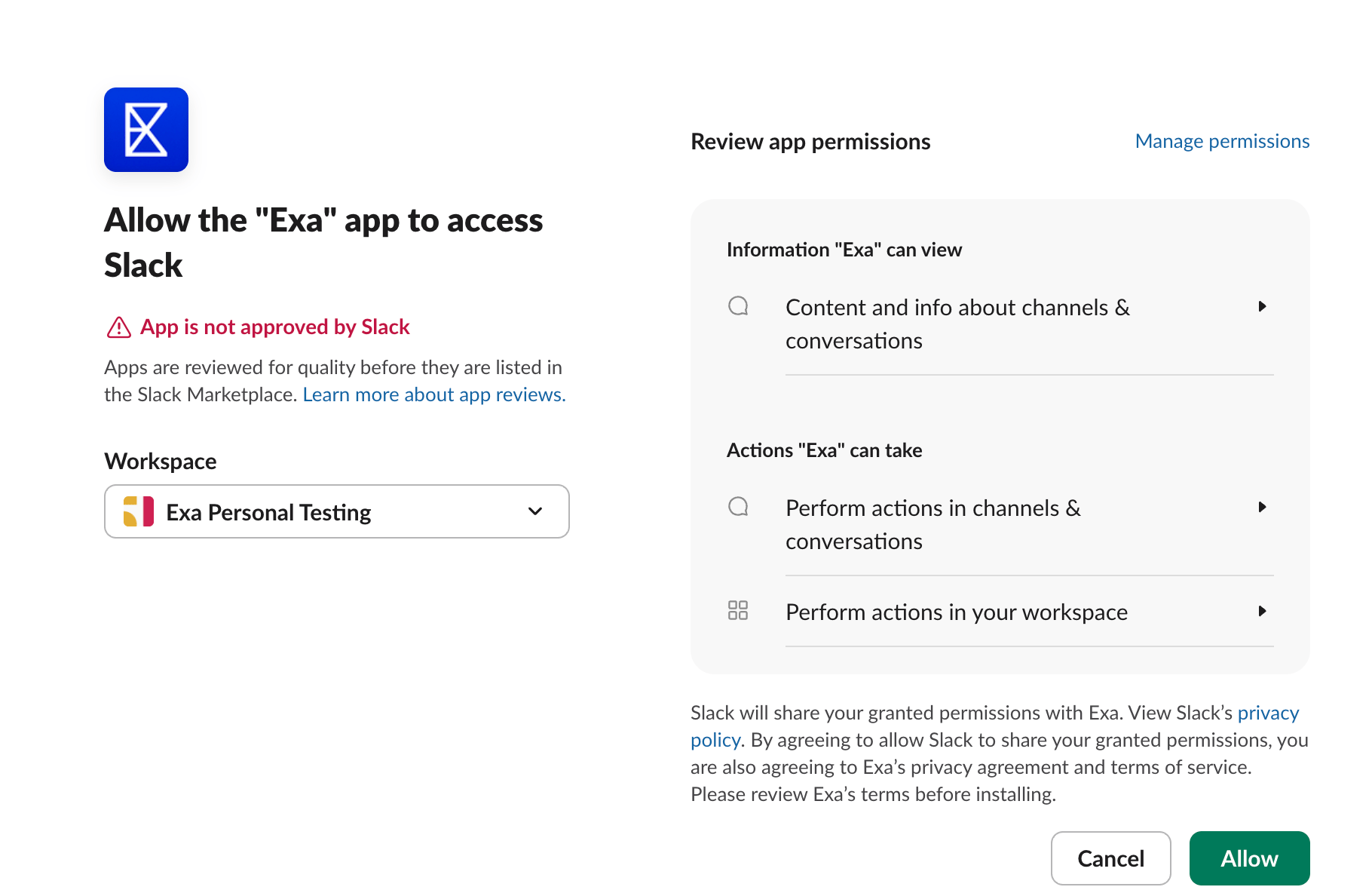 The red **"App is not approved by Slack"** notice is expected and safe to ignore. It only means Exa isn't in the public Slack Marketplace, not that anything is wrong.
3. Once installed, invite @Exa to a channel (or DM it directly) and start asking questions.
## How to use Exa from Slack
In any channel Exa has been added to, mention @Exa with your question:
```
@Exa find all Series A fintech startups in SF
```
Exa Agent replies in a thread with its progress and a cited answer.
### Follow-ups
Once Exa has answered in a thread, just reply in that thread to continue the conversation. No need to mention @Exa again. Exa remembers the conversation, so follow-ups build on the previous answer. Anyone in the thread can follow up.
### Direct messages
You can also message Exa directly in a DM. No mention is needed there at all. Each message you send starts a new request, answered in a thread under that message. Reply in the thread to continue that conversation.
### Cancelling a run
While a run is in progress, reply `cancel`, `stop`, or `abort` in the thread to cancel it. No mention needed.
### Exa Connect providers
Start your message with `!connect` to pick [Exa Connect](/docs/reference/agent-api/connect/overview) data providers:
```
@Exa !connect find me all AI infrastructure startups that raised funding this quarter using Crunchbase
```
Exa posts a picker in the thread. Select the data providers you want, then click **Run** to start the query with those providers included.
## Keywords
Use these in a thread Exa is in:
| Keyword | Function |
| ------------------------- | ---------------------------------------------------------------------------------------------------- |
| `cancel`, `stop`, `abort` | Cancels a currently active run. |
| `mute`, `sleep` | Stops Exa from responding to un-mentioned replies in the thread. Explicit @Exa mentions still work. |
| `unmute` | Resumes thread follow-ups after a `mute` or `sleep`. |
| `aside ` | Posts a side comment that Exa ignores, useful for talking to teammates in a thread Exa is following. |
| `help` | Shows usage instructions. |
## Permissions
The Exa app for Slack requests the following scopes:
| Permission | Description | Rationale |
| -------------------------------------------------- | ---------------------------------------------------- | ------------------------------------------------------------------- |
| `app_mentions:read` | View messages that directly mention @Exa | Know when Exa is asked a question |
| `chat:write` | Send messages as @Exa | Post answers, progress updates, and confirmations |
| `channels:history`, `groups:history`, `im:history` | View messages in conversations Exa has been added to | Receive thread replies and DMs so follow-ups work without a mention |
| `files:write` | Upload, edit, and delete files as @Exa | Attach result files (e.g. exported tables) to answers |
Exa only receives messages from channels it has been explicitly invited to and from its own DMs, and never stores your Slack messages.
## Pricing
Exa Agent runs started from Slack are billed to your Exa team. See [pricing](https://exa.ai/pricing) for details.
## Privacy
For details on how Exa handles your data, see the [Exa privacy policy](https://exa.ai/privacy-policy).
The red **"App is not approved by Slack"** notice is expected and safe to ignore. It only means Exa isn't in the public Slack Marketplace, not that anything is wrong.
3. Once installed, invite @Exa to a channel (or DM it directly) and start asking questions.
## How to use Exa from Slack
In any channel Exa has been added to, mention @Exa with your question:
```
@Exa find all Series A fintech startups in SF
```
Exa Agent replies in a thread with its progress and a cited answer.
### Follow-ups
Once Exa has answered in a thread, just reply in that thread to continue the conversation. No need to mention @Exa again. Exa remembers the conversation, so follow-ups build on the previous answer. Anyone in the thread can follow up.
### Direct messages
You can also message Exa directly in a DM. No mention is needed there at all. Each message you send starts a new request, answered in a thread under that message. Reply in the thread to continue that conversation.
### Cancelling a run
While a run is in progress, reply `cancel`, `stop`, or `abort` in the thread to cancel it. No mention needed.
### Exa Connect providers
Start your message with `!connect` to pick [Exa Connect](/docs/reference/agent-api/connect/overview) data providers:
```
@Exa !connect find me all AI infrastructure startups that raised funding this quarter using Crunchbase
```
Exa posts a picker in the thread. Select the data providers you want, then click **Run** to start the query with those providers included.
## Keywords
Use these in a thread Exa is in:
| Keyword | Function |
| ------------------------- | ---------------------------------------------------------------------------------------------------- |
| `cancel`, `stop`, `abort` | Cancels a currently active run. |
| `mute`, `sleep` | Stops Exa from responding to un-mentioned replies in the thread. Explicit @Exa mentions still work. |
| `unmute` | Resumes thread follow-ups after a `mute` or `sleep`. |
| `aside ` | Posts a side comment that Exa ignores, useful for talking to teammates in a thread Exa is following. |
| `help` | Shows usage instructions. |
## Permissions
The Exa app for Slack requests the following scopes:
| Permission | Description | Rationale |
| -------------------------------------------------- | ---------------------------------------------------- | ------------------------------------------------------------------- |
| `app_mentions:read` | View messages that directly mention @Exa | Know when Exa is asked a question |
| `chat:write` | Send messages as @Exa | Post answers, progress updates, and confirmations |
| `channels:history`, `groups:history`, `im:history` | View messages in conversations Exa has been added to | Receive thread replies and DMs so follow-ups work without a mention |
| `files:write` | Upload, edit, and delete files as @Exa | Attach result files (e.g. exported tables) to answers |
Exa only receives messages from channels it has been explicitly invited to and from its own DMs, and never stores your Slack messages.
## Pricing
Exa Agent runs started from Slack are billed to your Exa team. See [pricing](https://exa.ai/pricing) for details.
## Privacy
For details on how Exa handles your data, see the [Exa privacy policy](https://exa.ai/privacy-policy).