> ## Documentation Index
> Fetch the complete documentation index at: https://exa.ai/docs/llms.txt
> Use this file to discover all available pages before exploring further.
# Exa for Google Sheets
**New to Exa?** Try the [Coding Agent Quickstart](https://dashboard.exa.ai/onboarding)
to get started in under a minute.
Bring the power of Exa's semantic search directly into Google Sheets. Query the web, retrieve relevant results, and enrich your spreadsheets with up-to-date information—all without leaving your worksheet.
## Overview
Exa for Sheets is a Google Apps Script integration that enables you to:
* Run web searches directly from spreadsheet cells
* Generate AI-powered answers with web citations
* Retrieve and parse web content at scale
* Automate research and data collection workflows
## Installation
Navigate to [Google Sheets](https://sheets.google.com) and open a new or existing spreadsheet.
1. Go directly to the [Exa AI add-on](https://workspace.google.com/marketplace/app/exa_ai/465545439521) in the Google Workspace Marketplace
2. Click **Install** and grant the necessary permissions
Alternatively, you can search manually:
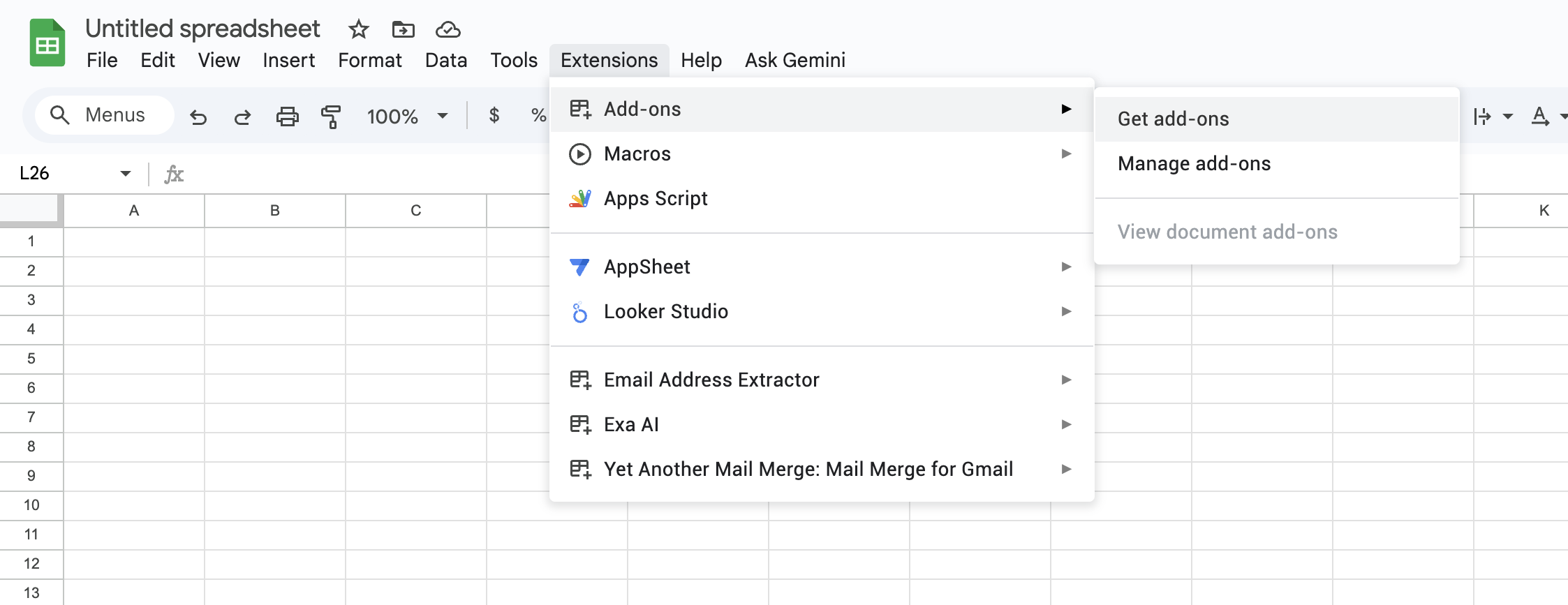
* Click **Extensions** → **Add-ons** → **Get add-ons** in the menu bar
* Search for "Exa AI" in the Google Workspace Marketplace
 1. After installation, you'll see a new **Exa AI** menu in Google Sheets
2. Click **Extensions** → **Exa AI** → **Open Sidebar**
3. Get your API key from [dashboard.exa.ai](https://dashboard.exa.ai/api-keys)
4. Paste your API key in the sidebar and click **Save Key**
You're all set! Start using Exa functions like `=EXA_SEARCH()`, `=EXA_ANSWER()`, and more in your spreadsheet cells.
## Using Exa in Sheets
### EXA\_SEARCH - Search the Web
Search the web and return URLs:
```
=EXA_SEARCH("latest developments in renewable energy", 5)
```
**Parameters:**
* `query` (required, string): Your search query
* `numResults` (optional, number): Number of results to return (1-10, default: 1)
* `searchType` (optional, string): "auto", "deep", or "fast" (default: "auto")
* `prefix` (optional, string): Text to prepend to the query
* `suffix` (optional, string): Text to append to the query
**Returns:** Vertical array of URLs that automatically spills into cells below
### EXA\_ANSWER - Generate AI Answers
Generate AI-powered answers based on web search results:
```
=EXA_ANSWER("What is quantum computing?", "", "", TRUE)
```
**Parameters:**
* `prompt` (required, string): The main question or prompt
* `prefix` (optional, string): Text to prepend to the prompt
* `suffix` (optional, string): Text to append to the prompt
* `includeCitations` (optional, boolean): If TRUE, includes source citations (default: FALSE)
**Returns:** String containing the answer with optional citations
### EXA\_CONTENTS - Extract Content
Extract text content from a specified URL:
```
=EXA_CONTENTS("https://example.com/article")
```
**Parameters:**
* `url` (required, string): Full URL starting with http/https
**Returns:** String containing the main text content from the URL
## Example Use Cases
### Market Research
Automatically gather competitor information and industry trends:
```
=EXA_SEARCH("startup funding rounds in AI sector 2024", 10, "fast")
```
### Research Automation
Get AI-powered answers with citations for research:
```
=EXA_ANSWER("What are the latest trends in renewable energy?", "", "", TRUE)
```
## Using Claude for Sheets with Exa
You can combine Exa for Sheets with Claude for Sheets to create powerful research and analysis workflows. While Exa finds and retrieves relevant web content, Claude can process, analyze, and transform that content.
### What is Claude for Sheets?
Claude for Sheets is a Google Sheets add-on that brings Anthropic's AI assistant directly into your spreadsheets. It allows you to use AI to analyze, summarize, rewrite, and process text data right in your cells.
**Install Claude for Sheets**: [Google Workspace Marketplace](https://workspace.google.com/marketplace/app/claude_for_sheets/909417792257)
### Combining Exa and Claude
Here's how you can use both tools together:
1. **Use Exa to find content**: Search for relevant URLs or extract content from web pages
2. **Use Claude to process the results**: Analyze, summarize, or transform the content Exa retrieved
## Available Functions Reference
| Function | Description | Returns |
| -------------------------------------------------------------------- | --------------------------- | ------------- |
| `=EXA_SEARCH(query, [numResults], [searchType], [prefix], [suffix])` | Search the web semantically | Array of URLs |
| `=EXA_ANSWER(prompt, [prefix], [suffix], [includeCitations])` | Generate AI-powered answers | Answer text |
| `=EXA_CONTENTS(url)` | Extract content from URL | Text content |
## Sidebar Features
The Exa for Sheets sidebar provides additional functionality:
### API Key Management
* Save and manage your Exa API key securely
* Keys are stored in your Google account using UserProperties
* View masked key display (first 4 + last 4 characters)
* Remove keys when needed
### Batch Operations
* **Refresh Selected Cells**: Update multiple Exa function results at once
* Select a range of cells containing Exa functions
* Click "Refresh Selected Cells" to re-execute all functions
* Automatically handles spilled array values
### Built-in Documentation
* Quick reference for all available functions
* Parameter descriptions and types
* Function signatures with examples
## Tips and Best Practices
**Array Formulas**: `EXA_SEARCH` returns an array that automatically spills into cells below. Make sure you have empty cells below your formula to avoid `#SPILL!` errors.
**Batch Refresh**: Use the sidebar's batch refresh feature to update multiple cells at once instead of manually editing each formula.
**Rate Limits**: Be mindful of your API rate limits when running large batch operations. Each function call counts as one API request.
**Search Types**: Use "auto" as the default, "fast" for quicker lookups, or "deep" for more comprehensive research. If you run into older examples that use legacy search-type names, prefer these newer options for fresh formulas.
## Dynamic Queries with Concatenation
Build powerful dynamic queries by combining cell references with text using the `&` operator or `CONCAT()` function:
### Basic Concatenation
Combine text and cell values to create dynamic search queries:
```
=EXA_SEARCH("latest news about " & A2, 5)
```
If cell A2 contains "artificial intelligence", this searches for "latest news about artificial intelligence".
### Multiple Cell References
Combine multiple cells to build complex queries:
```
=EXA_SEARCH(A2 & " " & B2 & " in " & C2, 10, "fast")
```
Example: A2="Tesla", B2="production numbers", C2="2024" → searches for "Tesla production numbers in 2024"
### Using CONCAT for Cleaner Formulas
For longer queries, use `CONCAT()` for better readability:
```
=EXA_SEARCH(CONCAT("research papers about ", A2, " published after ", B2), 5)
```
### Dynamic Prefixes and Suffixes
Use the prefix and suffix parameters with cell references:
```
=EXA_SEARCH(A2, 5, "fast", "Find information about: ", " site:edu")
```
This prepends and appends text to your query dynamically.
### Conditional Queries
Combine with `IF()` statements for conditional searches:
```
=IF(A2<>"", EXA_SEARCH(CONCAT("latest ", A2, " trends"), 5), "Enter a topic")
```
### Example Use Cases
**Research Tracker:**
```
Column A: Topic name
Column B: =EXA_SEARCH("latest research on " & A2 & " 2024", 3)
```
**Competitor Analysis:**
```
Column A: Company name
Column B: Industry
Column C: =EXA_SEARCH(A2 & " " & B2 & " market analysis", 5, "deep")
```
## Privacy & Security
* API keys are stored securely using Google Apps Script's UserProperties service
* Keys are only accessible to your Google account
* No data is stored outside your Google account and the Exa API
* [Privacy Policy](https://exa.ai/exa-for-sheets/privacy-policy)
## Github Repository
Check out the [GitHub repository](https://github.com/exa-labs/exa-sheets).
1. After installation, you'll see a new **Exa AI** menu in Google Sheets
2. Click **Extensions** → **Exa AI** → **Open Sidebar**
3. Get your API key from [dashboard.exa.ai](https://dashboard.exa.ai/api-keys)
4. Paste your API key in the sidebar and click **Save Key**
You're all set! Start using Exa functions like `=EXA_SEARCH()`, `=EXA_ANSWER()`, and more in your spreadsheet cells.
## Using Exa in Sheets
### EXA\_SEARCH - Search the Web
Search the web and return URLs:
```
=EXA_SEARCH("latest developments in renewable energy", 5)
```
**Parameters:**
* `query` (required, string): Your search query
* `numResults` (optional, number): Number of results to return (1-10, default: 1)
* `searchType` (optional, string): "auto", "deep", or "fast" (default: "auto")
* `prefix` (optional, string): Text to prepend to the query
* `suffix` (optional, string): Text to append to the query
**Returns:** Vertical array of URLs that automatically spills into cells below
### EXA\_ANSWER - Generate AI Answers
Generate AI-powered answers based on web search results:
```
=EXA_ANSWER("What is quantum computing?", "", "", TRUE)
```
**Parameters:**
* `prompt` (required, string): The main question or prompt
* `prefix` (optional, string): Text to prepend to the prompt
* `suffix` (optional, string): Text to append to the prompt
* `includeCitations` (optional, boolean): If TRUE, includes source citations (default: FALSE)
**Returns:** String containing the answer with optional citations
### EXA\_CONTENTS - Extract Content
Extract text content from a specified URL:
```
=EXA_CONTENTS("https://example.com/article")
```
**Parameters:**
* `url` (required, string): Full URL starting with http/https
**Returns:** String containing the main text content from the URL
## Example Use Cases
### Market Research
Automatically gather competitor information and industry trends:
```
=EXA_SEARCH("startup funding rounds in AI sector 2024", 10, "fast")
```
### Research Automation
Get AI-powered answers with citations for research:
```
=EXA_ANSWER("What are the latest trends in renewable energy?", "", "", TRUE)
```
## Using Claude for Sheets with Exa
You can combine Exa for Sheets with Claude for Sheets to create powerful research and analysis workflows. While Exa finds and retrieves relevant web content, Claude can process, analyze, and transform that content.
### What is Claude for Sheets?
Claude for Sheets is a Google Sheets add-on that brings Anthropic's AI assistant directly into your spreadsheets. It allows you to use AI to analyze, summarize, rewrite, and process text data right in your cells.
**Install Claude for Sheets**: [Google Workspace Marketplace](https://workspace.google.com/marketplace/app/claude_for_sheets/909417792257)
### Combining Exa and Claude
Here's how you can use both tools together:
1. **Use Exa to find content**: Search for relevant URLs or extract content from web pages
2. **Use Claude to process the results**: Analyze, summarize, or transform the content Exa retrieved
## Available Functions Reference
| Function | Description | Returns |
| -------------------------------------------------------------------- | --------------------------- | ------------- |
| `=EXA_SEARCH(query, [numResults], [searchType], [prefix], [suffix])` | Search the web semantically | Array of URLs |
| `=EXA_ANSWER(prompt, [prefix], [suffix], [includeCitations])` | Generate AI-powered answers | Answer text |
| `=EXA_CONTENTS(url)` | Extract content from URL | Text content |
## Sidebar Features
The Exa for Sheets sidebar provides additional functionality:
### API Key Management
* Save and manage your Exa API key securely
* Keys are stored in your Google account using UserProperties
* View masked key display (first 4 + last 4 characters)
* Remove keys when needed
### Batch Operations
* **Refresh Selected Cells**: Update multiple Exa function results at once
* Select a range of cells containing Exa functions
* Click "Refresh Selected Cells" to re-execute all functions
* Automatically handles spilled array values
### Built-in Documentation
* Quick reference for all available functions
* Parameter descriptions and types
* Function signatures with examples
## Tips and Best Practices
**Array Formulas**: `EXA_SEARCH` returns an array that automatically spills into cells below. Make sure you have empty cells below your formula to avoid `#SPILL!` errors.
**Batch Refresh**: Use the sidebar's batch refresh feature to update multiple cells at once instead of manually editing each formula.
**Rate Limits**: Be mindful of your API rate limits when running large batch operations. Each function call counts as one API request.
**Search Types**: Use "auto" as the default, "fast" for quicker lookups, or "deep" for more comprehensive research. If you run into older examples that use legacy search-type names, prefer these newer options for fresh formulas.
## Dynamic Queries with Concatenation
Build powerful dynamic queries by combining cell references with text using the `&` operator or `CONCAT()` function:
### Basic Concatenation
Combine text and cell values to create dynamic search queries:
```
=EXA_SEARCH("latest news about " & A2, 5)
```
If cell A2 contains "artificial intelligence", this searches for "latest news about artificial intelligence".
### Multiple Cell References
Combine multiple cells to build complex queries:
```
=EXA_SEARCH(A2 & " " & B2 & " in " & C2, 10, "fast")
```
Example: A2="Tesla", B2="production numbers", C2="2024" → searches for "Tesla production numbers in 2024"
### Using CONCAT for Cleaner Formulas
For longer queries, use `CONCAT()` for better readability:
```
=EXA_SEARCH(CONCAT("research papers about ", A2, " published after ", B2), 5)
```
### Dynamic Prefixes and Suffixes
Use the prefix and suffix parameters with cell references:
```
=EXA_SEARCH(A2, 5, "fast", "Find information about: ", " site:edu")
```
This prepends and appends text to your query dynamically.
### Conditional Queries
Combine with `IF()` statements for conditional searches:
```
=IF(A2<>"", EXA_SEARCH(CONCAT("latest ", A2, " trends"), 5), "Enter a topic")
```
### Example Use Cases
**Research Tracker:**
```
Column A: Topic name
Column B: =EXA_SEARCH("latest research on " & A2 & " 2024", 3)
```
**Competitor Analysis:**
```
Column A: Company name
Column B: Industry
Column C: =EXA_SEARCH(A2 & " " & B2 & " market analysis", 5, "deep")
```
## Privacy & Security
* API keys are stored securely using Google Apps Script's UserProperties service
* Keys are only accessible to your Google account
* No data is stored outside your Google account and the Exa API
* [Privacy Policy](https://exa.ai/exa-for-sheets/privacy-policy)
## Github Repository
Check out the [GitHub repository](https://github.com/exa-labs/exa-sheets).