> ## Documentation Index
> Fetch the complete documentation index at: https://exa.ai/docs/llms.txt
> Use this file to discover all available pages before exploring further.
# TrueFoundry
> Connect Exa to the TrueFoundry MCP Gateway for centralized access controls, tool management, and usage monitoring.
[TrueFoundry AI Gateway](https://truefoundry.com/ai-gateway) is an enterprise-grade proxy layer between your applications and LLM providers or MCP servers. It provides unified access to 1,000+ LLMs with centralized observability and governance.
TrueFoundry provides Exa as an official remote server in its [MCP Gateway](https://www.truefoundry.com/mcp-gateway). Connect the Exa MCP server to give your teams one managed endpoint for web search, content fetching, and agentic research.
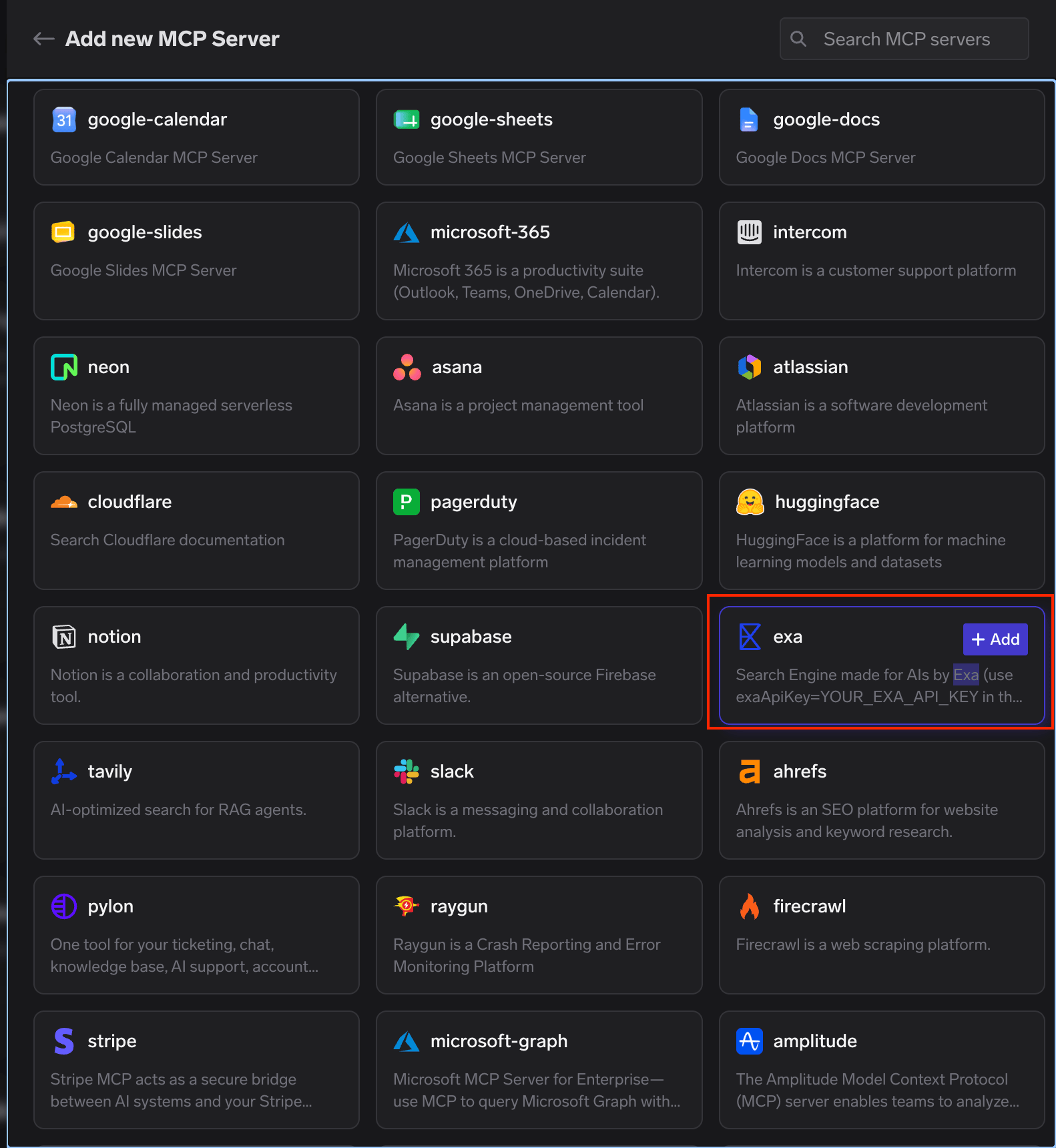 ## Add Exa to TrueFoundry
1. Open **MCP Servers** in the TrueFoundry sidebar and select **Add new MCP Server**.
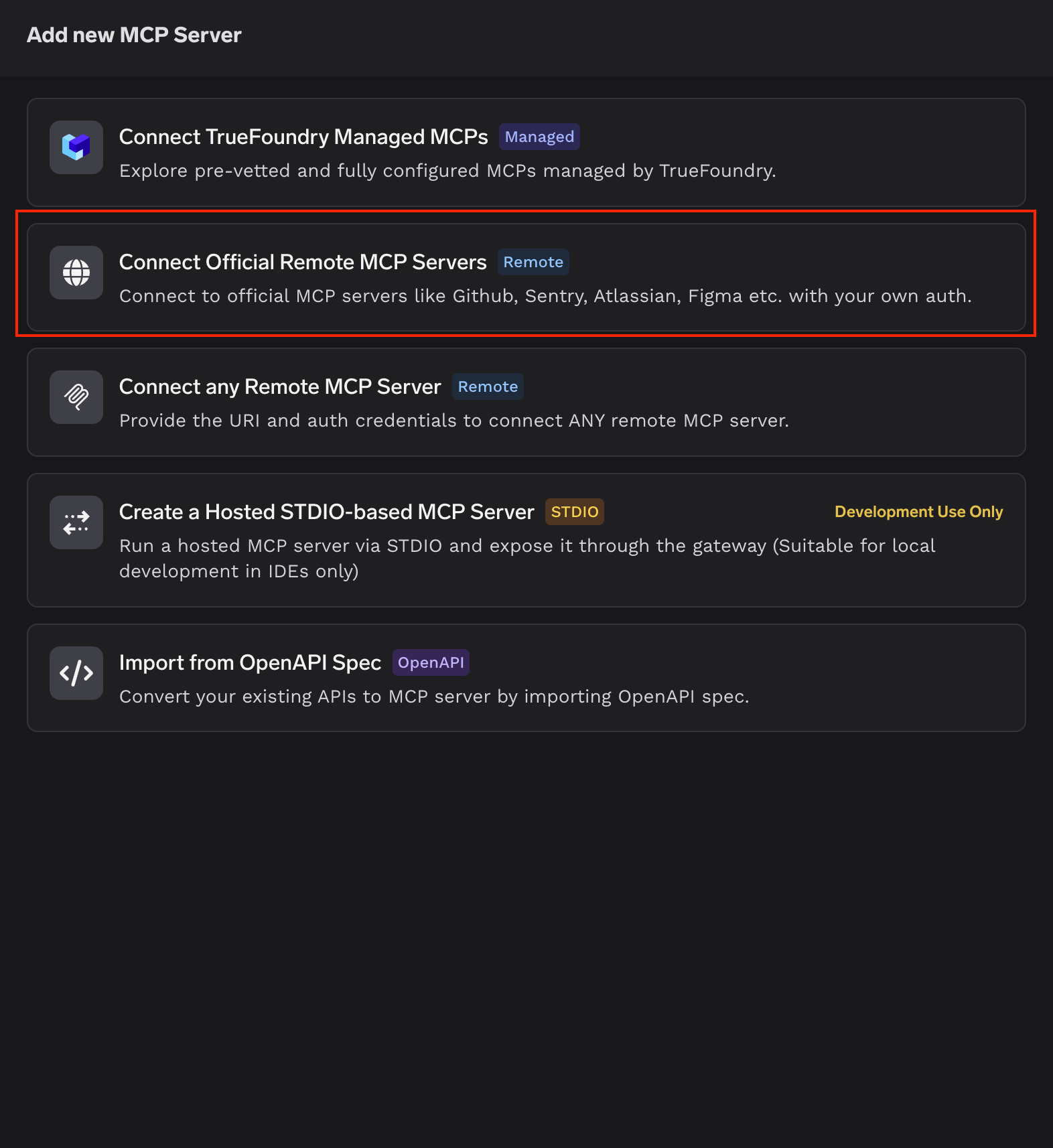
2. Select **Connect Official Remote MCP Servers**.
## Add Exa to TrueFoundry
1. Open **MCP Servers** in the TrueFoundry sidebar and select **Add new MCP Server**.
2. Select **Connect Official Remote MCP Servers**.
 3. Find **Exa** in the catalog and select **+ Add**.
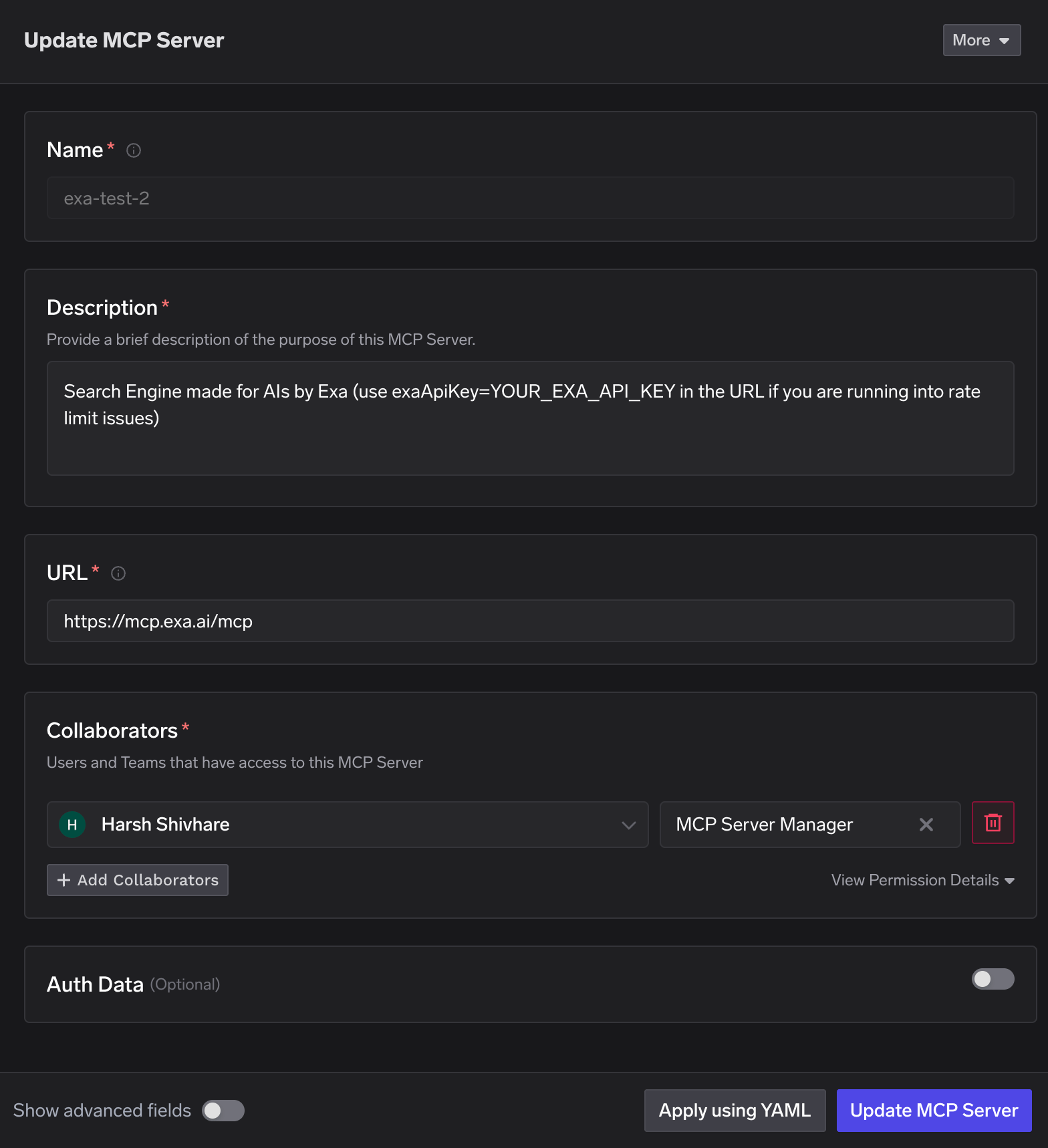
4. Confirm the pre-filled server details:
| Field | Value |
| -------------- | ---------------------------------------------------------------------------------------------------------------------- |
| Name | `exa` |
| Description | Search Engine made for AIs by Exa |
| URL | `https://mcp.exa.ai/mcp` |
| Authentication | Optional (The MCP Server works without authentication. You only need an Exa API key if you reach the free rate limit.) |
5. Add the users or teams that should manage or use the server. Leave **Auth Data** off, then select **Update MCP Server**.
3. Find **Exa** in the catalog and select **+ Add**.
4. Confirm the pre-filled server details:
| Field | Value |
| -------------- | ---------------------------------------------------------------------------------------------------------------------- |
| Name | `exa` |
| Description | Search Engine made for AIs by Exa |
| URL | `https://mcp.exa.ai/mcp` |
| Authentication | Optional (The MCP Server works without authentication. You only need an Exa API key if you reach the free rate limit.) |
5. Add the users or teams that should manage or use the server. Leave **Auth Data** off, then select **Update MCP Server**.
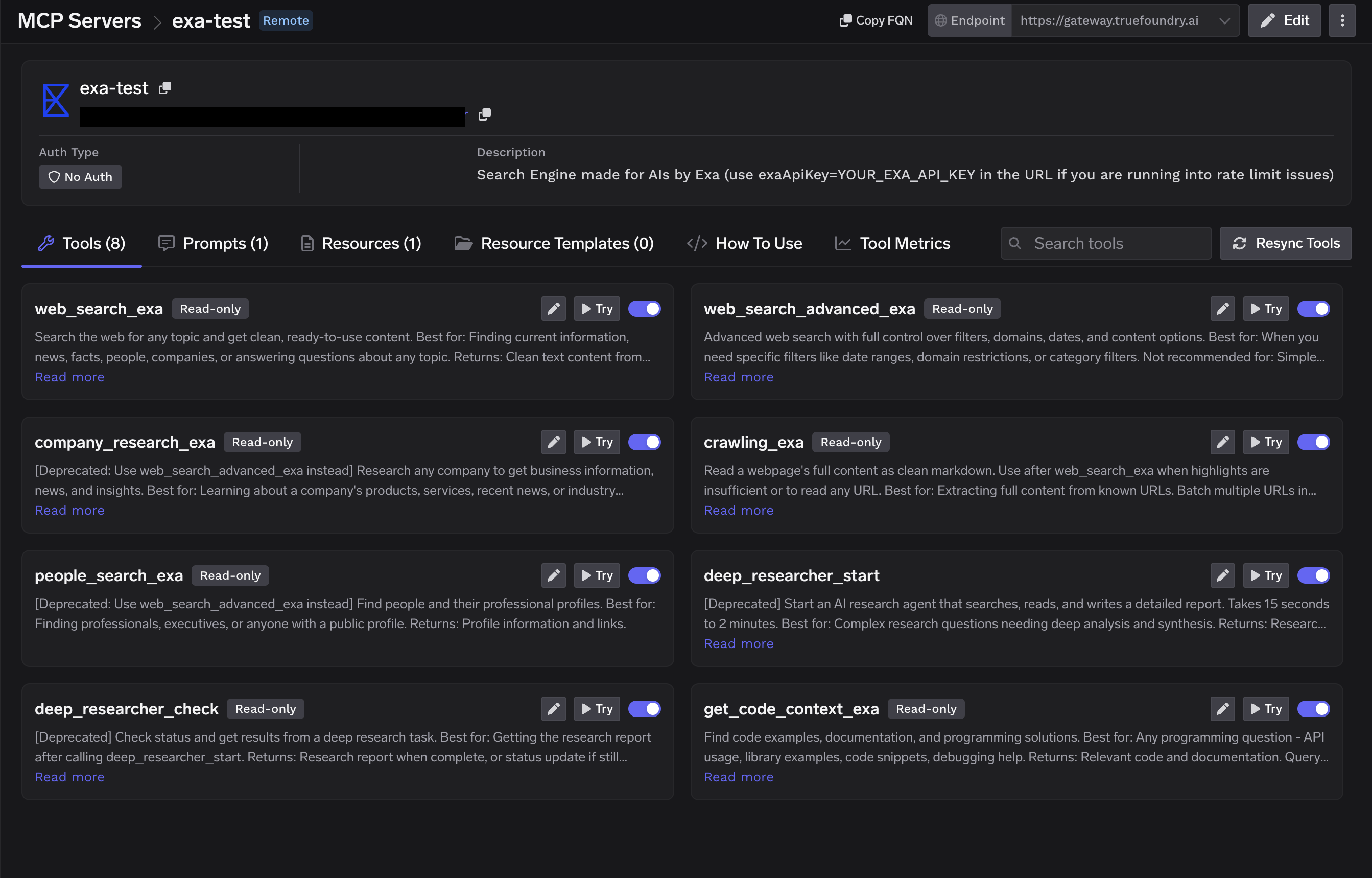
 Open the **Tools** tab and confirm that Exa's search, content fetching, and agentic research tools are available.
## Configure the Exa server
The pre-filled URL exposes Exa's default toolset. Change it only if you need to restrict the available tools or use your own API key.
### Choose which tools are available
Pass a comma-separated list of tool names in the `tools` query parameter:
```text theme={null}
https://mcp.exa.ai/mcp?tools=web_search_exa,web_fetch_exa,agent_tools
```
You can enter the URL in the server form or use **Apply using YAML**:
```yaml theme={null}
url: >-
https://mcp.exa.ai/mcp?tools=web_search_exa,web_fetch_exa,agent_tools
name: exa
type: mcp-server/remote
description: Search Engine made for AIs by Exa
collaborators:
- role_id: mcp-server-manager
subject: user:you@your-company.com
```
You can find available tool names in the [Exa MCP documentation](/docs/reference/exa-mcp).
### Use your Exa API key to bypass the free rate limit
If you reach the free rate limit, add your Exa API key to the server URL:
```text theme={null}
https://mcp.exa.ai/mcp?exaApiKey=YOUR_API_KEY
```
## Connect an MCP client
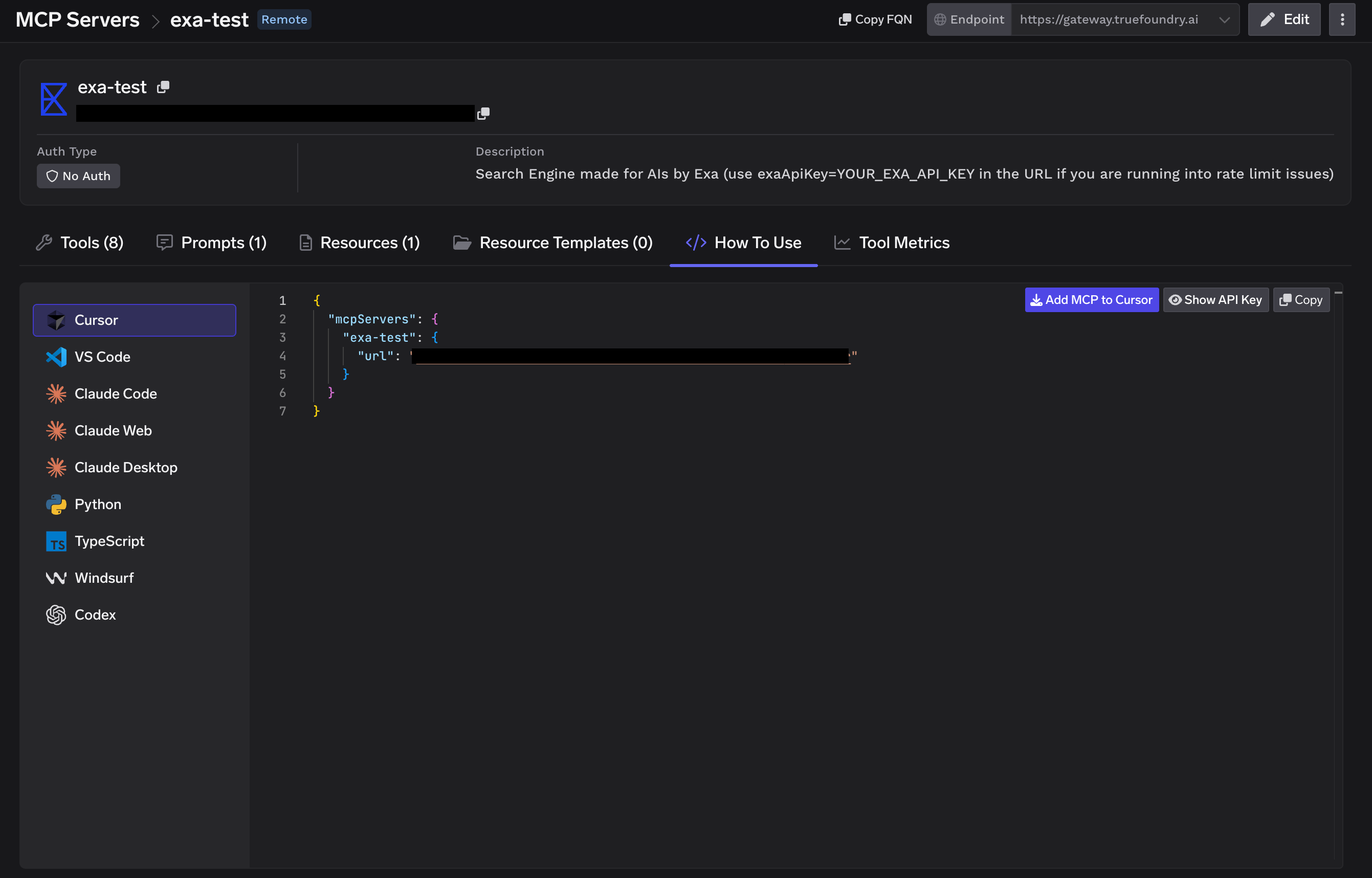
Open the Exa server's **How To Use** tab and select your client. TrueFoundry generates the tenant-specific endpoint and ready-to-paste configuration for Cursor, Claude Code, VS Code, Windsurf, Codex, and other MCP clients.
Open the **Tools** tab and confirm that Exa's search, content fetching, and agentic research tools are available.
## Configure the Exa server
The pre-filled URL exposes Exa's default toolset. Change it only if you need to restrict the available tools or use your own API key.
### Choose which tools are available
Pass a comma-separated list of tool names in the `tools` query parameter:
```text theme={null}
https://mcp.exa.ai/mcp?tools=web_search_exa,web_fetch_exa,agent_tools
```
You can enter the URL in the server form or use **Apply using YAML**:
```yaml theme={null}
url: >-
https://mcp.exa.ai/mcp?tools=web_search_exa,web_fetch_exa,agent_tools
name: exa
type: mcp-server/remote
description: Search Engine made for AIs by Exa
collaborators:
- role_id: mcp-server-manager
subject: user:you@your-company.com
```
You can find available tool names in the [Exa MCP documentation](/docs/reference/exa-mcp).
### Use your Exa API key to bypass the free rate limit
If you reach the free rate limit, add your Exa API key to the server URL:
```text theme={null}
https://mcp.exa.ai/mcp?exaApiKey=YOUR_API_KEY
```
## Connect an MCP client
Open the Exa server's **How To Use** tab and select your client. TrueFoundry generates the tenant-specific endpoint and ready-to-paste configuration for Cursor, Claude Code, VS Code, Windsurf, Codex, and other MCP clients.
 ## Test a tool
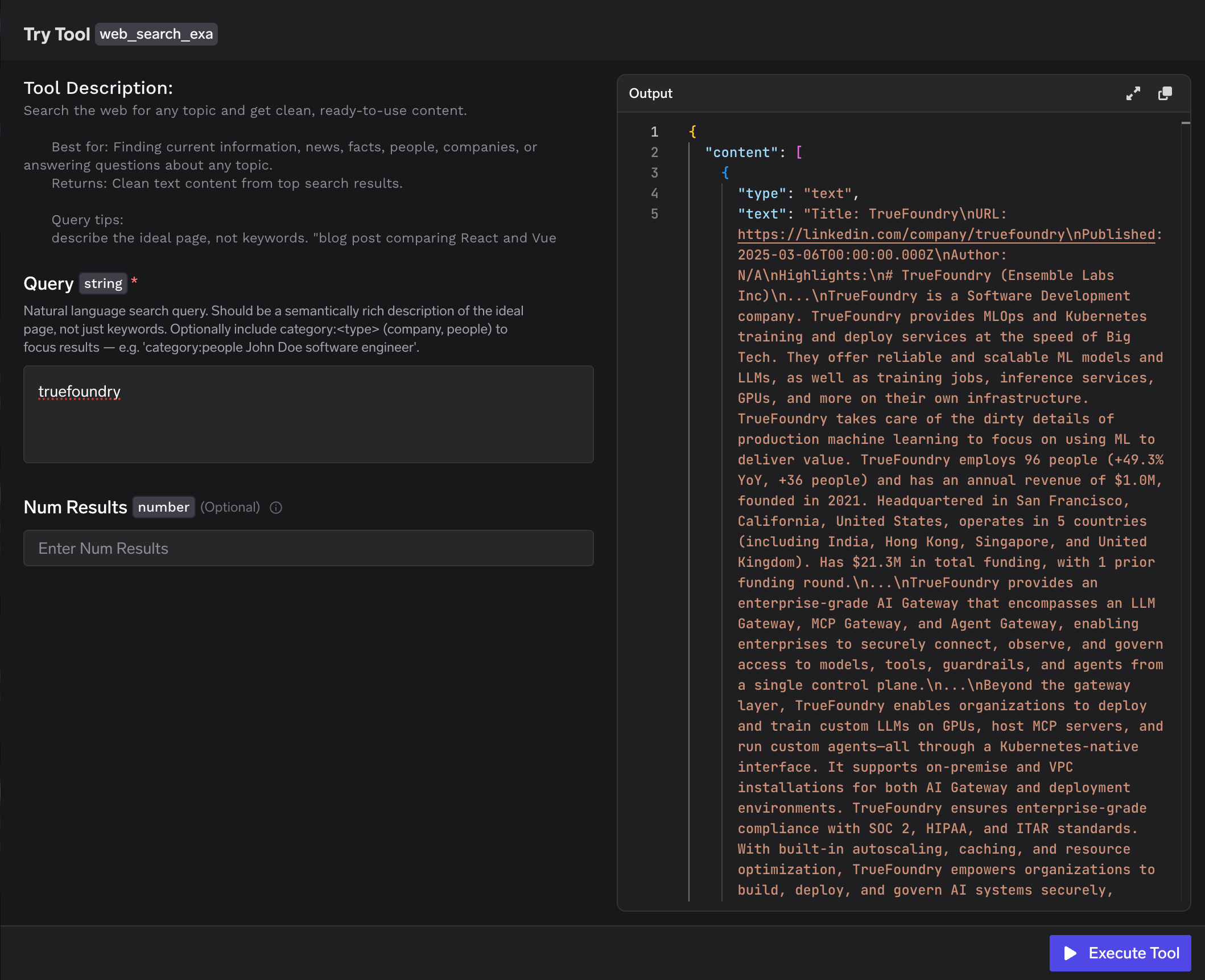
Select **Try** beside an Exa tool, enter its inputs, then select **Execute Tool**. The playground displays the JSON response so you can verify the tool before using it in an agent.
## Test a tool
Select **Try** beside an Exa tool, enter its inputs, then select **Execute Tool**. The playground displays the JSON response so you can verify the tool before using it in an agent.
 ## Manage and monitor tools
* Toggle individual tools to control what MCP clients can call
* Use **Tool Metrics** to review traffic, latency, and errors
* Export invocation traces to your observability stack through OpenTelemetry
## Manage and monitor tools
* Toggle individual tools to control what MCP clients can call
* Use **Tool Metrics** to review traffic, latency, and errors
* Export invocation traces to your observability stack through OpenTelemetry
 ## Resources
Read TrueFoundry's guide to its Exa MCP server.
Review Exa's tools, configuration, and usage examples.
View the server source and releases on GitHub.
## Resources
Read TrueFoundry's guide to its Exa MCP server.
Review Exa's tools, configuration, and usage examples.
View the server source and releases on GitHub.