> ## Documentation Index
> Fetch the complete documentation index at: https://exa.ai/docs/llms.txt
> Use this file to discover all available pages before exploring further.
# OpenHuman
> Give the OpenHuman agent live web search with Exa, either managed or with your own Exa API key.
[OpenHuman](https://tinyhumans.gitbook.io/openhuman) by TinyHumans is a desktop AI assistant with a native web search tool the agent calls on its own. Exa is the search provider behind that tool.
| Approach | Setup | Runs on |
| --------------------- | -------------------- | ----------------------------------------------------------------------- |
| **OpenHuman Managed** | None | OpenHuman's backend, powered by Exa. No API key. |
| **Exa provider** | Paste an Exa API key | Your machine, straight to `https://api.exa.ai` on your own Exa account. |
## OpenHuman Managed
Managed search is the default. Choose **Simple** during onboarding and the agent can search the web immediately.
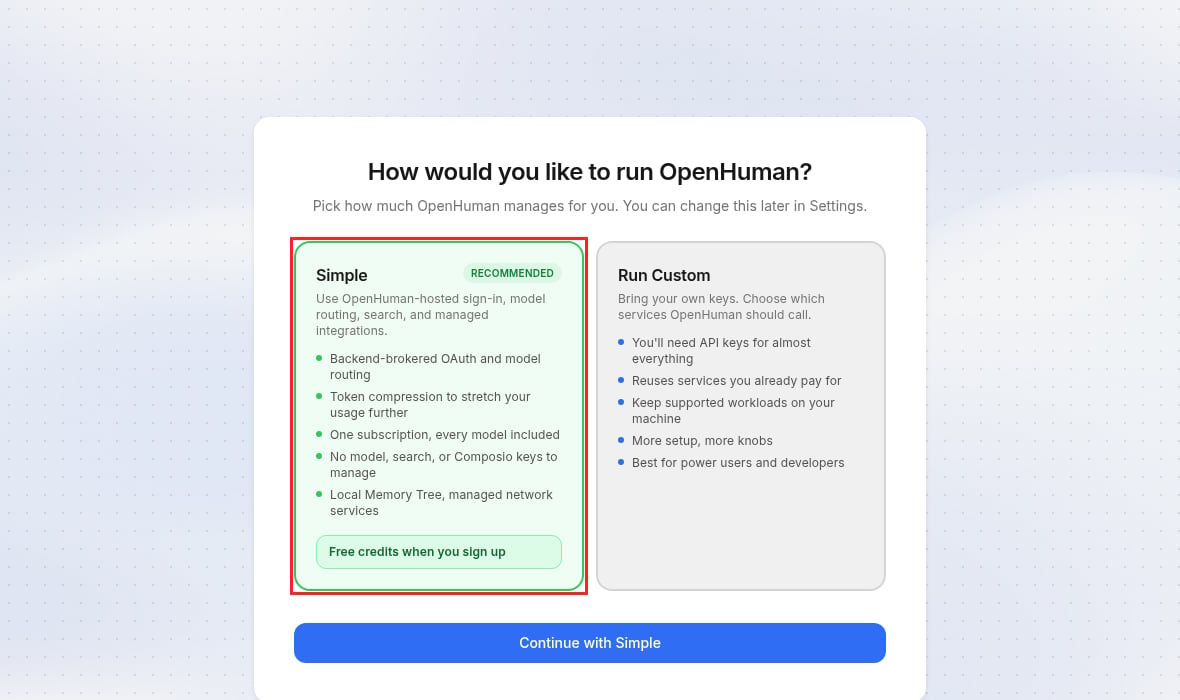 **Managed is the fastest way to get Exa results.** No key to create, store, or rotate, no credentials on your machine, and search is billed on your OpenHuman subscription.
## Exa provider
Configure Exa directly to run search on your own Exa account and give the agent Exa's search and page-contents tools.
### Get your Exa API key
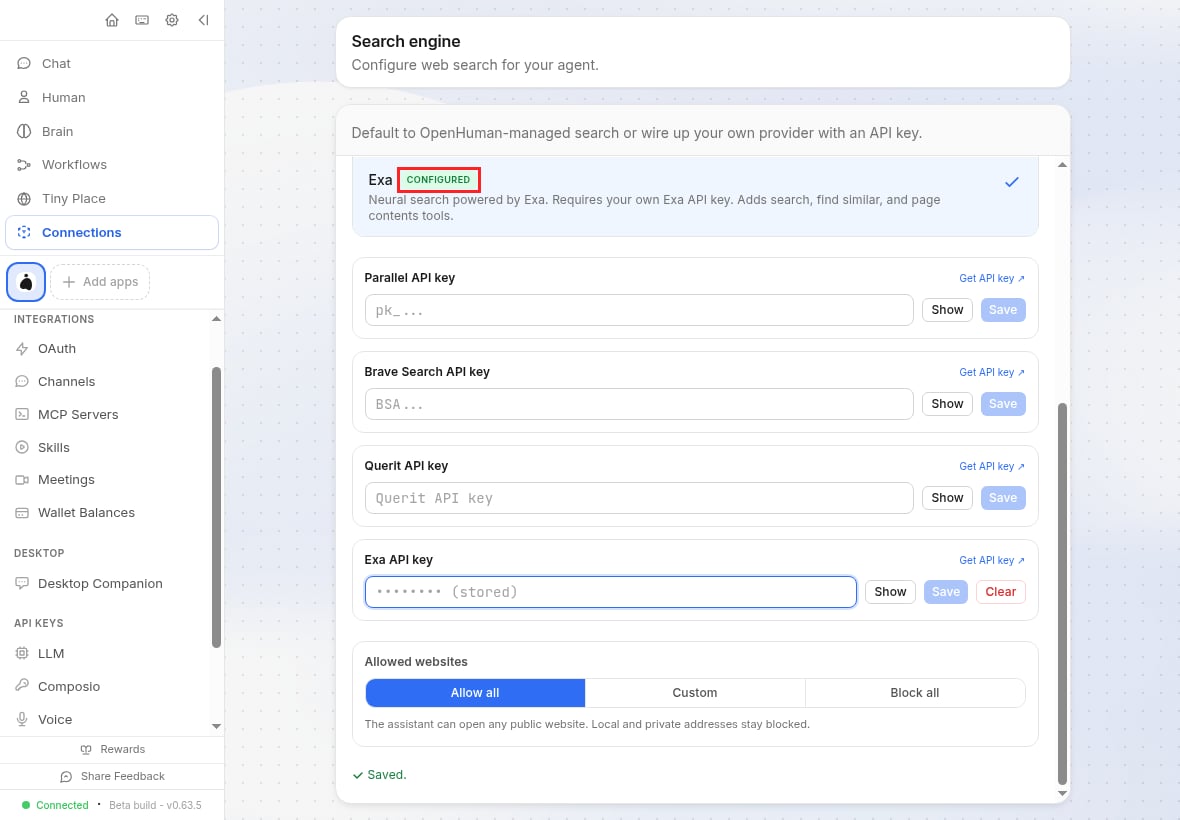
### Add Exa in OpenHuman
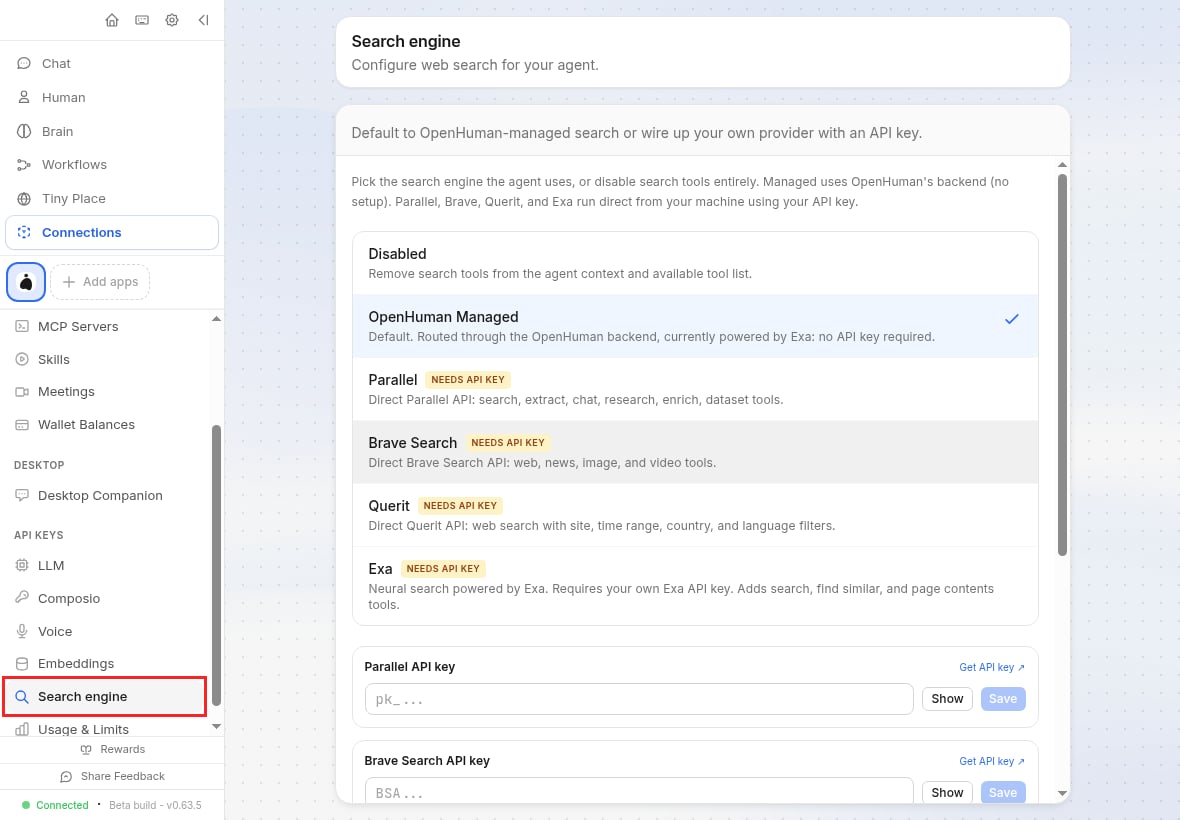
1. Open **Connections**, then select **Search engine** under **API keys**.
**Managed is the fastest way to get Exa results.** No key to create, store, or rotate, no credentials on your machine, and search is billed on your OpenHuman subscription.
## Exa provider
Configure Exa directly to run search on your own Exa account and give the agent Exa's search and page-contents tools.
### Get your Exa API key
### Add Exa in OpenHuman
1. Open **Connections**, then select **Search engine** under **API keys**.
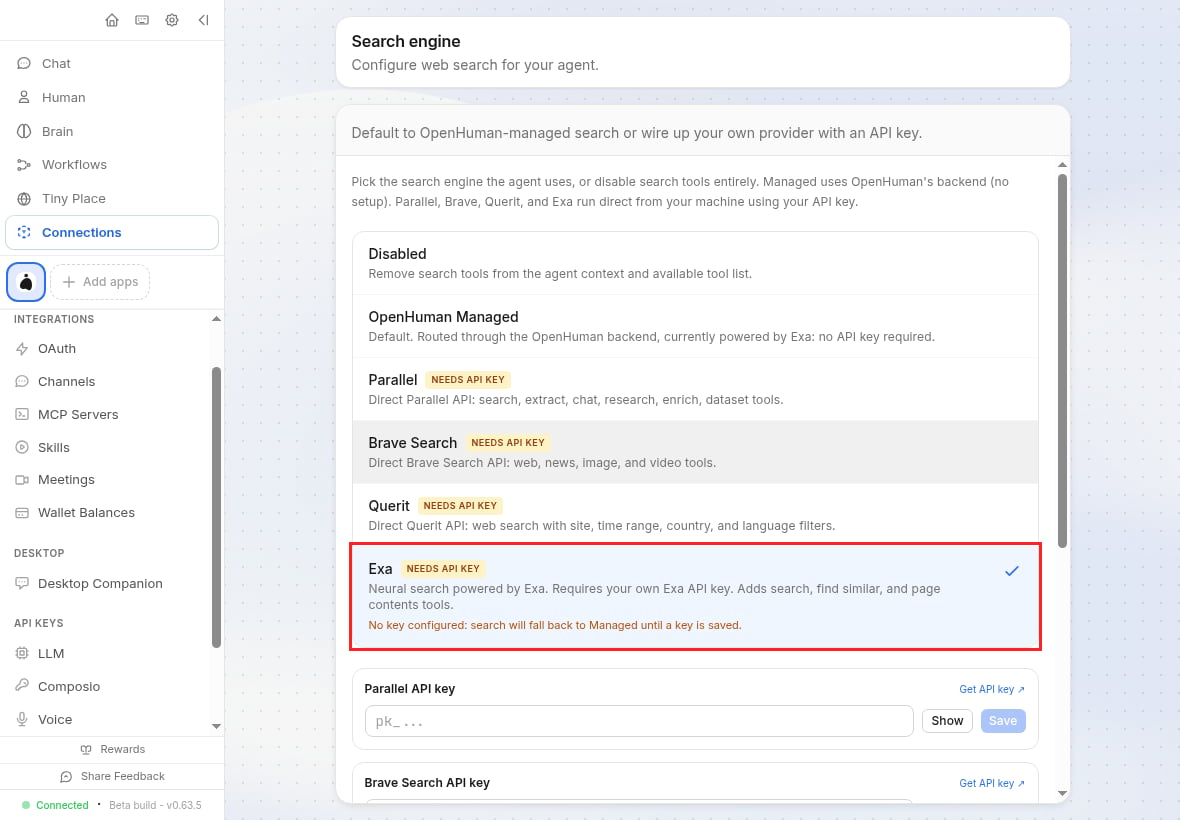
 2. Select **Exa**.
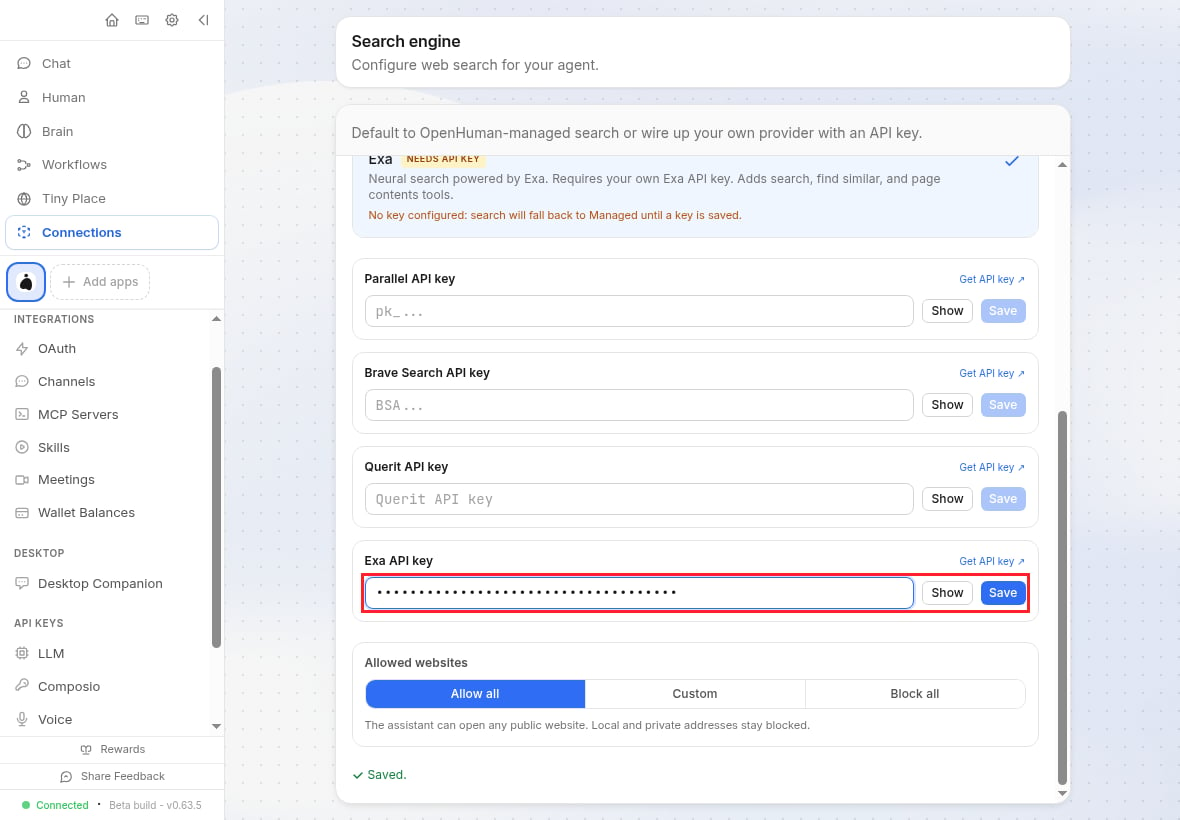
 3. Paste your key into **Exa API key** and select **Save**.
 ### Configuration
The panel writes to OpenHuman's `config.toml`. Set the same values in the file or the environment instead:
```toml config.toml theme={null}
[search]
engine = "exa" # required
max_results = 5 # optional, 1-20
timeout_secs = 15 # optional
[search.exa]
api_key = "your-exa-api-key" # required
```
```bash theme={null}
OPENHUMAN_SEARCH_ENGINE=exa
EXA_API_KEY=your-exa-api-key
```
`EXA_API_KEY` and `OPENHUMAN_EXA_API_KEY` both override `search.exa.api_key`. When both are set, `OPENHUMAN_EXA_API_KEY` takes precedence.
### Tools the agent gets
| Tool | Returns |
| ------------------ | ------------------------------------------------------------------- |
| `web_search_tool` | Web search, served by Exa. |
| `exa_search` | Ranked pages with titles, URLs, publish dates, and optional text. |
| `exa_get_contents` | Full contents of given URLs, with optional summaries or highlights. |
The agent sets Exa's [search parameters](/docs/reference/search-api-guide) per call, so plain instructions are enough to steer search mode, domains, dates, and categories.
## Troubleshooting
OpenHuman found no key in the **Search engine** panel, the `EXA_API_KEY` and `OPENHUMAN_EXA_API_KEY` variables, or `search.exa.api_key`. Set it in one of them, and restart OpenHuman if you edited `config.toml` while it was running.
The key is invalid or revoked. Check it in the [Exa dashboard](https://dashboard.exa.ai/api-keys), then **Clear** the stored key and save the correct one. Watch for pasted whitespace.
`429` means a rate limit or exhausted quota: check usage in the [dashboard](https://dashboard.exa.ai). For `5xx`, retry, then see [error codes](/docs/reference/error-codes).
Local-only sessions cannot use managed search. Configure the Exa provider with your own key.
## Resources
Read OpenHuman's own reference for its search engines.
Understand the search modes, filters, and content options behind the Exa tools.
Get better results out of every query.
### Configuration
The panel writes to OpenHuman's `config.toml`. Set the same values in the file or the environment instead:
```toml config.toml theme={null}
[search]
engine = "exa" # required
max_results = 5 # optional, 1-20
timeout_secs = 15 # optional
[search.exa]
api_key = "your-exa-api-key" # required
```
```bash theme={null}
OPENHUMAN_SEARCH_ENGINE=exa
EXA_API_KEY=your-exa-api-key
```
`EXA_API_KEY` and `OPENHUMAN_EXA_API_KEY` both override `search.exa.api_key`. When both are set, `OPENHUMAN_EXA_API_KEY` takes precedence.
### Tools the agent gets
| Tool | Returns |
| ------------------ | ------------------------------------------------------------------- |
| `web_search_tool` | Web search, served by Exa. |
| `exa_search` | Ranked pages with titles, URLs, publish dates, and optional text. |
| `exa_get_contents` | Full contents of given URLs, with optional summaries or highlights. |
The agent sets Exa's [search parameters](/docs/reference/search-api-guide) per call, so plain instructions are enough to steer search mode, domains, dates, and categories.
## Troubleshooting
OpenHuman found no key in the **Search engine** panel, the `EXA_API_KEY` and `OPENHUMAN_EXA_API_KEY` variables, or `search.exa.api_key`. Set it in one of them, and restart OpenHuman if you edited `config.toml` while it was running.
The key is invalid or revoked. Check it in the [Exa dashboard](https://dashboard.exa.ai/api-keys), then **Clear** the stored key and save the correct one. Watch for pasted whitespace.
`429` means a rate limit or exhausted quota: check usage in the [dashboard](https://dashboard.exa.ai). For `5xx`, retry, then see [error codes](/docs/reference/error-codes).
Local-only sessions cannot use managed search. Configure the Exa provider with your own key.
## Resources
Read OpenHuman's own reference for its search engines.
Understand the search modes, filters, and content options behind the Exa tools.
Get better results out of every query.