> ## Documentation Index
> Fetch the complete documentation index at: https://exa.ai/docs/llms.txt
> Use this file to discover all available pages before exploring further.
# Exa in Slack
Bring Exa into your team's Slack. Tag **@Exa** in any channel or thread with a research question, list-building task, or enrichment request. Exa searches the web, reads sources, and replies in-thread with cited answers.
## Get started
### Installation
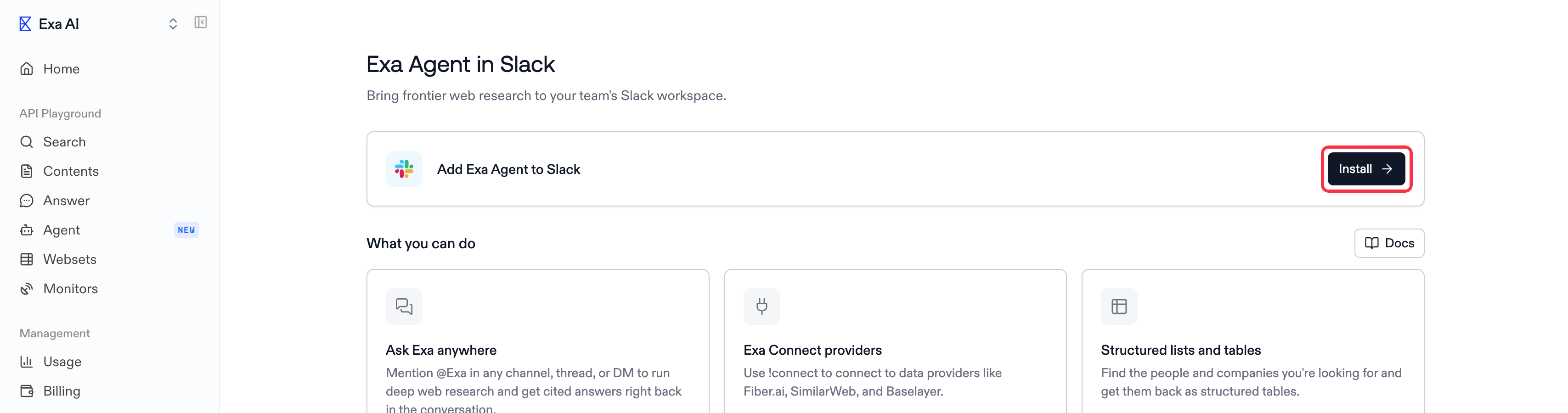
1. Go to [Dashboard > Management > Exa in Slack](https://dashboard.exa.ai/integrations/slack), then click **Install**.
 2. Slack's OAuth flow opens. Pick the workspace you want Exa in, then click **Allow**.
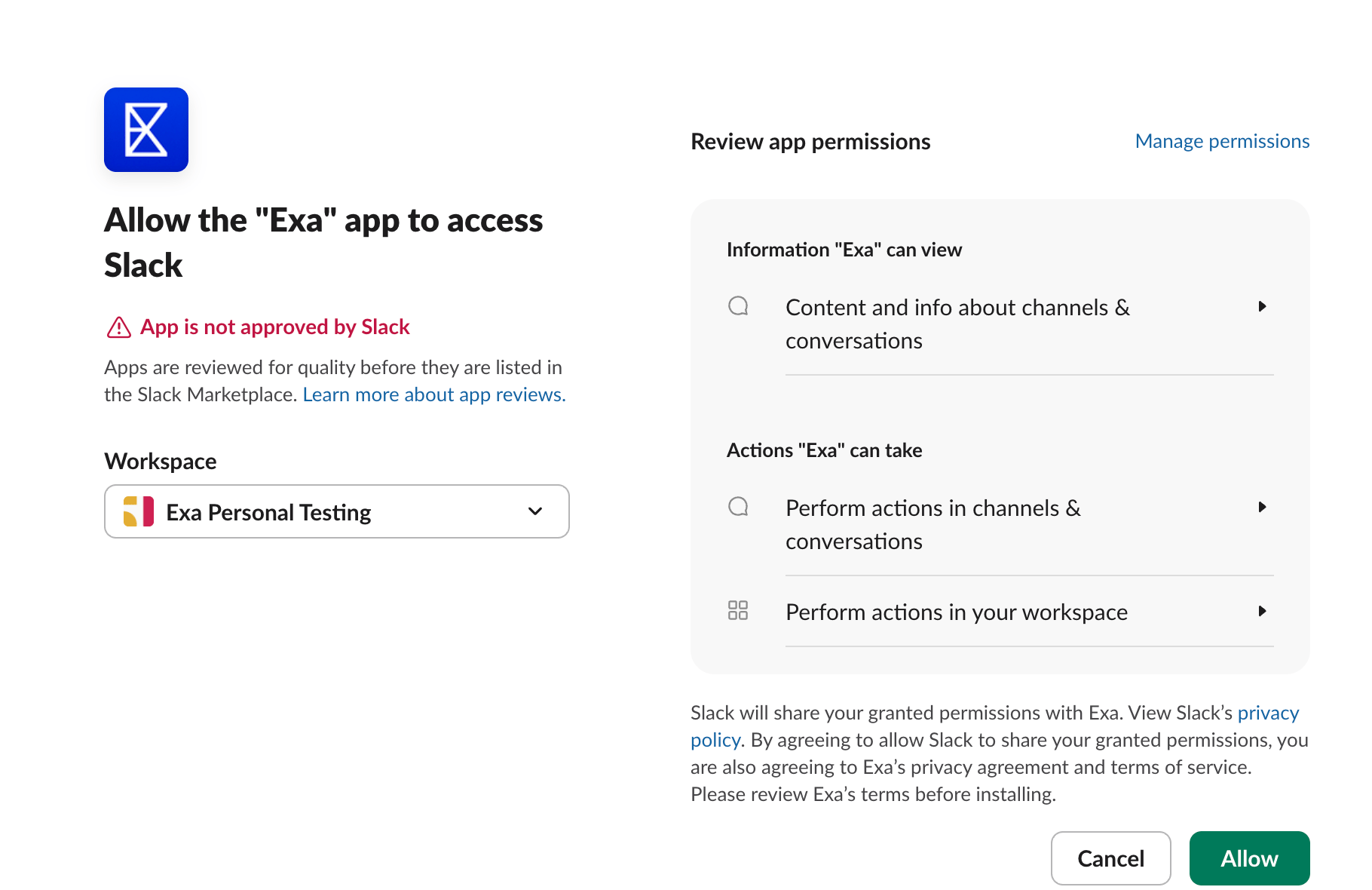 The red **"App is not approved by Slack"** notice is expected and safe to ignore. It only means
Exa isn't in the public Slack Marketplace, not that anything is wrong.
3. Once installed, invite @Exa to a channel (or DM it directly) and start asking questions.
## How to use Exa from Slack
In any channel Exa has been added to, mention @Exa with your question:
```text theme={null}
@Exa find all Series A fintech startups in SF
```
Exa replies to your question in-thread.
### Follow-ups
Once Exa has answered in a thread, just reply in that thread to continue the conversation. No need to mention @Exa again. Exa remembers the conversation, so follow-ups build on the previous answer. Anyone in the thread can follow up.
### Direct messages
You can also message Exa directly in a DM. No mention is needed there at all. Each message you send starts a new request, answered in a thread under that message. Reply in the thread to continue that conversation.
### Cancelling a run
While a run is in progress, reply in the thread and ask Exa to stop the run. No mention needed.
```text theme={null}
Stop the current run
```
### Exa Connect providers
Exa automatically includes [Exa Connect](/docs/agent/connect/overview) data providers when they are relevant to your question. To use a specific provider, mention it in your message:
```text theme={null}
@Exa find me all AI infrastructure startups that raised funding this quarter using Fiber.ai
```
For a list of all available data providers, just ask Exa.
## Examples
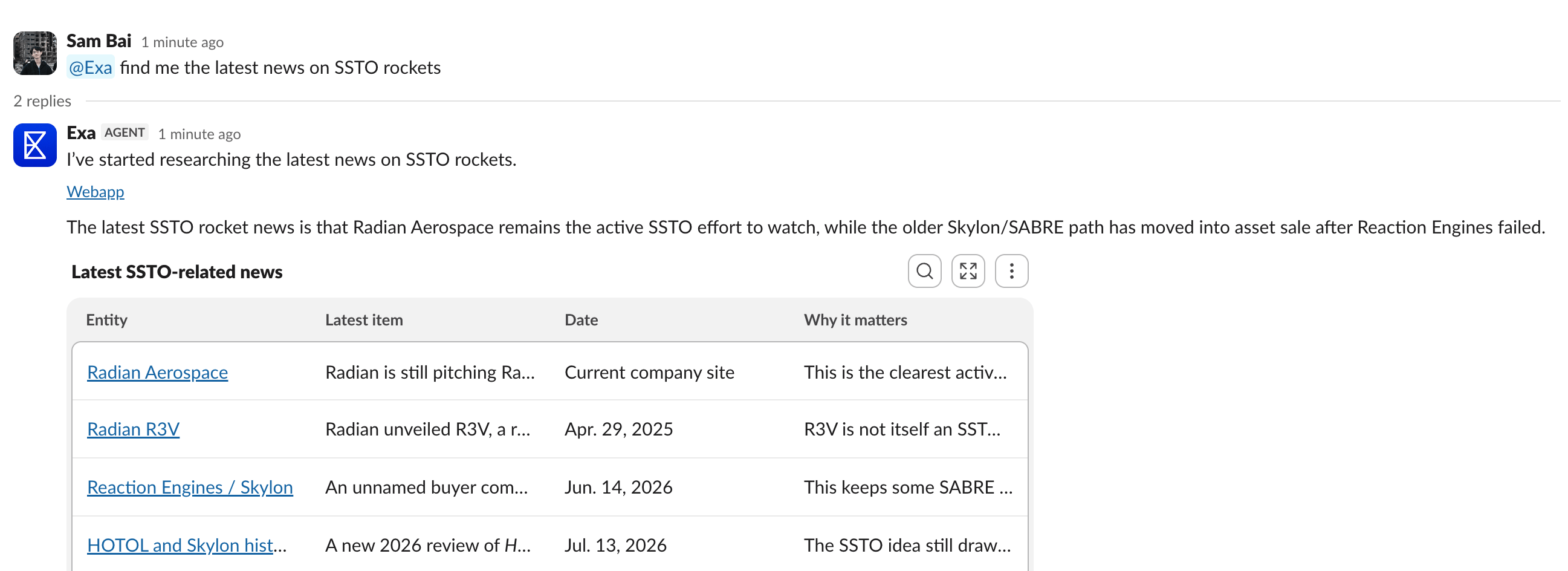
### News and current events
Learn about the latest info on anything.
The red **"App is not approved by Slack"** notice is expected and safe to ignore. It only means
Exa isn't in the public Slack Marketplace, not that anything is wrong.
3. Once installed, invite @Exa to a channel (or DM it directly) and start asking questions.
## How to use Exa from Slack
In any channel Exa has been added to, mention @Exa with your question:
```text theme={null}
@Exa find all Series A fintech startups in SF
```
Exa replies to your question in-thread.
### Follow-ups
Once Exa has answered in a thread, just reply in that thread to continue the conversation. No need to mention @Exa again. Exa remembers the conversation, so follow-ups build on the previous answer. Anyone in the thread can follow up.
### Direct messages
You can also message Exa directly in a DM. No mention is needed there at all. Each message you send starts a new request, answered in a thread under that message. Reply in the thread to continue that conversation.
### Cancelling a run
While a run is in progress, reply in the thread and ask Exa to stop the run. No mention needed.
```text theme={null}
Stop the current run
```
### Exa Connect providers
Exa automatically includes [Exa Connect](/docs/agent/connect/overview) data providers when they are relevant to your question. To use a specific provider, mention it in your message:
```text theme={null}
@Exa find me all AI infrastructure startups that raised funding this quarter using Fiber.ai
```
For a list of all available data providers, just ask Exa.
## Examples
### News and current events
Learn about the latest info on anything.
 ### Large list building
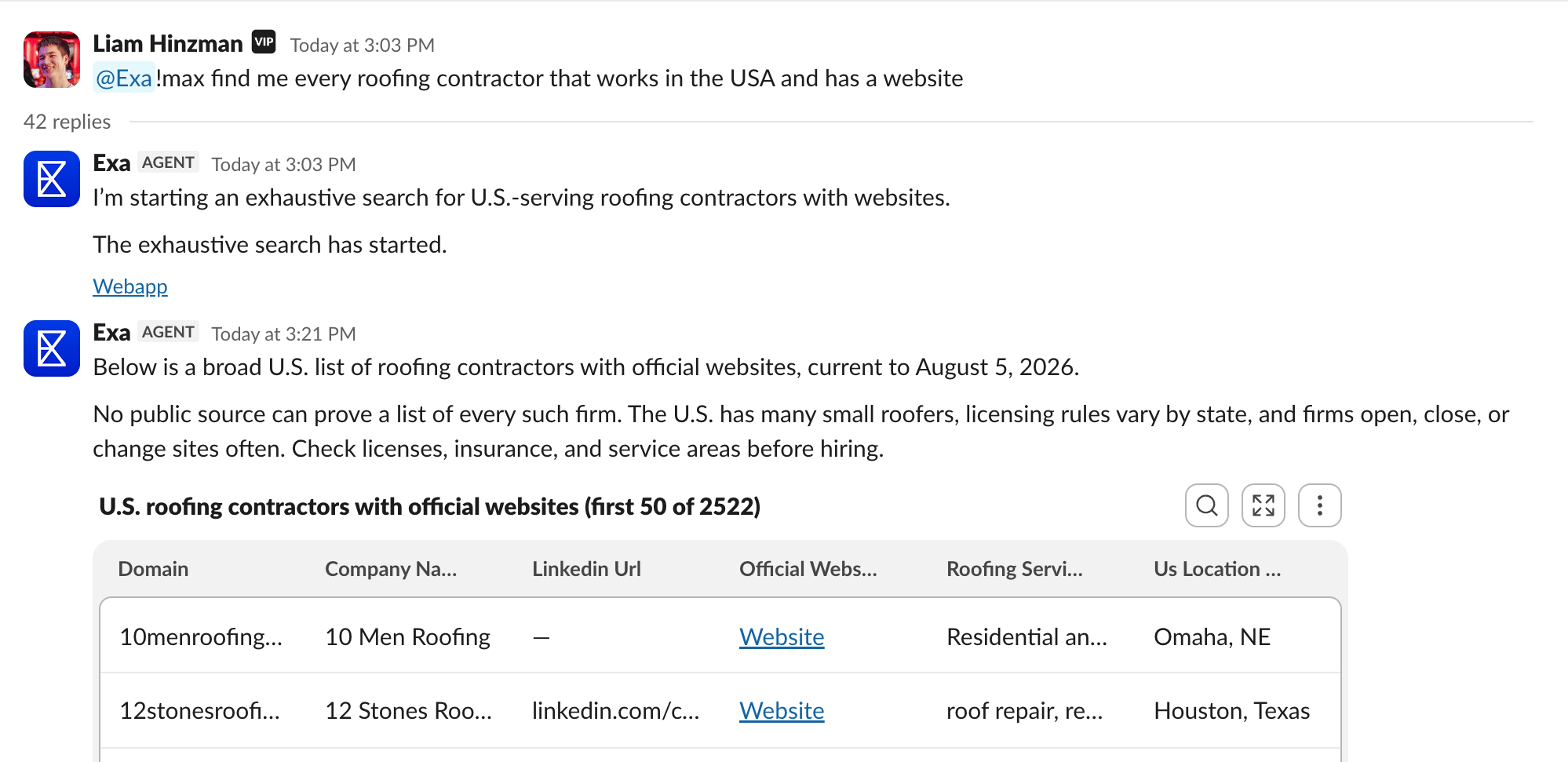
Prefix the request with `!max` for exhaustive list building.
### Large list building
Prefix the request with `!max` for exhaustive list building.
 ## Keywords
Use these in a thread Exa is in. Commands can follow an `@Exa` mention or start the message
directly:
| Keyword | Function |
| ----------------- | ---------------------------------------------------------------------------------------------------- |
| `!max ` | Runs this request at max effort, designed for building very large lists. |
| `mute` | Stops Exa from responding to un-mentioned replies in the thread. Explicit @Exa mentions still work. |
| `unmute` | Resumes thread follow-ups after a `mute`. |
| `sleep` | Stops Exa from working in the thread entirely. Mention @Exa to wake it up. |
| `aside ` | Posts a side comment that Exa ignores, useful for talking to teammates in a thread Exa is following. |
| `help` | Shows usage instructions. |
## Permissions
The Exa app for Slack requests the following scopes:
| Permission | Slack access | Why Exa needs it |
| ---------------------- | ------------------------------------------------------------------- | -------------------------------------------------------------------------------------------------- |
| `app_mentions:read` | View messages that directly mention @Exa | Start a request when someone mentions Exa in a channel or thread |
| `assistant:write` | Act as an App Agent in Slack | Use Slack's agent experience and stream answers into DMs and channel threads |
| `channels:history` | View messages in public channels Exa has been added to | Receive public-channel thread replies so follow-ups work without another mention |
| `channels:read` | View basic information about public channels | Find public channels that already contain Exa when choosing where to sync a web session |
| `chat:write` | Send messages as the Exa app | Post thread roots, answers, progress updates, confirmations, and web-synced messages |
| `chat:write.customize` | Customize an app-authored message's name and avatar | Show the web participant's name and profile image on messages synchronized from the web app |
| `files:read` | View files shared in conversations Exa has been added to | Read files attached to questions |
| `files:write` | Upload, edit, and delete files as the Exa app | Attach result files, such as exported tables, to answers |
| `groups:history` | View messages in private channels Exa has been added to | Receive private-channel thread replies so follow-ups work without another mention |
| `groups:read` | View basic information about private channels Exa has been added to | Find eligible private channels and verify membership when choosing a web-session sync destination |
| `im:history` | View messages in direct messages with Exa | Receive DM requests and follow-up replies |
| `im:write` | Start direct messages | Open a verified user's Exa DM when they choose it as a web-session sync destination |
| `users:read` | View people and their basic Slack profiles | Resolve mentions to names and use a web participant's Slack profile image on synchronized messages |
| `users:read.email` | View workspace members' email addresses | Match Slack and Exa accounts for team attribution and customized web-message profile images |
`channels:read`, `groups:read`, and `im:write` enable destination discovery for web-to-Slack sync.
Existing installations can continue using their current Slack threads without these scopes, but
must reconnect before using the corresponding destination. `chat:write.customize` is optional at
runtime: without it, web-synced messages keep the standard Exa app identity and include the
participant's name in the message body.
Exa only receives messages from channels it has been explicitly invited to and from its own DMs.
## Pricing
Runs started from Slack are billed to your Exa team. See [pricing](https://exa.ai/pricing) for details.
## Privacy
For details on how Exa handles your data, see the [Exa privacy policy](https://exa.ai/privacy-policy).
## Keywords
Use these in a thread Exa is in. Commands can follow an `@Exa` mention or start the message
directly:
| Keyword | Function |
| ----------------- | ---------------------------------------------------------------------------------------------------- |
| `!max ` | Runs this request at max effort, designed for building very large lists. |
| `mute` | Stops Exa from responding to un-mentioned replies in the thread. Explicit @Exa mentions still work. |
| `unmute` | Resumes thread follow-ups after a `mute`. |
| `sleep` | Stops Exa from working in the thread entirely. Mention @Exa to wake it up. |
| `aside ` | Posts a side comment that Exa ignores, useful for talking to teammates in a thread Exa is following. |
| `help` | Shows usage instructions. |
## Permissions
The Exa app for Slack requests the following scopes:
| Permission | Slack access | Why Exa needs it |
| ---------------------- | ------------------------------------------------------------------- | -------------------------------------------------------------------------------------------------- |
| `app_mentions:read` | View messages that directly mention @Exa | Start a request when someone mentions Exa in a channel or thread |
| `assistant:write` | Act as an App Agent in Slack | Use Slack's agent experience and stream answers into DMs and channel threads |
| `channels:history` | View messages in public channels Exa has been added to | Receive public-channel thread replies so follow-ups work without another mention |
| `channels:read` | View basic information about public channels | Find public channels that already contain Exa when choosing where to sync a web session |
| `chat:write` | Send messages as the Exa app | Post thread roots, answers, progress updates, confirmations, and web-synced messages |
| `chat:write.customize` | Customize an app-authored message's name and avatar | Show the web participant's name and profile image on messages synchronized from the web app |
| `files:read` | View files shared in conversations Exa has been added to | Read files attached to questions |
| `files:write` | Upload, edit, and delete files as the Exa app | Attach result files, such as exported tables, to answers |
| `groups:history` | View messages in private channels Exa has been added to | Receive private-channel thread replies so follow-ups work without another mention |
| `groups:read` | View basic information about private channels Exa has been added to | Find eligible private channels and verify membership when choosing a web-session sync destination |
| `im:history` | View messages in direct messages with Exa | Receive DM requests and follow-up replies |
| `im:write` | Start direct messages | Open a verified user's Exa DM when they choose it as a web-session sync destination |
| `users:read` | View people and their basic Slack profiles | Resolve mentions to names and use a web participant's Slack profile image on synchronized messages |
| `users:read.email` | View workspace members' email addresses | Match Slack and Exa accounts for team attribution and customized web-message profile images |
`channels:read`, `groups:read`, and `im:write` enable destination discovery for web-to-Slack sync.
Existing installations can continue using their current Slack threads without these scopes, but
must reconnect before using the corresponding destination. `chat:write.customize` is optional at
runtime: without it, web-synced messages keep the standard Exa app identity and include the
participant's name in the message body.
Exa only receives messages from channels it has been explicitly invited to and from its own DMs.
## Pricing
Runs started from Slack are billed to your Exa team. See [pricing](https://exa.ai/pricing) for details.
## Privacy
For details on how Exa handles your data, see the [Exa privacy policy](https://exa.ai/privacy-policy).