> ## Documentation Index
> Fetch the complete documentation index at: https://exa.ai/docs/llms.txt
> Use this file to discover all available pages before exploring further.
# Managing Your Team
> Details on Team structure and account management for the Exa platform
***
Create teams, invite members, and manage billing.
Exa organizes account usage and paid feature access through 'Teams':
Upon account creation, you're placed in a 'Personal' Team. You can use the dropdown in the top-left of the Exa dashboard shown below to create a new Team or select between other Teams you have. You can make as many Teams as you like.
## Seeing your teams
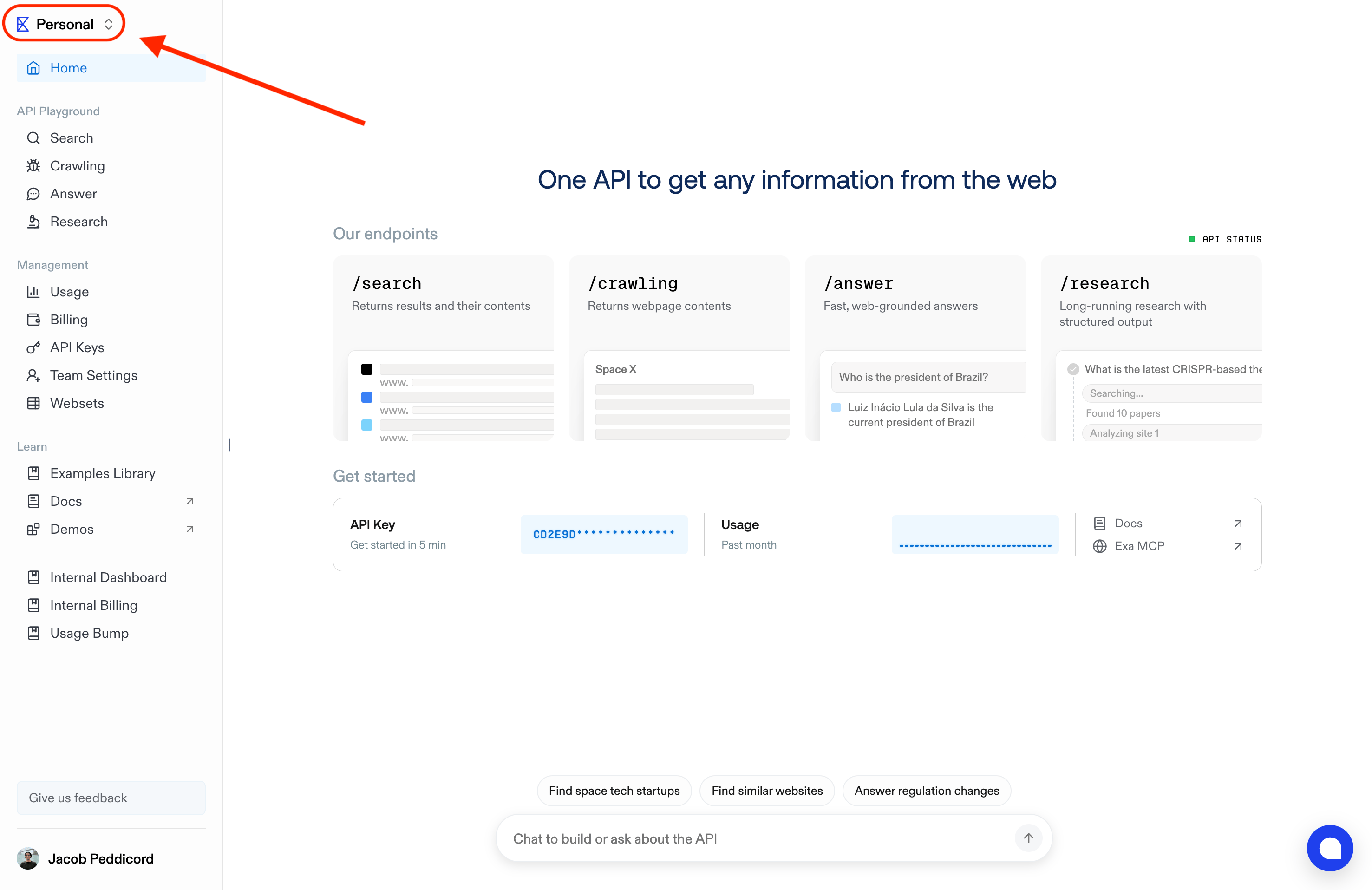 Team dropdown (top-left) within the Exa dashboard under Team settings
## Topping up a Team's balance
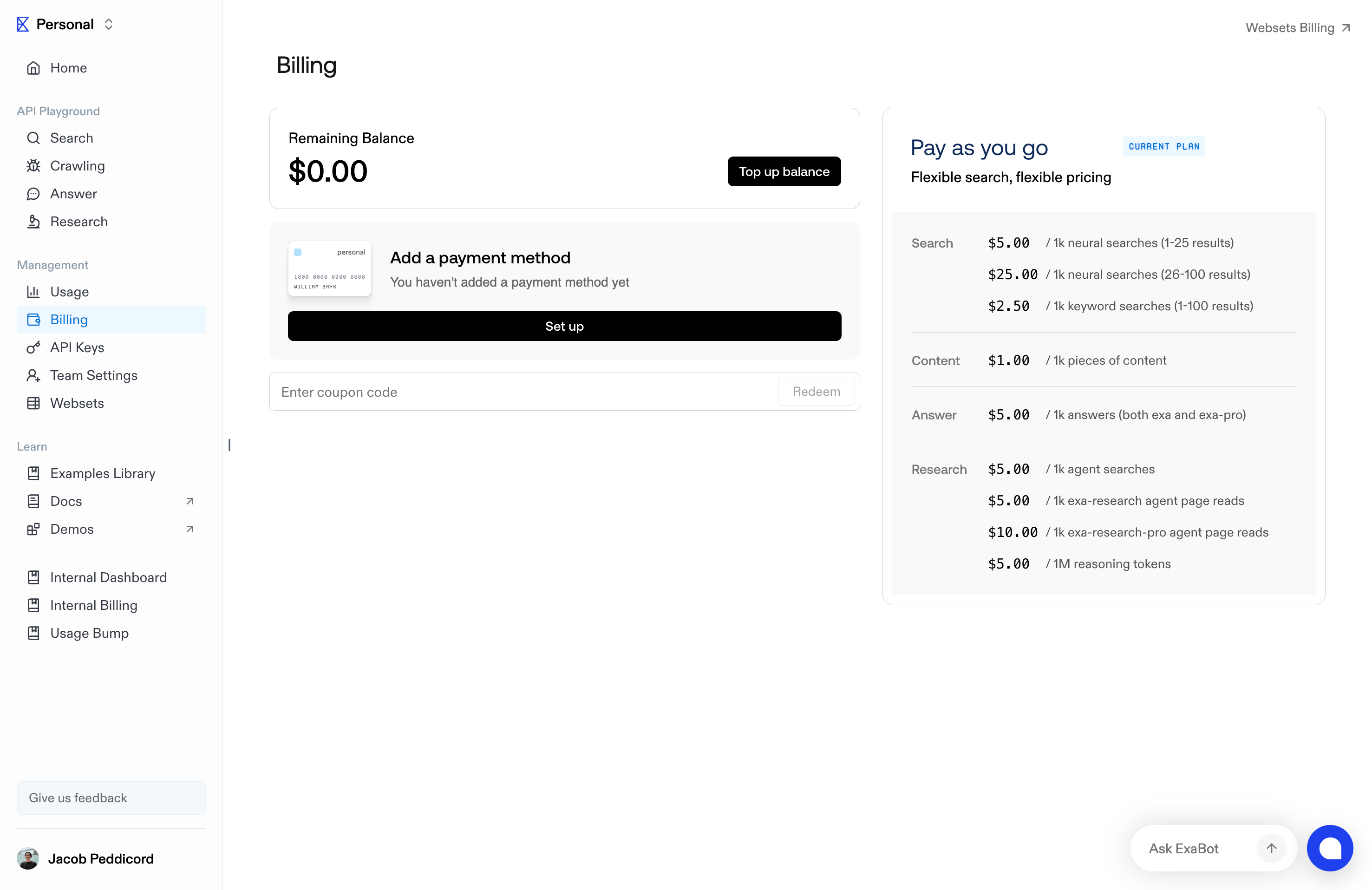
With the desired Team selected, you can top up your credit balance in the Billing page.
Team dropdown (top-left) within the Exa dashboard under Team settings
## Topping up a Team's balance
With the desired Team selected, you can top up your credit balance in the Billing page.
 ## Inviting people to your team
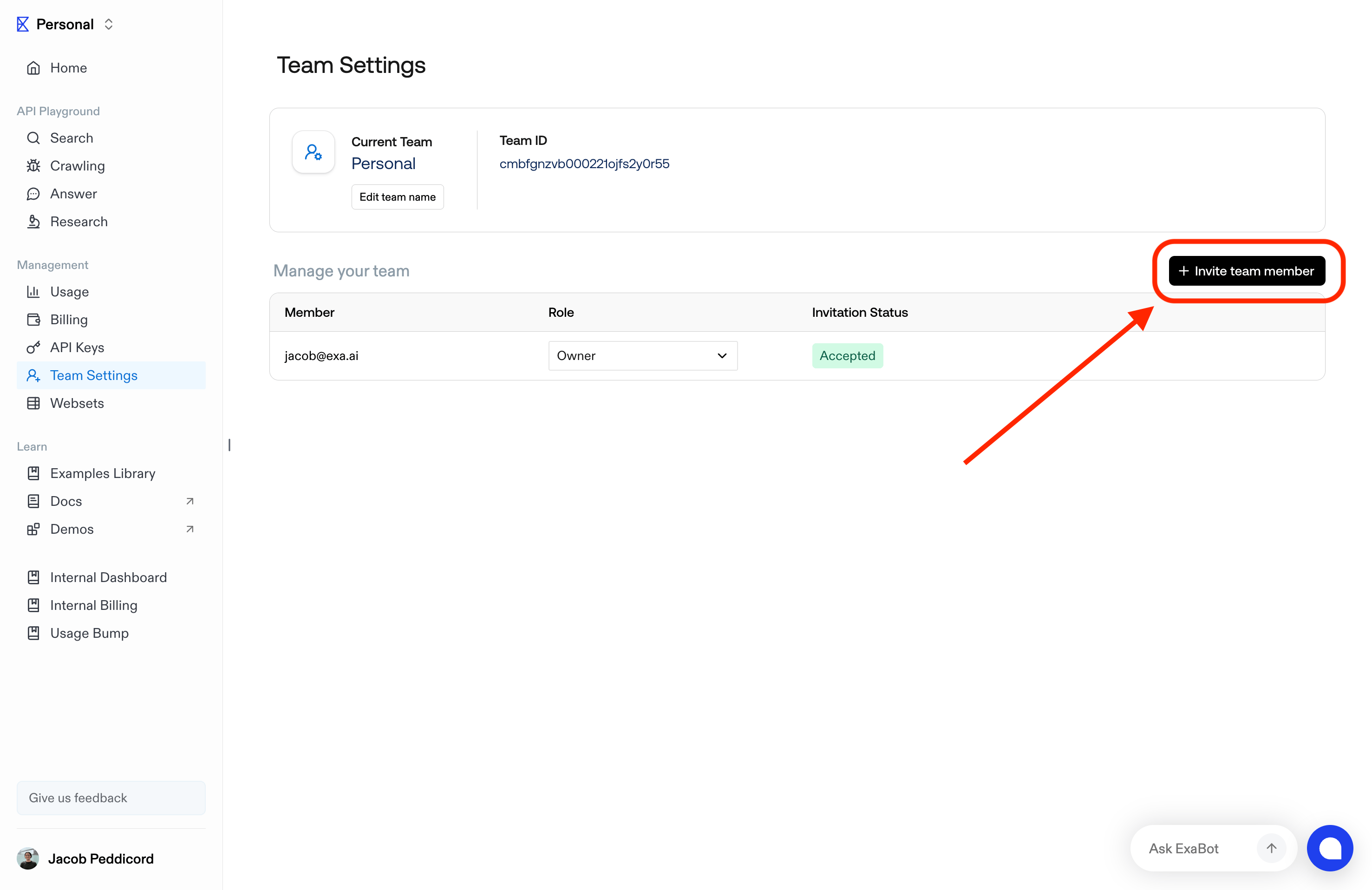
Team admins can add members via the Invite feature in Team settings.
## Inviting people to your team
Team admins can add members via the Invite feature in Team settings.
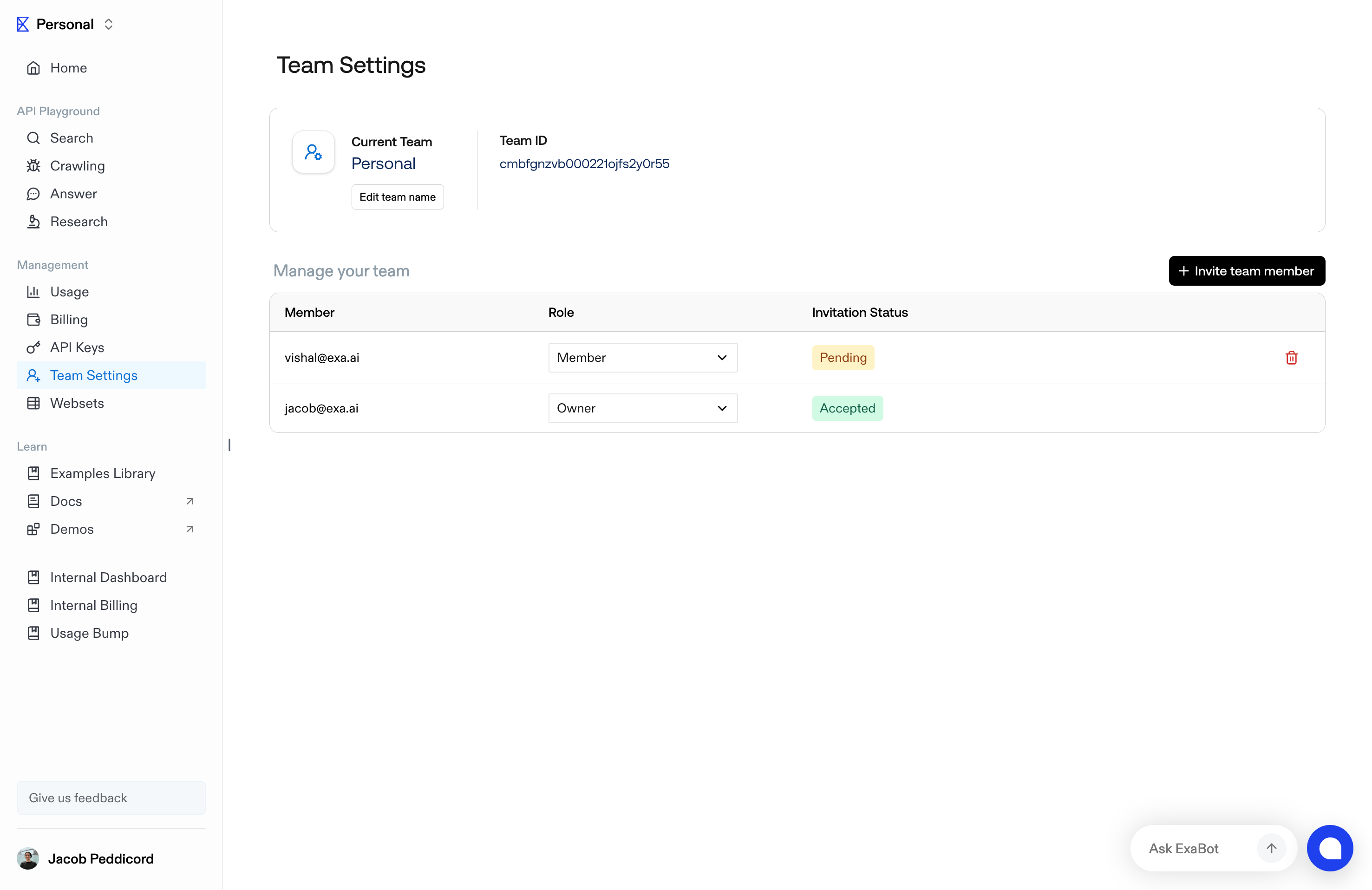
 Once a team member is invited, their status will be 'Pending' on the team management menu.
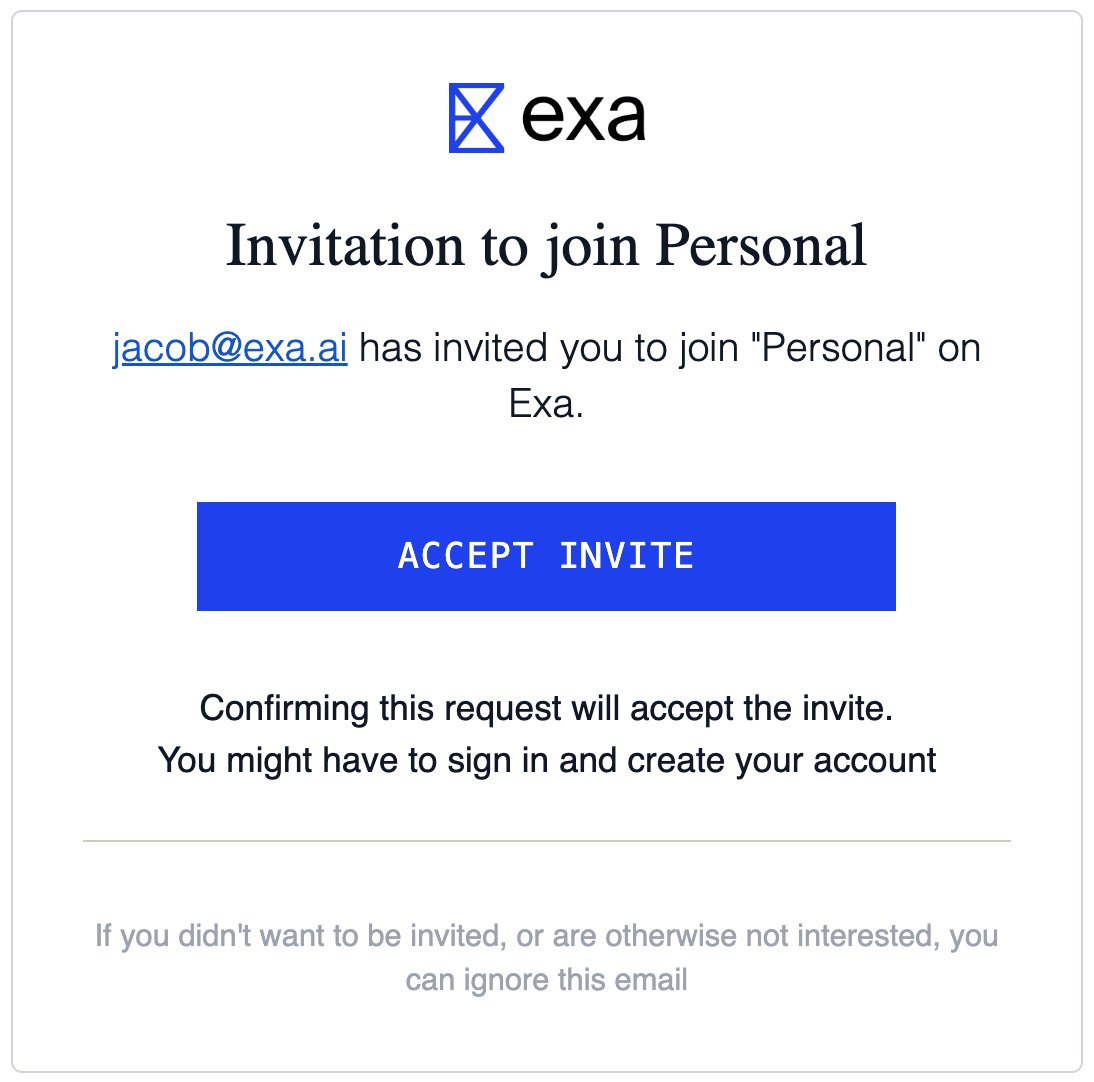
 They will receive an email inviting them to join the team.
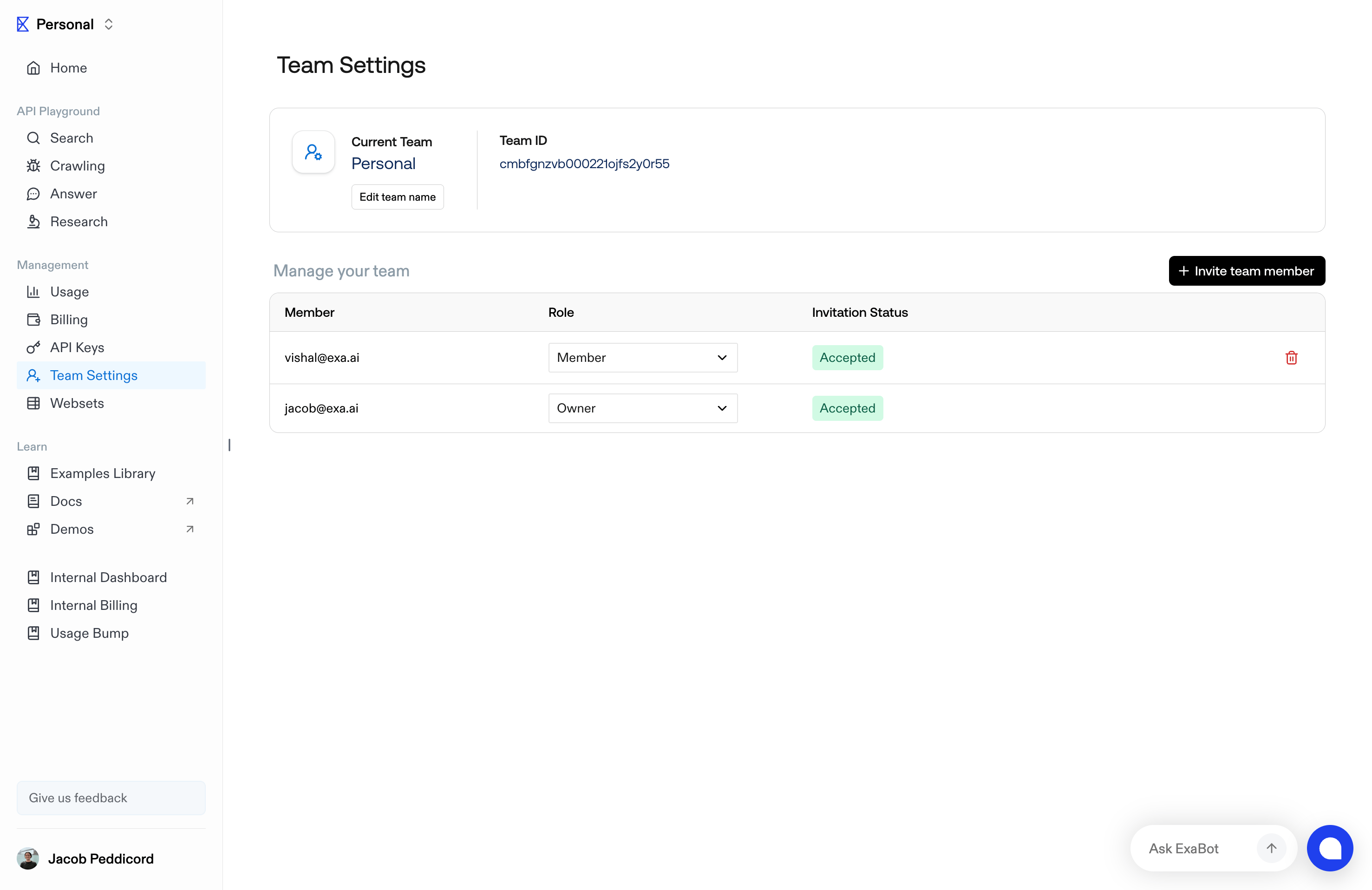
 Once accepted, you'll see both members are 'Accepted'. All Team members share the usage limits and features of their respective Team's plan.
 ## Team Management API
Create and manage API keys programmatically with the [Team Management API](/docs/reference/team-management/create-api-key).
The Team Management API is enabled per team. It authenticates with a service account API key, which is created from the **Service keys** tab on the [API keys page](https://dashboard.exa.ai/api-keys) once the feature is enabled for your team. Contact [support@exa.ai](mailto:support@exa.ai) to request access.
## Team Management API
Create and manage API keys programmatically with the [Team Management API](/docs/reference/team-management/create-api-key).
The Team Management API is enabled per team. It authenticates with a service account API key, which is created from the **Service keys** tab on the [API keys page](https://dashboard.exa.ai/api-keys) once the feature is enabled for your team. Contact [support@exa.ai](mailto:support@exa.ai) to request access.